Pearla Revela · Tutorial
Use Pearla film profiles in Revela
Set up your working color space, choose a tone mapping profile, and add film texture.
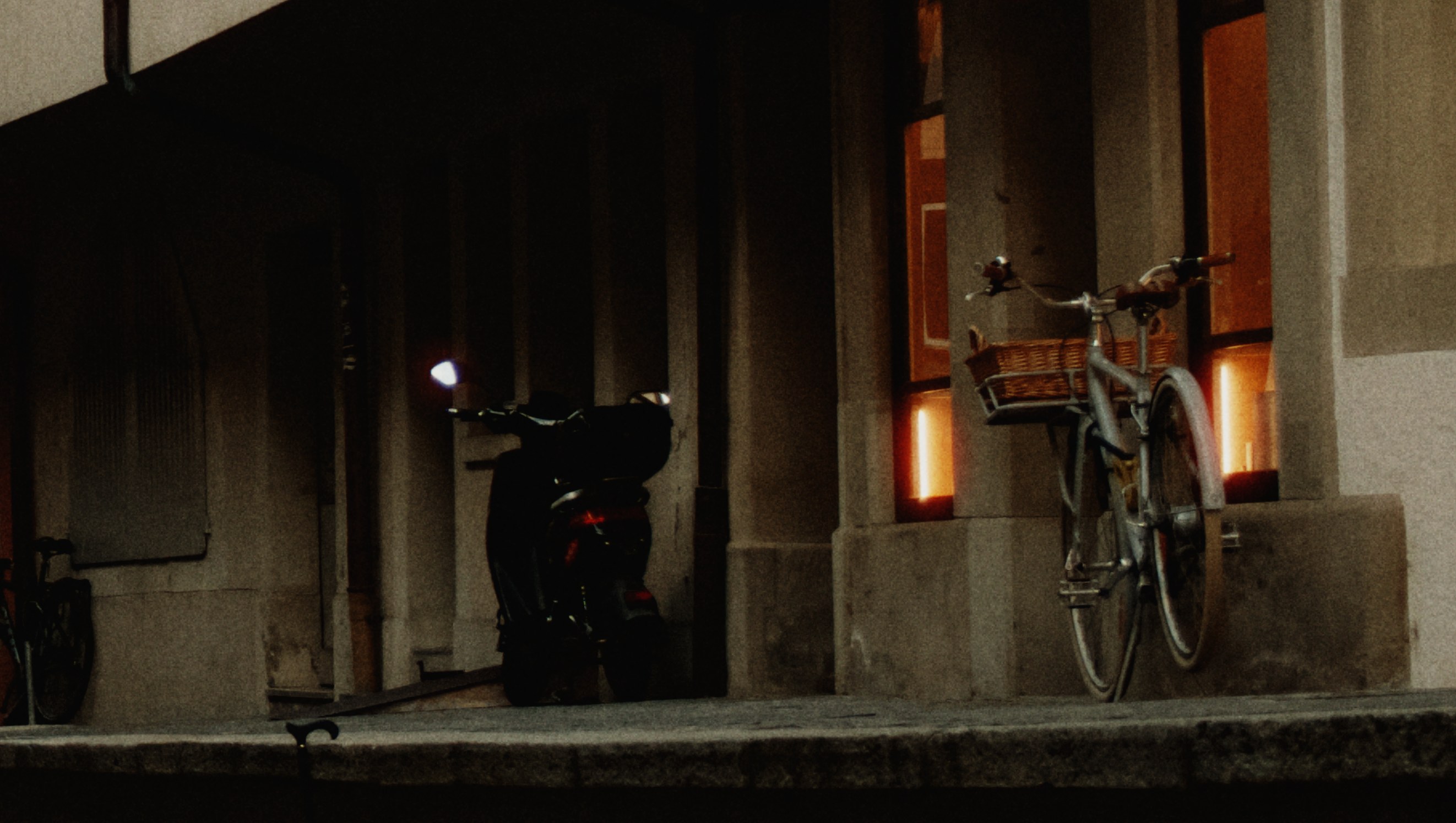
Pearla’s film profiles are tone mapping profiles. They shape the color and tone of the picture as it is rendered from a working color space, typically Pearla Wide Gamut (PWG), into a display color space.
You can choose a profile on an Output node, so tone mapping happens at the end of your adjustments. Or you can choose it on a Color Space Transform (CST) node, leaving room for adjustments after tone mapping. The Film Emulation tab adds halation, softness, diffusion and grain independently of the profile.
This tutorial walks through both approaches for an SDR deliverable, such as an sRGB still or a Rec.709 video. Use a photo or clip of your choice. Choose the source settings that match your recording and a profile that suits your picture.
1 Set up Pearla Wide Gamut as your working space
A working color space is the space in which your adjustments operate. Revela normally uses Pearla Wide Gamut before the picture is rendered for display. PWG is scene-referred: it represents the picture before the final tone mapping into a display space.
Keeping your main adjustments in PWG lets you decide how the picture will be rendered later in the graph. The display space, such as sRGB, Display P3 or Rec.709, belongs at the point where you want that rendering to happen.
Three settings have different jobs:
| Setting | What it tells Revela |
|---|---|
| Input Color Space on a video input | How the footage was recorded. It must describe the source correctly. |
| Camera Output on the input node | Which space the input sends to the following nodes. Use Pearla Wide Gamut for this workflow. |
| Output color space on an Output or CST node | Which space the picture should be converted into at that point. |
For a raw still
- Open your photo and choose View → Show Node Canvas (
⌥⌘N). - Select the RAW Input node.
- Open the Develop tab.
- In Camera Output, check that Pearla Wide Gamut is selected. It is the default.
- Adjust white balance and exposure as needed.
Leave the camera output in PWG while you build the main grade. You will choose the display space and tone mapping profile in Step 2 or Step 3.
For a video clip with a Video Input node
- Select the Video Input node and open its Video Input tab.
- Check Input Color Space against the format in which the clip was recorded. Revela reads this from the file, but missing or incorrect tags may need correcting.
- Set Camera Output to Pearla Wide Gamut.
For footage recorded in S-Log3 / S-Gamut3.Cine, select that as Input Color Space and Pearla Wide Gamut as Camera Output. For other footage, choose its actual recording space as the input. PWG is the working space you convert into.
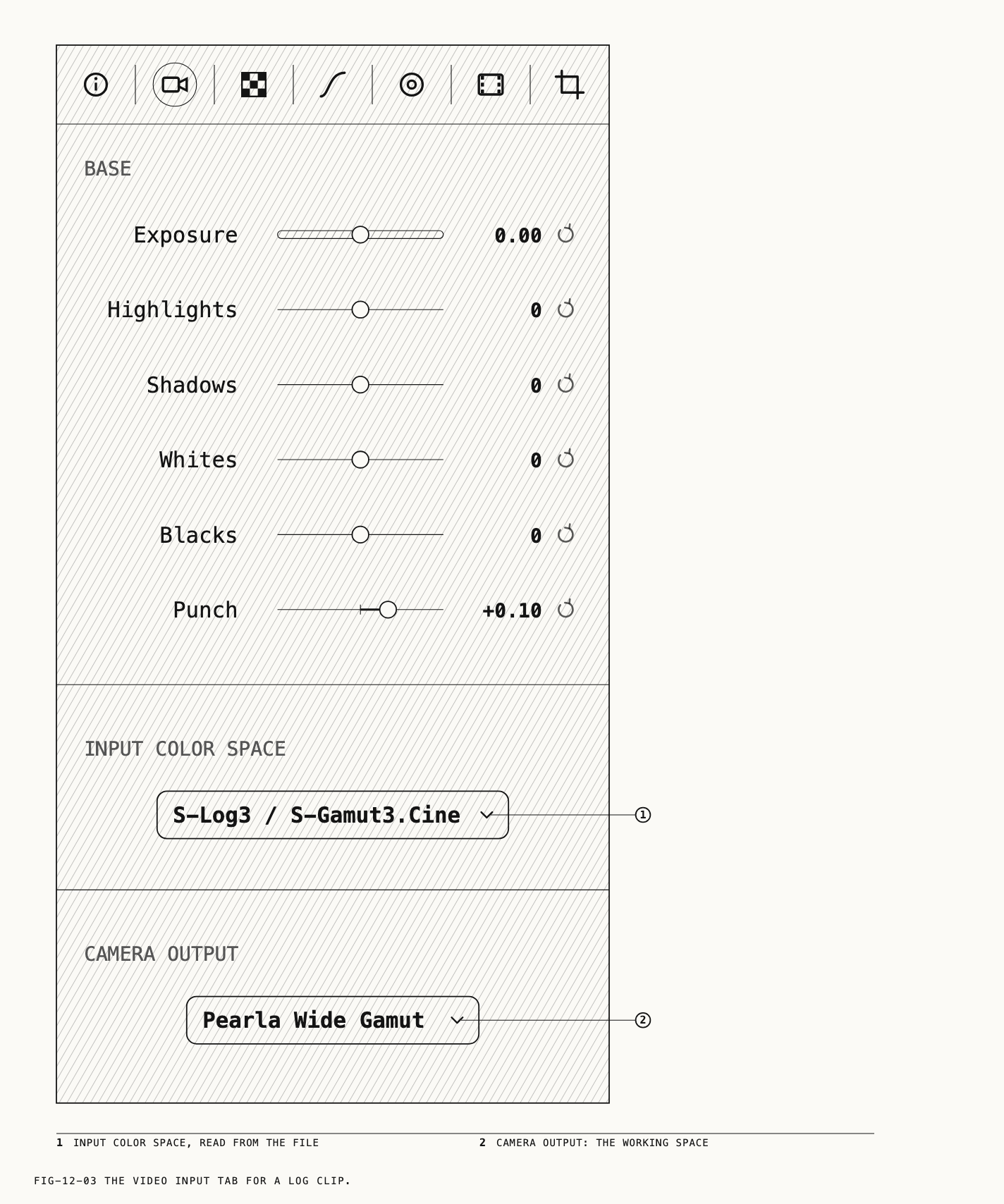
Raw clips use a RAW Input node and a Develop tab, with controls that vary by format. Where the Camera Output control is available, the same working-space principle applies.
2 Apply a tone mapping profile on the Output node
Use this approach when you want your adjustments to feed into the film rendering at the end of the branch.
The simplified flow is:
Input
→ adjustments in PWG
→ Output: Pearla tone mapping + chosen profile
→ display image
Revela’s default graph also includes a Splitter, which lets you create more output branches. You can leave it in place.
- Select the Output node and open the Output tab.
- Choose an SDR Colour space appropriate to your deliverable. Revela’s defaults are sRGB for a still and Rec.709-A (Apple) for a clip; other SDR choices include Rec.709 and Display P3.
- Set Tone mapping to Pearla.
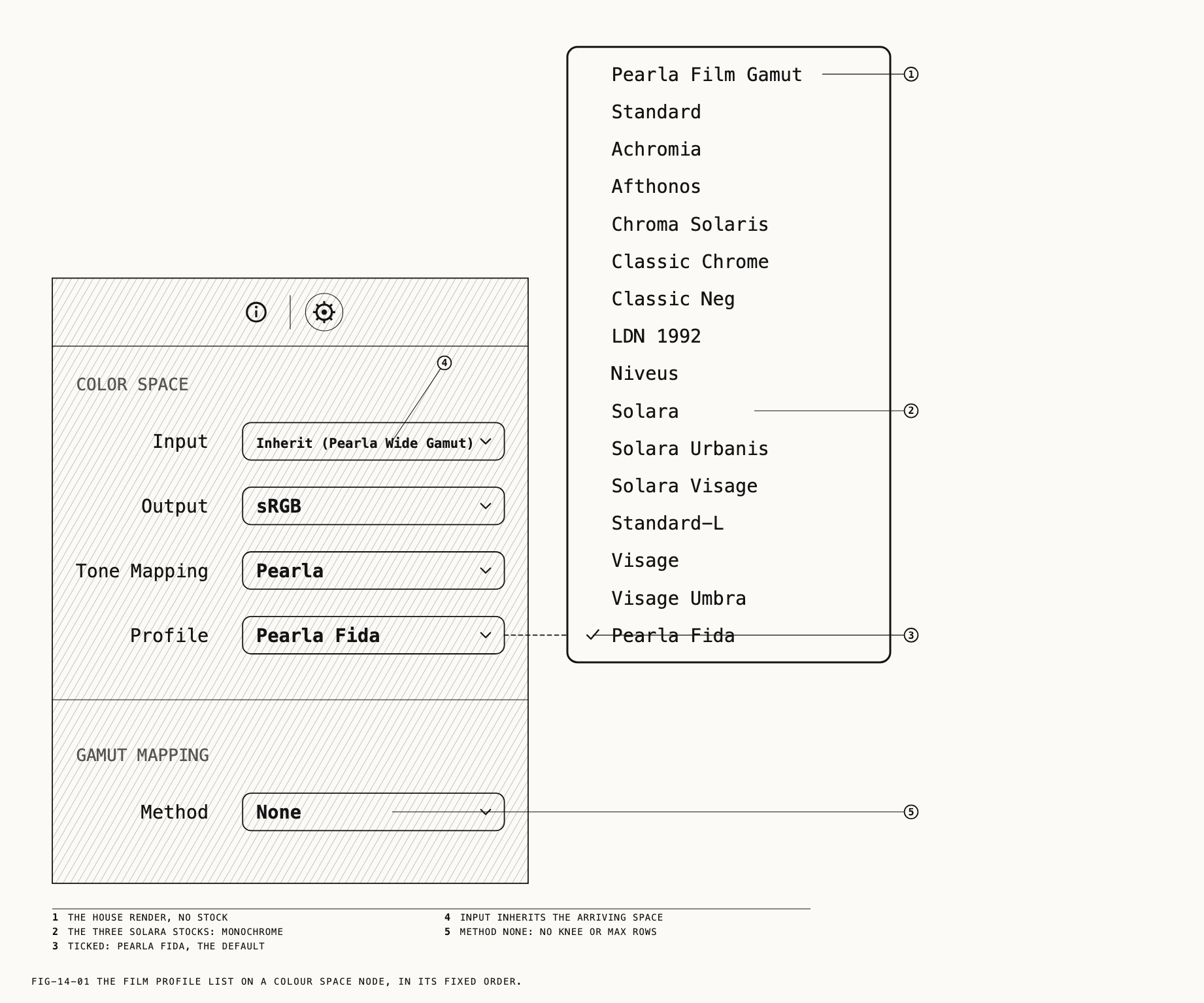
- Open Profile and choose the tone mapping profile you want to use.
- Double-click the Output node, or right-click it and choose Show in Loupe, to make sure the viewer is showing that output.
- Return to the input or an Adjustment node to refine your picture while judging the rendered result.
The profile is part of the output’s rendering. As you change exposure or color upstream, you change the picture that the profile receives.
Choosing a starting profile
Pearla Fida is the default profile on a new Output or CST node. You can keep it or compare it with other profiles in the list.
| Profile choice | Rendering |
|---|---|
| Pearla Film Gamut | Pearla’s plain house rendering, with no film stock selected. |
| Color profiles, such as Pearla Fida, Classic Chrome or Visage | Film tone mapping profiles that render in color. |
| Solara, Solara Urbanis, Solara Visage | Monochrome profiles. They render black and white regardless of the color adjustments upstream. |
Despite its name, Pearla Film Gamut is an entry in the Profile menu. Pearla Wide Gamut is the working color space selected separately.
For a useful comparison, keep your adjustments fixed while switching profiles. Look at highlight transitions, shadow separation, skin tones and saturated colors. Once you choose a profile, refine the grade with that rendering in view.
3 Use a CST when you want adjustments after tone mapping
An Output node ends its branch, so you cannot insert an Adjustment node after it. To adjust the already tone-mapped picture, perform the rendering earlier with a CST, then add an Adjustment node between the CST and the Output.
The simplified flow becomes:
Input
→ adjustments in PWG
→ CST: PWG to SDR + Pearla profile
→ finishing adjustments in SDR
→ Output
For example, you might like a profile’s rendering but want a final curve adjustment to the rendered midtones. Place that adjustment after the CST. The display space used below should match your intended deliverable; sRGB is one example for a still.
Insert and configure the CST
- Right-click the Output node and choose Insert Before → CST.
- Select the new Colour Space node. Its card body reads CST.
- Open the Node tab.
- Leave Input on Inherit and check the space shown in the row. For this workflow it should read Inherit (Pearla Wide Gamut).
- Set Output to your intended SDR display space, such as sRGB for this still-image example.
- Set Tone Mapping to Pearla.
- Choose the desired Profile. If you are moving the rendering from the Output node, select the same profile you used there.
A new CST starts with Pearla Wide Gamut as its output. Change that to the intended SDR display space for this workflow: the Tone Mapping row appears when the conversion goes from a scene-referred space, such as PWG, to an SDR display space. Profile appears when Pearla is selected.
Add the finishing adjustment
- Right-click the CST node and choose Insert After → Adjustment.
- Select the new Adjustment node and use its Curves or Colour tab for your finishing changes.
- Select the final Output node and set its color space to the same SDR space used by the CST for this walkthrough.
- Show that Output in the loupe and judge your changes there.
The adjustment now operates on the picture after the profile has rendered it into the display space. The earlier adjustments still operate in PWG.
Revela recognizes that the picture was already converted to a display space upstream. The Output’s Tone mapping row is absent in this situation. Choose and change the film tone mapping profile on the CST; the final Output handles delivery of the rendered picture.
Before or after tone mapping?
| Place the adjustment… | When you want to… |
|---|---|
| Before the CST | Change the picture fed into the tone mapping profile, for example its exposure balance or color relationships. |
| After the CST | Refine the already rendered result, for example a final curve or color adjustment. |
Changing the CST’s profile later also changes the picture arriving at your finishing adjustments. Revisit those adjustments after a substantial profile change.
The CST also offers Gamut Mapping, which controls colors outside the destination gamut. It is separate from tone mapping. You can leave its Method at None for an initial setup; Saturation Mapping draws outlying colors into the output space, while Clip cuts them off at its edge.
4 Add texture in the Film Emulation tab
The tone mapping profile and film texture are independent. You can use a profile with no grain, add grain to the plain house rendering, or combine a profile with several texture effects.
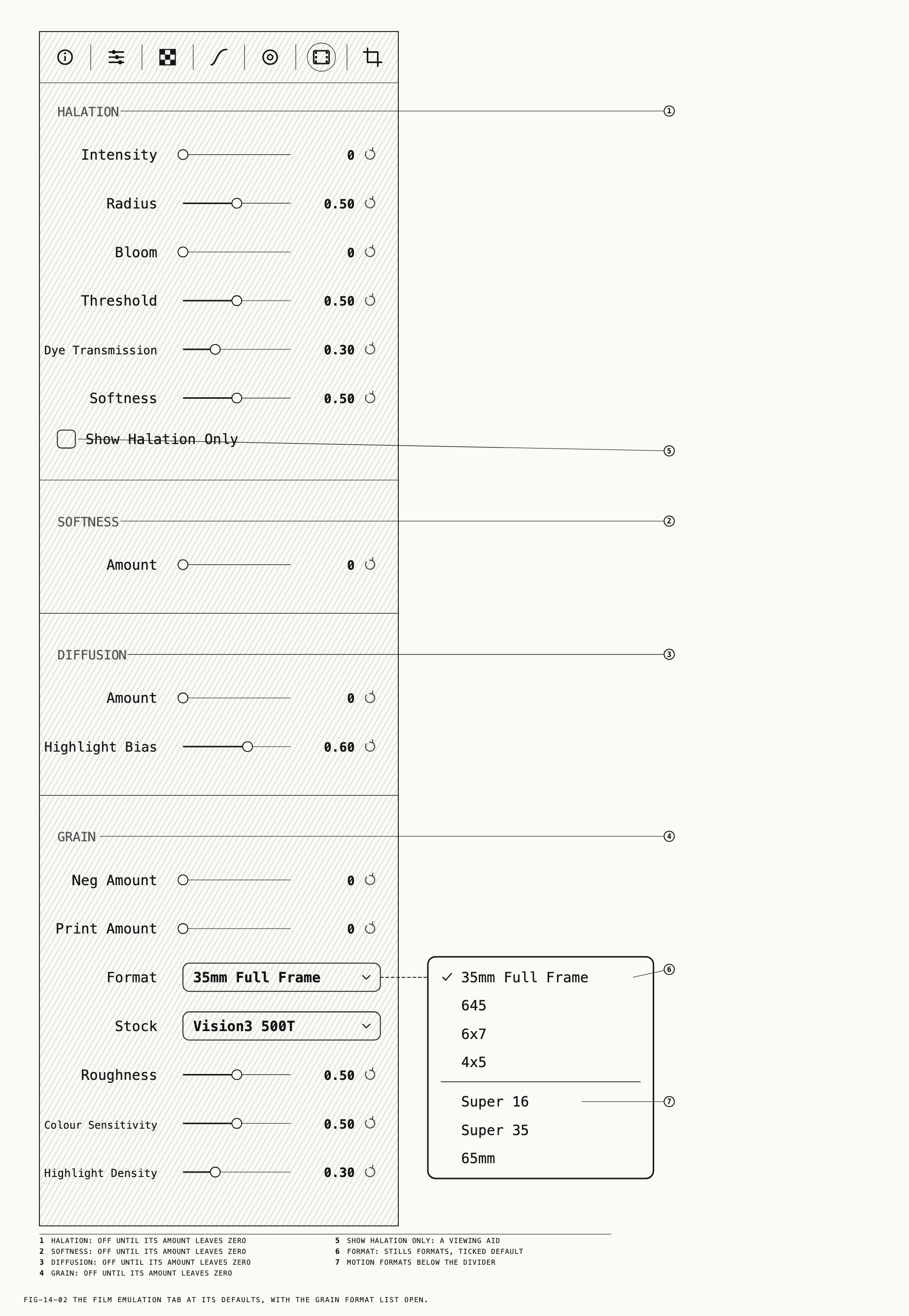
The Film Emulation tab is available on a still’s raw input, a clip’s video input and Adjustment nodes. To keep texture easy to revisit, you can put it on a dedicated Adjustment node.
- Select the input or Adjustment node where you want the effects to happen.
- Open Film Emulation.
- Start with one section, increase its amount gently, and inspect the result.
- Add other effects only as the picture needs them.
If you use the Output-node workflow, an Adjustment before that Output applies its effects before tone mapping. If you want those effects after tone mapping, use an Adjustment after the CST in the second workflow. The position in the graph determines the processing order.
Halation
Raise Intensity to enable halation. Threshold controls how bright an area must be before it contributes; Radius lets you adjust the spread. The section also offers Bloom, Dye Transmission and Softness.
Use Show Halation Only to inspect the contribution by itself. Turn it off when you finish: this viewing aid is saved with the node.
Softness
Raise Amount for a gentle reduction in the crispness of detail. Start small and check important edges and facial detail. Return Amount to zero to switch it off.
Diffusion
Raise Amount to add diffusion. Highlight Bias controls how strongly the effect favors highlights. Compare bright edges with darker detail as you adjust it.
Grain
Grain has two amounts, Neg Amount and Print Amount. Either enables grain when raised above zero, and you can mix them.
- Format controls the emulated frame size and the apparent size of the grain. Larger formats give finer grain at the same amounts.
- Stock controls grain coarseness: Vision3 50D, Vision3 250D and Vision3 500T run from finest to coarsest.
- Roughness, Colour Sensitivity and Highlight Density offer further control over the grain.
The Stock menu here selects grain character. Your film tone mapping profile remains the separate choice on the Output or CST.
Inspect grain at a useful detail view and at the intended viewing size. For video, play the clip as well: grain changes from frame to frame. On a still, the grain pattern stays the same on redraw and export.
All four effects start off. Set halation Intensity, softness Amount and diffusion Amount to zero to disable them; set both grain amounts to zero to disable grain.
5 Check and export the result
Before exporting, follow the path to the Output you will deliver:
- Check the source. Video Input Color Space should describe the actual recording; Camera Output should be PWG for these workflows.
- Find the tone mapping point. Use the Output for the first workflow, or the CST for the second. Check Pearla and your chosen Profile there.
- Check the order. Any adjustment intended to happen after tone mapping must follow the CST.
- Check the preview. Double-click the intended Output to show it in the loupe. Selecting an Output once does not necessarily switch the viewer to it.
- Check texture. Turn off Show Halation Only and review grain, softness and diffusion at the intended viewing size.
- Export. Select the Output, confirm the file format and size, then use Export… on its Output tab.
If a control is missing or the result surprises you
| What you see | What to check |
|---|---|
| No Profile menu on the CST | Its conversion must go from a scene-referred space, such as PWG, to an SDR display space, with Tone Mapping → Pearla selected. |
| No Tone mapping row on the Output | An earlier node may already have converted the picture to a display space. In the CST workflow, this is expected. |
| A log clip looks unexpectedly flat or wrong | Check the Video Input’s source color space against the actual recording before changing the creative settings. |
| The picture is black and white | Check whether a Solara profile is selected. These profiles render monochrome even with color adjustments upstream. |
| Selecting a profile adds no grain | Add grain separately in Film Emulation. The profile and texture controls are independent. |
| Only a glow is visible | Turn off Show Halation Only on the node where it is enabled. |
| An adjustment seems to do nothing | Confirm that its node feeds the Output currently shown in the loupe and that the node is enabled. |