Pearla Verana · Tutorial
Send captures from Verana to Revela
A step-by-step guide to connecting Pearla Verana to a Pearla Revela repository, sending captures to it, and opening them on your Mac.
Shoot on your iPhone, then pick up the originals in Pearla Revela on your Mac. Verana sends PearlaRAW stills and clips, DNG stills and movies into a Revela repository, and Revela finds them there. The captures stay in Verana’s library, keep their place in the grid, and still open and edit on the iPhone.
Follow these steps with a repository name of your choice. The illustrations use Field Drive as an example repository on an external drive, and Maya Cloud as one on iCloud Drive. These names are only examples; the same process works for a repository on a network share.
Before you begin: what goes where?
There are three parts to the setup:
| Part | What it does |
|---|---|
| Verana’s library | Keeps your captures on the iPhone, with their thumbnails, previews and edits. A capture sent to a repository stays listed here. |
| Repository | A folder Revela makes to hold originals, in a place both the iPhone and the Mac can reach. Verana sends into it. |
| Revela’s catalog | Keeps track of folders, edits and ratings on the Mac. It connects to the repository and adds the folder Verana sends to. |
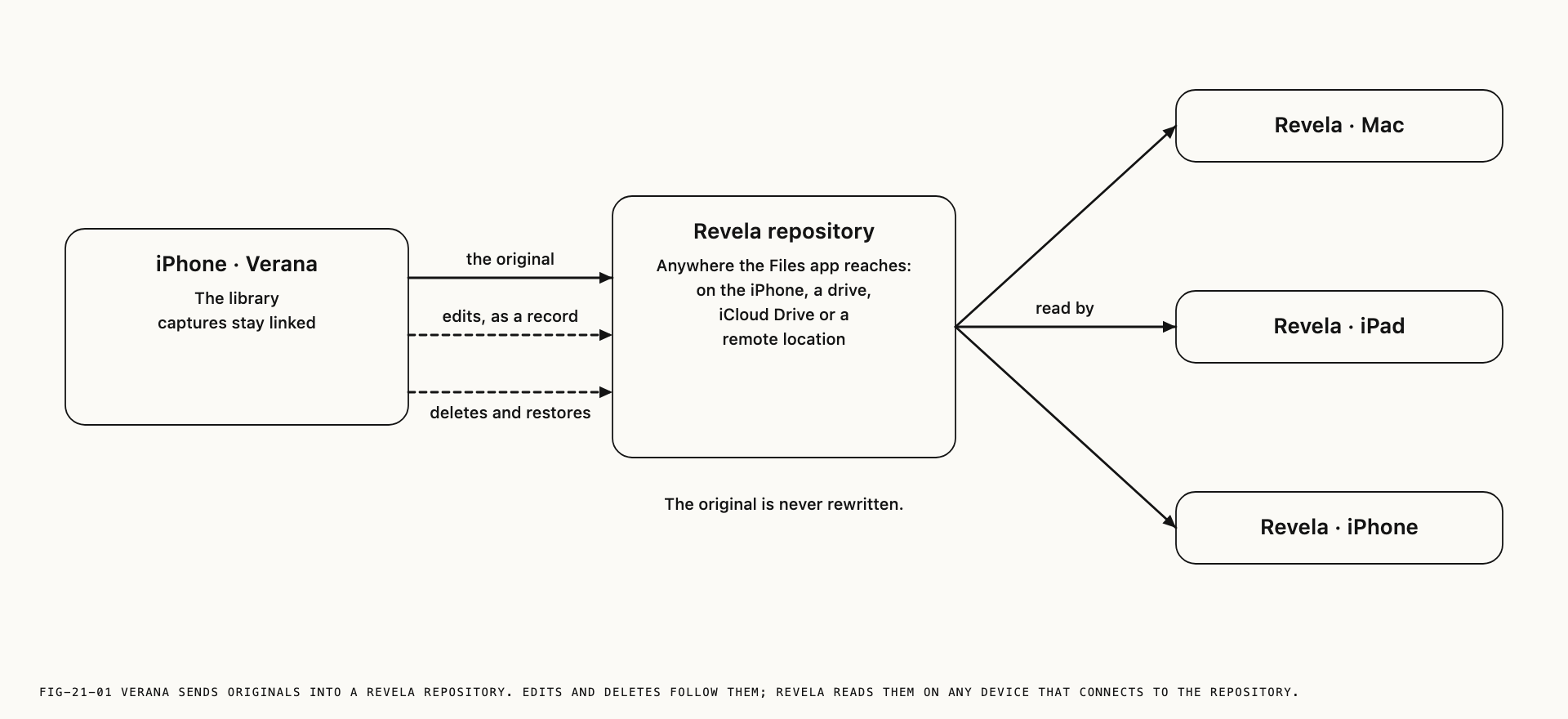
Two things decide what Verana can send:
- The capture’s form. PearlaRAW stills and clips, DNG stills and movies recorded in Verana go. HEIC and JPEG photos stay on the iPhone, and so do burst and interval stacks.
- The repository’s place. It must be somewhere the Files app on your iPhone can open: iCloud Drive, a drive connected to the iPhone, or a network location added in Files. A drive must be Mac-formatted (APFS); Verana refuses exFAT.
Have Revela open with a catalog on your Mac, and the Files app set up to reach the place you plan to use.
1 Choose a place both devices can reach
A repository can live in:
- iCloud Drive, available on both devices once you are signed in to the same account. Uploads from the iPhone follow iCloud’s own rules for Wi-Fi and battery.
- An external drive that you connect to the Mac to create the repository, then to the iPhone to send. Use an APFS-formatted drive; both apps refuse drives formatted for Mac and Windows.
- A network share that the Mac can mount and that you have added in the Files app on the iPhone.
Choose the location that suits how you work, and make sure it has room for the captures you plan to send. Anyone who can open that location can see the repository’s contents, and anyone who can change it can connect a catalog and make changes. The repository has no separate access controls.
2 Create the repository in Revela
Verana sends into repositories but does not make them. On the Mac:
- Choose Catalogue → Repositories.
- Click New Repository….
- In Name, enter a name of your choice for the repository.
- Beside Kept on, click Choose… and select the location you chose in Step 1.
- Click Create.
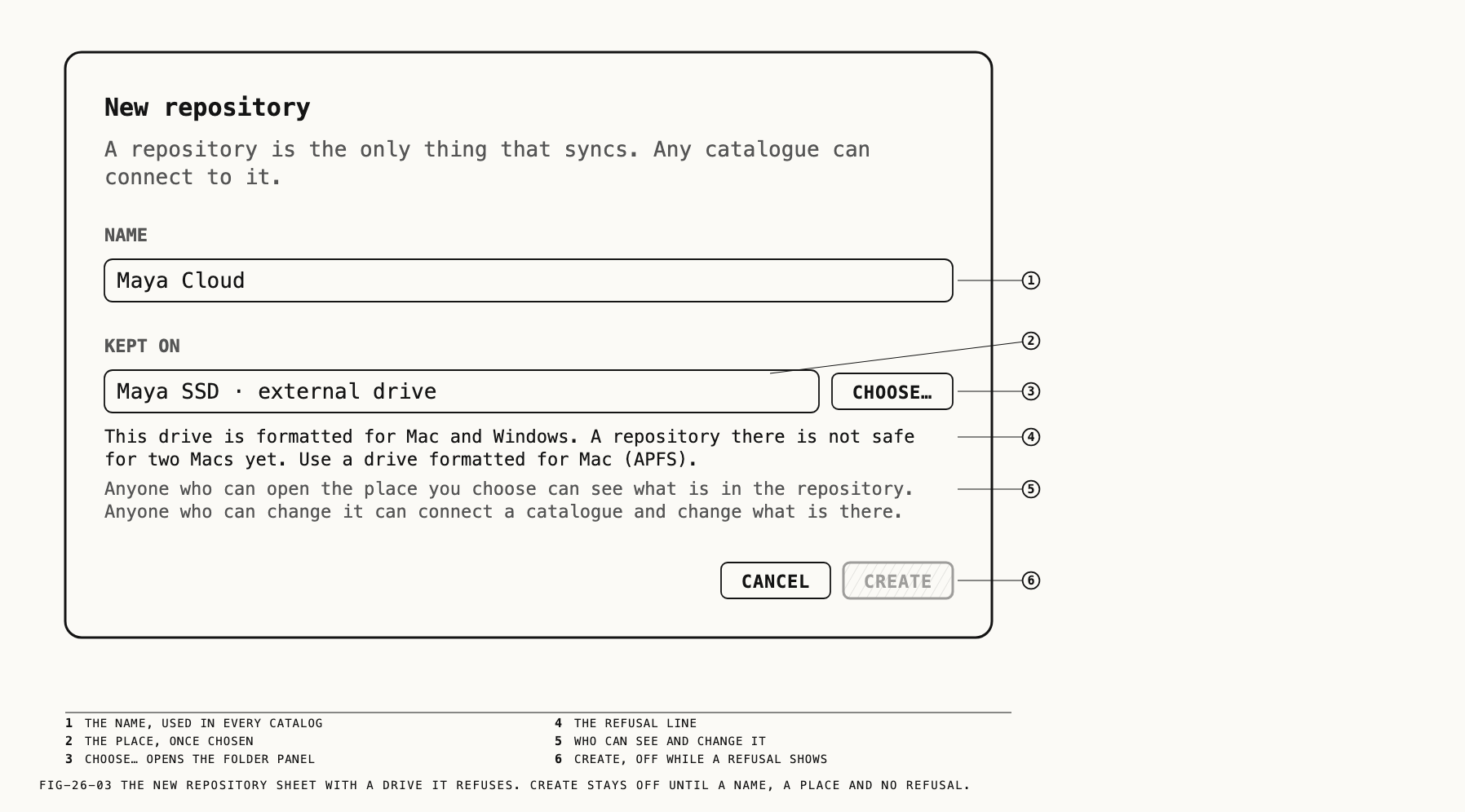
Revela creates a folder with your chosen repository name inside that location. Leave its contents to Revela; you do not need to put anything in it from Finder or Files.
3 Add the repository in Verana
You add a repository to Verana once. After that it is offered wherever Verana sends.
- Open Verana and go to Settings → System → Repositories.
- Tap Add Repository…. The Files picker opens.
- Find the location from Step 1 and select the repository’s folder itself: the one with the name you entered in Step 2, rather than its parent.
Verana checks the folder before accepting it. Once accepted, the repository is listed by name with a state line beneath it that says where it is, whether it can be reached and, on a drive, how much space is free. iCloud Drive does not report free space to other apps, so no figure is shown for it.
If Verana turns the folder down, it says why in one sentence:
| What Verana says | What to do |
|---|---|
| The folder … has no repository in it | You picked the wrong folder. Select the folder that carries the repository’s name, or go back to Revela and create one in this location. |
| … is formatted exFAT. Revela repositories need APFS | Format the drive on your Mac as APFS, then create the repository again. |
| This repository was made by a newer Revela | Update Verana, then add the repository again. |
You can also reach Add Repository… from the foot of the repository list in the send sheet, which Step 4 covers.
4 Send a selection
A send starts from a selection in the library. For a first run, a few captures make it easy to follow.
- Open the media library and tap Select.
- Tap the captures you want to send, or drag across a range.
- Tap Export in the bar at the foot of the screen.
- Under Destination, choose Repository. The form is fixed at Master, since a repository holds the capture as recorded.
- Tap Continue.
Three steps follow on one sheet. Back returns to the step before.
- The repository. Choose the repository you added in Step 3. A repository that cannot be reached is dimmed and can still be chosen; the send waits for it.
- The folder. Choose where in the repository the captures go. Captures is Verana’s own folder and comes first, reading Verana will make this folder until the first send makes it. Folders you have put in the repository from Revela are listed after it. A folder closed in Revela is dimmed and cannot be chosen.
- Copy or move. Choose Copy · keep here too for this first send. The button reads Send with the number of items.
Where part of the selection cannot go, the footnote counts it and says why, and the button carries the number that will go. A capture whose original is already in a repository is counted the same way.
5 Follow the send
While captures are going, a status line sits under the filter pills in the library. It counts the send as it runs, with Pause and Resume, and says when the repository cannot be reached. Tap the line to open the queue, where each capture shows its progress and can be cancelled until it has reached the repository.
Verana keeps the screen awake while it sends. If you leave the app or the repository goes away, the send carries on from where it stopped the next time it can.
Each thumbnail carries a mark at its top left:
| Mark | What it means |
|---|---|
| No mark | On this iPhone only |
| A filled cloud | Copied: on this iPhone and in a repository |
| A turning ring | Being sent now |
| WAITING | In the queue. The repository is away, or earlier captures go first |
| The repository’s name, on blue | Moved: the original is in the repository and not on this iPhone |
| OFFLINE, on gray | Moved, and the repository cannot be reached now |
| !, on amber | Something needs you. Open the capture to read what |
6 Add the Captures folder in Revela
The first send makes the Captures folder in the repository. Revela does not add folders by itself, so add it once on the Mac. If you are using a drive, connect it back to the Mac first; with iCloud Drive, allow time for the files to arrive.
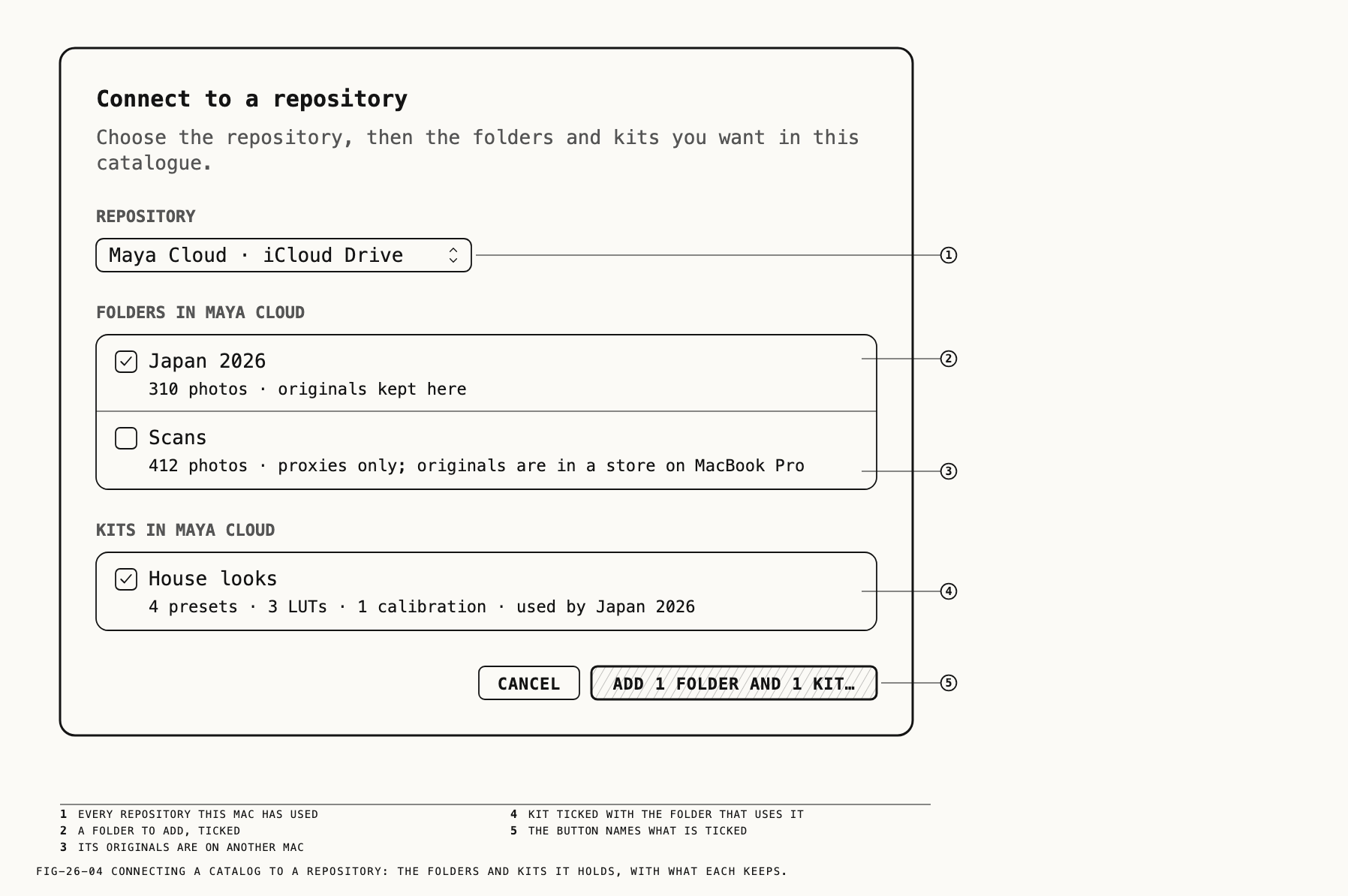
- In Revela, choose Catalogue → Repositories → Connect to a Repository….
- In the Repository menu, choose the repository you created in Step 2.
- Tick Captures.
- Click Add 1 Folder….
- In the Add dialog, choose how much this Mac keeps under Originals in this catalogue, then click Add. All originals suits a Mac that will do the editing; Proxies now, originals when I edit a photo keeps downloads to what you open.
From now on, each send from the iPhone to Captures arrives on the Mac at its next sync. Use Sync Now in the Repositories sheet to fetch straight away. Edits you make in Verana travel alongside the original as a record, and the capture as shot stays as it was. A capture you delete in Verana is deleted in every catalog, and sits in Recently Deleted for 30 days on both sides before it is erased.
If you later put a folder of your own in the repository from Revela, Verana offers it as a destination too: Verana lists every folder in the repository, with how many photos it holds. You can send straight into a project folder instead of Captures.
7 Send every new capture automatically
Once the first send works, Verana can send each capture as soon as it is saved. Stills and clips are set separately, so photos can go automatically while clips are sent by hand.
- Go to Settings → Camera → Photo.
- Under Send to Repository, choose Copy or Move.
- If no destination is set yet, the repository and folder steps of the send sheet open. Choose them and tap Done.
- Repeat on Settings → Camera → Video if clips should go too.
Only captures made after the setting is turned on are sent; what is already in the library stays where it is, and the status line counts it. A clip recorded to a Files folder rather than the library is not sent.
Choose Move here with care: each new capture leaves the iPhone once the repository has verified it, so on a shoot with the drive disconnected the captures wait as WAITING until the drive returns. Copy is the safer habit until you know how you want to work.
8 Free space on the iPhone
A copied capture can be turned into a moved one later, once its original is safely in the repository.
- In the library, tap Select and select copied captures: ones with a filled cloud.
- Tap Delete. Because these originals are in a repository, Verana asks which you mean.
- Choose Remove from this iPhone….
- Read the sheet. It names the repository and folder that keep the originals, says that thumbnails, previews and edits stay, and shows how much space it frees.
- Confirm.
Verana reads each capture back from the repository at the moment it removes it. A capture the repository does not hold exactly as written stays on the iPhone, marked amber. The same command is available from the menu of an open capture.
A moved capture still opens from the library. While the repository can be reached, a still or a PearlaRAW clip opens into Revela Lite, read from the repository. When it cannot be reached, the capture opens on its preview, headed Offline, with a line naming what to connect.
If something does not look right
| What you see | What to do |
|---|---|
| The folder … has no repository in it when adding | Select the repository folder itself, identified by the name you gave it in Revela, rather than its parent. |
| Repository is dimmed in the send sheet | The repository cannot be reached. You can still choose it; the send waits and finishes once it is back. |
| A folder is dimmed in the folder step | It was closed in Revela and no longer takes photos. Choose another folder, or reopen it in Revela. |
| The footnote under Copy or Move is amber | The send cannot go yet. A move to iCloud Drive needs room on the iPhone for the largest capture while it copies; a send larger than a drive’s free space is refused. Send fewer captures, or copy instead of move. |
| WAITING on thumbnails that do not change | The repository is away, or earlier captures go first. Reconnect the drive or share and the send carries on. |
| OFFLINE on a moved capture | Its repository cannot be reached now. Reconnect it; the capture opens on its preview until then. |
| ! on amber | Open the capture to read the reason: the repository did not read it back as written, the drive is nearly full, the write was refused, or the folder was closed in Revela. |
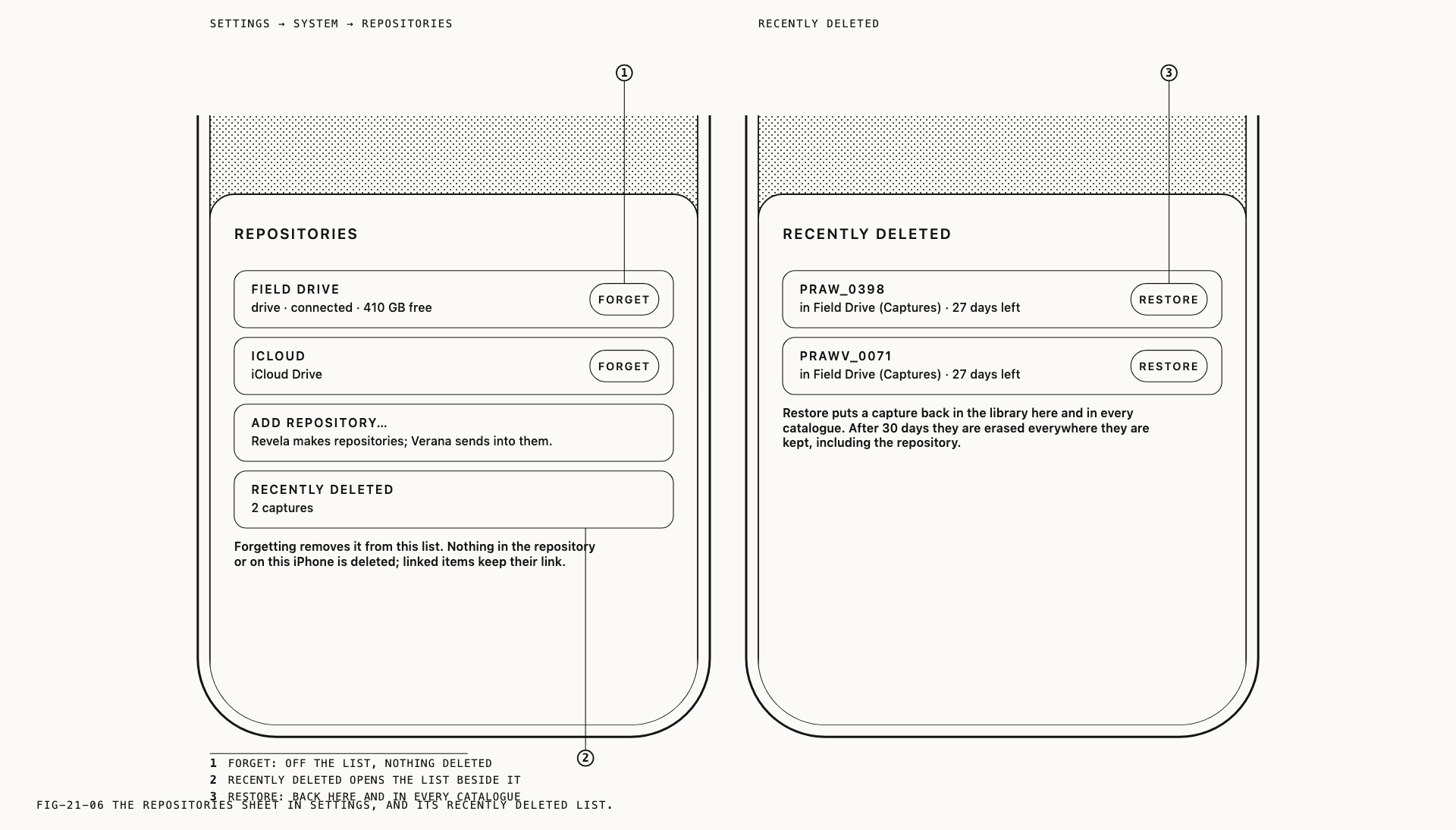
| This repository was forgotten on this iPhone | It was removed under Settings → System → Repositories. Add it again there and the send carries on. |
| Captures is missing in Revela’s Connect sheet | The first send has not reached the repository yet. With a drive, connect it to the Mac; with iCloud Drive, allow time for the upload, then open the sheet again. |
| A capture you sent is not in Revela yet | Click Sync Now in Catalogue → Repositories. Revela checks for changes on its own, but a sync pauses on battery, in Low Power Mode and on limited networks. |
Take care when deleting
Deleting a capture that is in a repository deletes it everywhere, not only on the iPhone. Verana uses Revela’s own sheet for it, and the button reads Delete in Every Catalogue. The capture goes to Recently Deleted on both sides for 30 days, where Restore puts it back in the library here and in every catalog. After 30 days it is erased everywhere, the repository included.
To take a capture off the iPhone while keeping it in the repository, use Remove from this iPhone… from Step 8 instead of Delete.
Forget, in Settings → System → Repositories, only takes a repository off the iPhone’s list. Nothing in the repository or on the iPhone is deleted, and the marks on its captures stay. A send waiting for a forgotten repository does not go until you add the repository again.