Every edit in Revela is a node. Developing a raw file, a curve, a color change, a film stock, a mask, a retouch, a crop and a deliverable are each a step in a chain that runs from the original to one or more outputs. The chain is the editing graph. It is drawn on the node canvas as cards joined by wires, and it is saved with the asset in the catalog.
The inspector shows the tabs of whichever node is selected. Select the input node and the inspector offers the Develop tab; select an adjustment and it offers the Curves, Colour, Film Emulation and the rest; select an output and it offers the Output tab. Chapters 12 to 24 describe those tabs. This chapter describes the graph they sit on.
11.1 Opening the Canvas
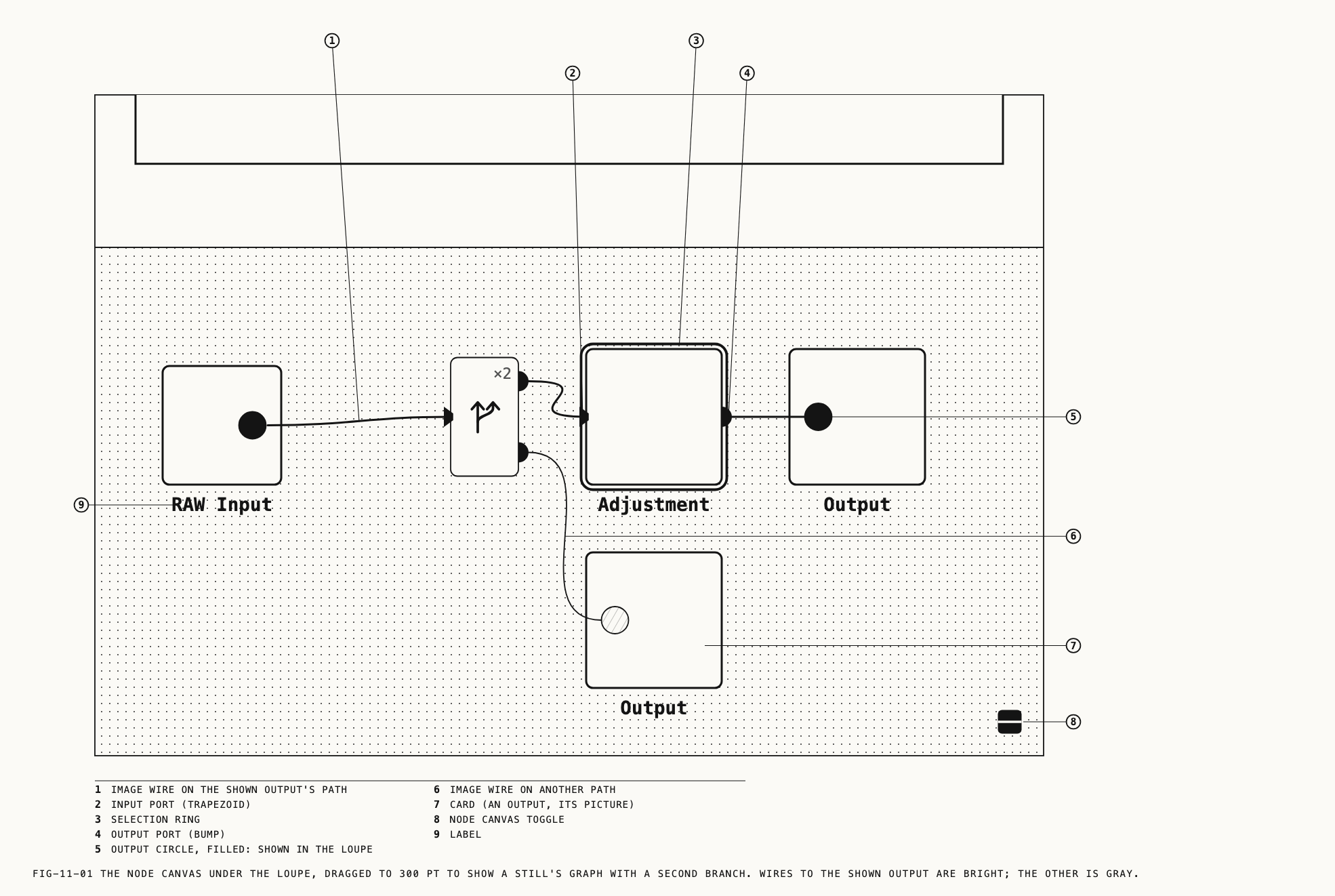
Where to find it: View → Show Node Canvas (⌥⌘N), or the split-square button at the bottom-right corner of the loupe.
The node canvas is a pane under the loupe. It is closed on a fresh install. The button
(tooltip Toggle Node Graph) and the menu item open and close it; the menu item reads
Hide Node Canvas while the canvas is open. Revela remembers the canvas height between launches.
Two-finger scroll pans the canvas. Pinch, a two-finger double tap or ⌘ with a scroll zooms about the pointer.
Note: While a reference is being viewed (Chapter 8) the canvas is closed, the button is disabled and the menu item does nothing. The canvas returns to its previous state when the reference is dismissed.
11.2 Reading a Card
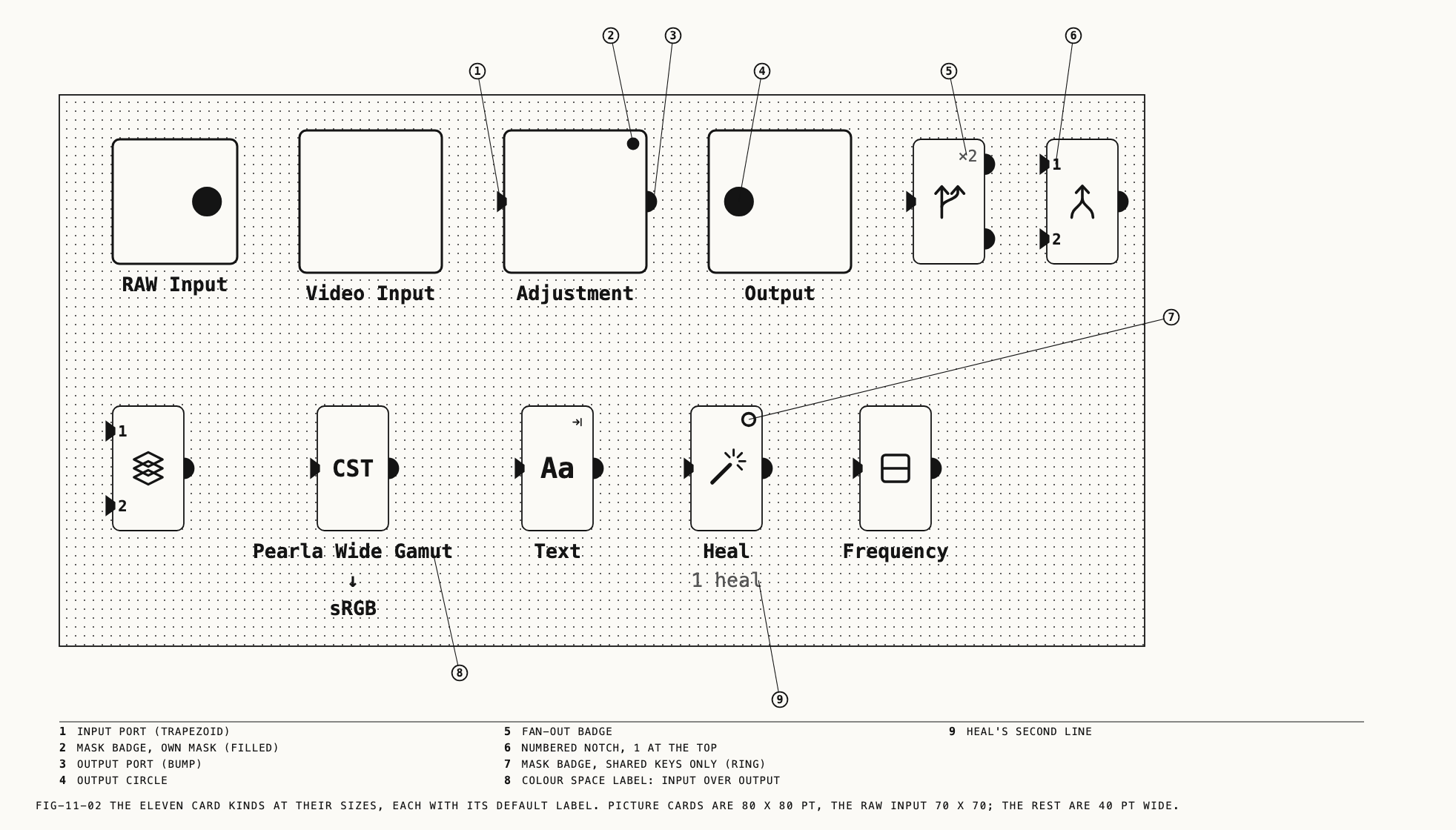
Each node is drawn as a card. Input, adjustment and output cards show the node’s picture. Other cards are narrower and show a symbol. A card’s label sits under it: the name you gave it, or the kind’s default title.
| Card | Purpose |
|---|---|
RAW Input | Develops the original and declares the color space leaving it. Chapter 12. |
Video Input | Declares a clip’s input color space and camera output, with exposure, tone and punch. Chapter 12. |
Adjustment | Curves, color, LUT and film emulation on the picture passing through. Can be masked. Chapters 13, 14, 19. |
Splitter | Fans one picture out to several branches. |
Parallel | A mixer that sums the changes its branches make. Chapter 15. |
Layer | A mixer that stacks its inputs, input 1 in front, each with a blend mode. Chapter 15. |
Colour Space | Converts between declared color spaces. The card body reads CST. Section 11.14. |
Text | Draws text over the picture. Can be masked. Chapter 22. |
Heal | Spot and stroke healing. Can be masked. Chapter 20. |
Frequency Separation | Skin and texture work on separated bands. The card reads Frequency. Can be masked. Chapter 21. |
Output | One deliverable: its color space, size and format, and the export. Chapter 24. |
Ports show where wires attach. An input port is a trapezoid on the left edge, an output
port a bump on the right. A splitter grows one bump per branch and carries a ×N badge
when it fans out to more than one. A mixer carries one numbered notch per input, 1 at
the top. The raw input’s output and an output card’s input are drawn as a filled circle
inside the card’s edge.
A card also reports its state:
- Selected. An accent ring. In a multi-selection the active card has the accent ring and the others a lighter one.
- Disabled. The body is dimmed under a dark overlay with an accent X.
- Shown in the loupe. The output whose picture the loupe shows has an accent-filled input circle; other outputs’ circles are gray.
- Masked. A maskable card carries a small lavender badge at its top right once it has a mask: a filled dot for the node’s own components, a hollow ring when its mask is made only of keys shared from other nodes, both for both. Masks are Chapter 19.
- Holding retouches. A
Healcard adds a second line,1 healorN heals, once it holds any.
11.3 Wires
An image wire carries the picture from one card to the next. The wires on the path that reaches the output shown in the loupe are drawn in the accent color at full weight; wires on any other path are gray. Every branch of a mixer group that reaches the shown output is bright, not only its first input.
A wire leaves a node once. The only node that fans out is the splitter. Every node takes one picture in, except the two mixers, which take as many numbered inputs as they are given.
A key wire is a thinner lavender wire that dips below the cards and joins small ports on their bottom edges. It carries one node’s mask into another node as a key, and it fans in and out freely. Sharing a mask this way is Chapter 19.
11.4 The Default Graph
A still opens with three nodes: RAW Input, Splitter, Output. A clip opens with
Video Input, Splitter, Output. A raw clip (.prawv, Apple ProRes RAW, Blackmagic RAW, Nikon N-RAW) starts with RAW Input, as a still does.
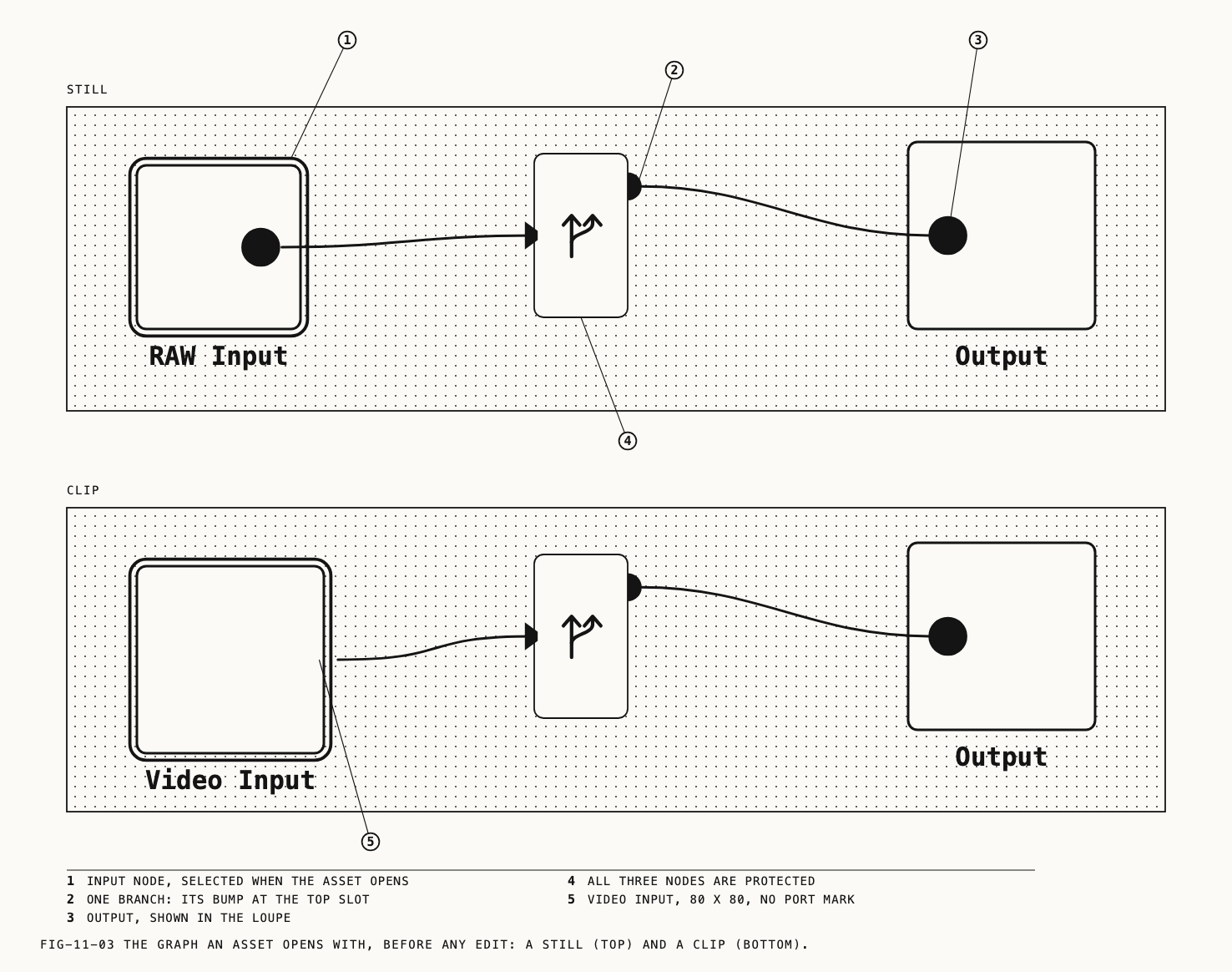
All three nodes are protected: they cannot be deleted, and the graph can never be reduced below them. The input node is selected when the asset opens, so the inspector starts on the Develop tab (or the Video Input tab), and the loupe shows the output.
The output starts full frame, at the original’s resolution, as JPEG, with the house
render and the Pearla Fida profile; its color space is sRGB for a still and
Rec.709-A (Apple) for a clip. The Output tab (Chapter 24) changes any of this.
Reset All Edits (section 11.15) returns an asset to this graph.
11.5 Selecting a Node
Click a card to select it. The inspector follows: its tabs are the selected node’s. ⇧-click adds a card to the selection or removes it; the last clicked card is the active one, and the inspector shows that. Drag on empty canvas to draw a marquee; ⇧ extends what is already selected. Drag a card to move it, and the whole selection moves with it. Positions are saved with the graph.
Selecting an output does not by itself change what the loupe shows. Double-click an
output card, or choose Show in Loupe from its menu, to show that output. A single
click on a node that does not lead to the shown output raises a warning band in the
loupe with a button that switches the loupe to an output the node does reach. The
setting When selecting a node outside the active output path in the Settings window,
Loupe tab, chooses between Automatically switch output, Show a warning in the loupe
(the default) and Do nothing.
11.6 Inserting a Node
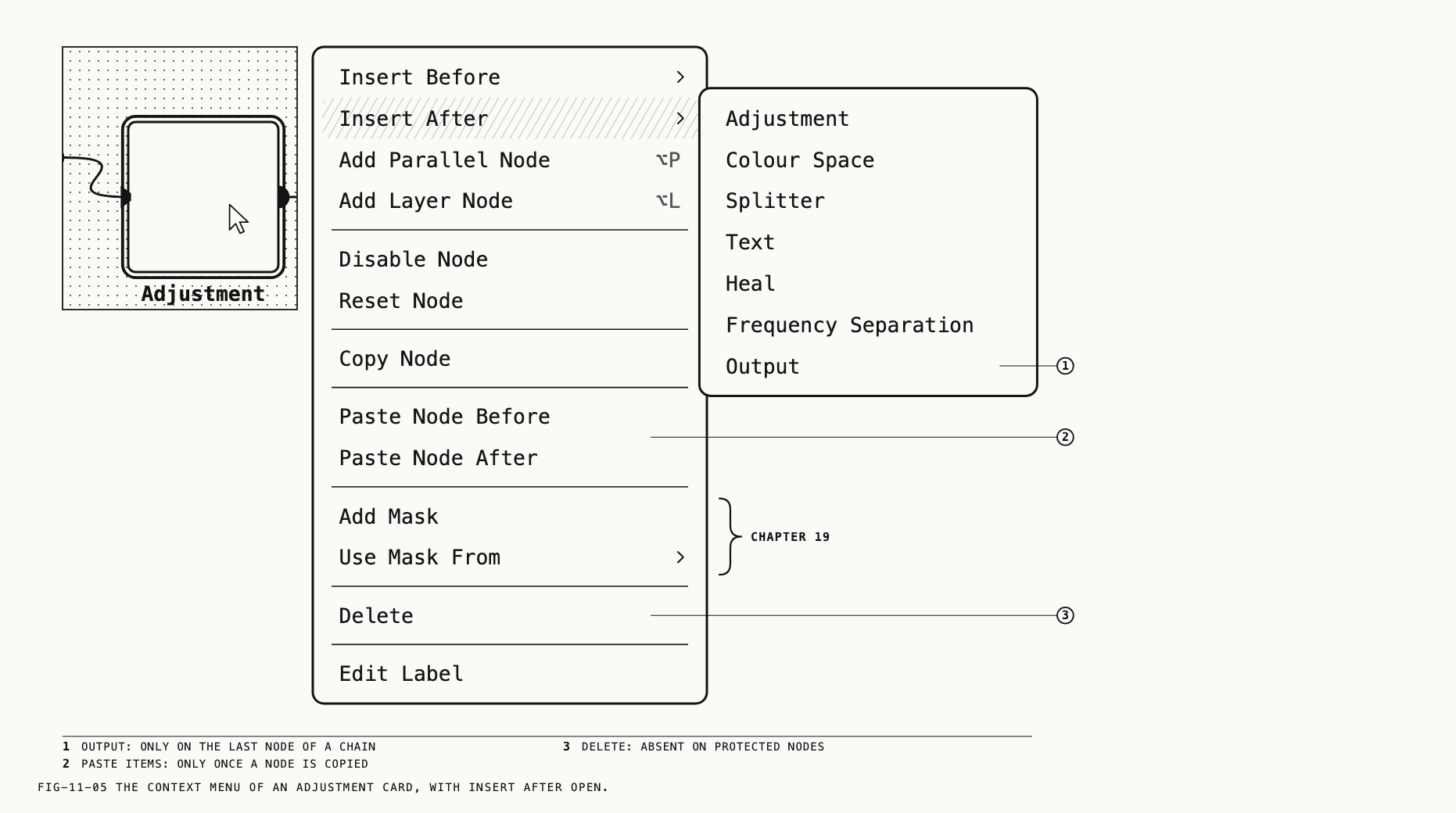
Where to find it: right-click a card, Insert Before or Insert After; or Edit →
Insert Before and Edit → Insert After with a node selected.
Insert Before adds a node immediately before the selected card. It is available on every kind except the two input nodes. Insert After adds a node immediately after the card. It is unavailable on splitters and outputs.
The card menu offers Adjustment, Colour Space (the Insert Before submenu writes it
CST), Splitter, Text, Heal and Frequency Separation. When the card is the last
node of its chain, Insert After adds Output (on a clip, Video Output and
Frame Output), which connects a new output straight to it. The Edit menu offers a
shorter list: Adjustment (⌥⌘↑ before, ⌥⌘↓ after), Splitter, Frequency Separation,
and under Insert After the terminal Output, Video Output and Frame Output.
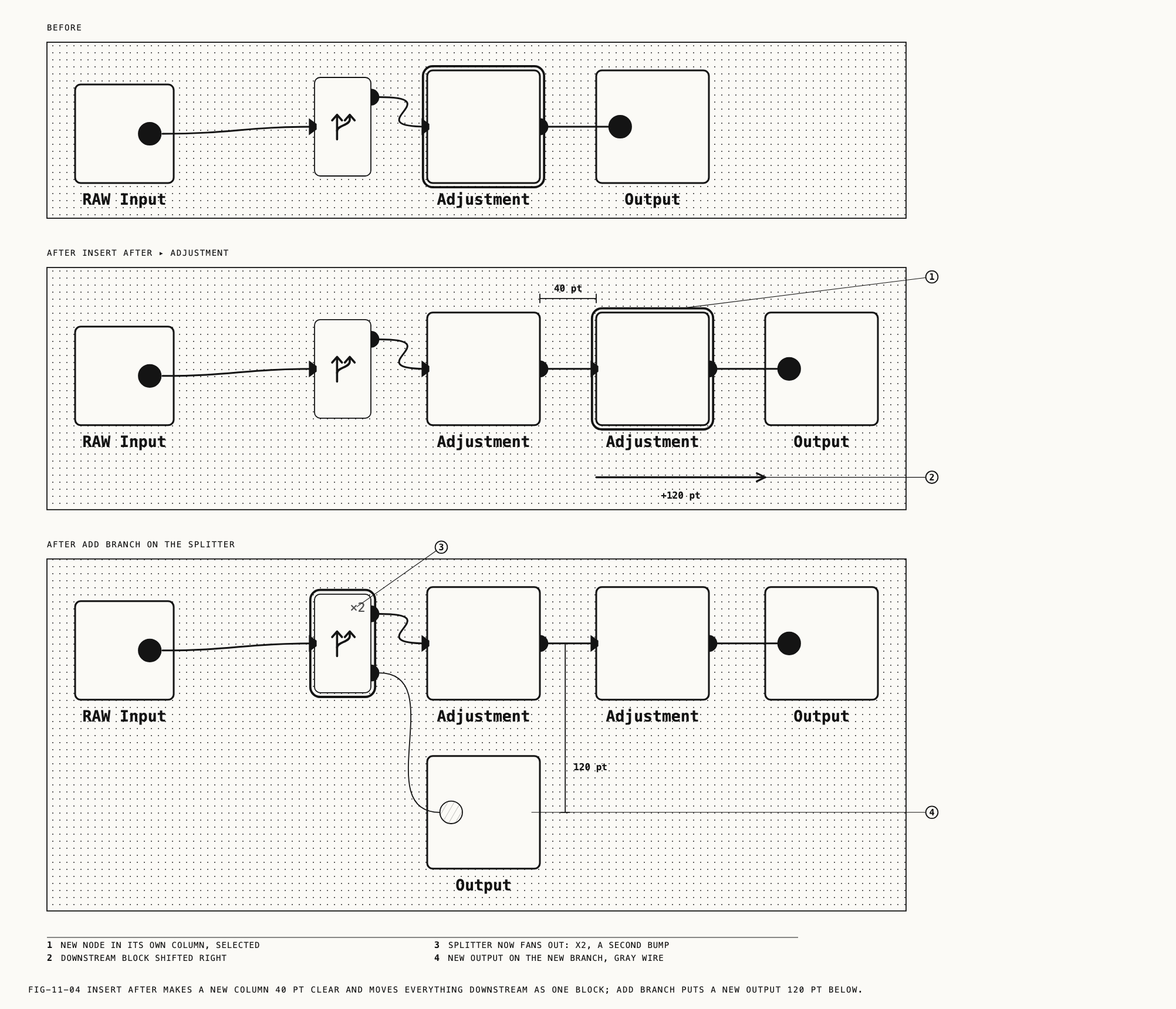
A new node takes its own column to the right of the card it follows, and everything downstream shifts right as one block. Nothing upstream moves, so the shape of what you have built is kept. The new node is selected, and the inspector moves to it.
11.7 Branches and Outputs
Where to find it: right-click a splitter, Add Branch; or Edit → Add Branch with a
splitter selected.
A branch is a second path from a splitter to its own output. Add Branch adds a new
output on a new branch below the last. Use a branch for another deliverable or another treatment of the picture. Insert its nodes before the branch’s output. The default splitter is already in place for this; a
splitter inserted elsewhere makes a branch point further down the chain.
On a clip, the splitter offers Add Output with Video and Frame instead. A Frame
output is a still taken from the clip, initially set to the playhead’s frame; its card carries a
small photo mark after its label. Both kinds are described in Chapter 24.
An output’s menu also carries Show in Loupe, Use for Thumbnail (ticked on the output
that stands for the asset in the browser; the protection against deletion moves with
it), Rename, and the export items Export, Export LUT and
Export Verana Profile (Chapters 24 and 14).
11.8 Rewiring
Drag from a card’s output bump and a rubber band follows the pointer. Drop it on another
node’s input port to move the connection there. Drag from a card’s input port and the
wire detaches and floats; drop it on another node’s output, or anywhere on a splitter’s
body, to take that node as the source. Esc cancels either drag.
A drop is refused where it would close a loop, or where the source already feeds another node, since only a splitter fans out. Dropping a wire on a mixer’s notch replaces that input; dropping it on the strip between notches inserts a new input there. The mixer rules are in Chapter 15.
A node with no input shows no picture. An output with no path back to the input node shows black in the loupe, and the loupe’s warning band says so.
11.9 Mixers
Two node kinds combine branches instead of passing one picture along. Add Parallel Node (⌥P) and Add Layer Node (⌥L), on a card’s menu and in the Edit menu, build a
group around the selected node: a splitter before it if there is none, a new empty
Adjustment on a second branch, and the mixer after. A Parallel mixer sums what its
branches change; a Layer mixer stacks them with blend modes. Their card menus carry
Add Input and Change to Layer Mixer or Change to Parallel Mixer, and their only
tab is the Mix tab. Chapter 15 covers all of this.
11.10 Disabling and Resetting a Node
Where to find it: right-click a card, Disable Node; or Edit → Disable Node (⌘D).
A disabled node passes the picture through untouched and its card dims under an X. The
menu item reads Enable Node while the node is disabled. Adjustments, Colour Space,
Text, Heal and Frequency Separation nodes can be disabled; inputs, splitters,
mixers and outputs cannot. A disabled Colour Space node does not convert, so the color
space flowing past it is the one that entered.
Reset Node, on the same kinds, puts the node’s own settings back to a fresh node’s.
Its label, position, wiring and enabled state stay. Its mask is removed, with every key
wire into or out of it.
11.11 Deleting a Node
Where to find it: right-click a card, Delete; Edit → Delete Node (⌘⌫); or ⌫ with
the canvas focused.
Deleting a node between two others connects those neighbors directly. Adjustments, Colour Space, Text, Heal, Frequency Separation, splitters and outputs can be deleted. The three protected nodes cannot, and
Delete is absent from their menus; on the output used for the thumbnail the item is
present but grayed, so move the thumbnail to another output first.
Deleting a splitter bridges its first branch to the splitter’s source; the other branches keep their nodes but become disconnected. Deleting a mixer does the same with its input 1. Deleting the last node of a branch between a splitter and a mixer removes that input from the mixer rather than bridging the splitter to it.
Deleting the output the loupe shows moves the loupe to the thumbnail output, and the selection falls back to the input node.
11.12 Labels
Every card except the splitter, the two mixers and the Colour Space node can be named.
Press Return with the card selected, double-click the label, or choose Edit Label
(Rename on an output) from its menu. A field appears over the label; Return commits
and Esc cancels. An empty name restores the kind’s default title. The name is used
wherever the node is listed: the Mix tab, Use Mask From, the mask editor and export
file names.
11.13 Copying and Pasting Nodes
Where to find it: right-click a card, Copy Node; then Paste Node Before or
Paste Node After on the target card.
Copy Node keeps one node: its label, adjustments, settings and mask. It is offered on
the same kinds as Disable Node. The copy outlives switching assets and deleting the
original, so a node can be carried from one still or clip to another. The paste items
appear only once a node has been copied, and follow the same target rules as Insert Before and Insert After.
A pasted node is a new node with the original’s contents. Mask components that were keys shared from other nodes cannot follow; an alert says so and the rest of the mask pastes.
Copying a whole graph as a grade is Chapter 17.
11.14 The Node Tab
Where to find it: the Node tab, shown while a Colour Space node is selected.
The tab has two sections. A row that does not apply is absent.
COLOR SPACE holds up to four dropdowns. Input sets the node’s input color space. The first item, Inherit (…), uses and names the preceding node’s color space. Choose another item to override it. Output sets the output color space, initially Pearla Wide Gamut. Tone Mapping appears when the input is a log or working space and
the output is an SDR display space: None is a plain conversion; Clip, Rolloff and
Pearla fit the picture’s range into the display’s. Profile appears while tone
mapping is Pearla: it offers the house render and the film profiles of Chapter 14.
GAMUT MAPPING holds Method, which offers None, Saturation Mapping and Clip.
Saturation Mapping adds two sliders, Knee and Max. The card’s label shows the input color space above the output color space. Where the node belongs in a graph is
Chapter 14.
11.15 Undo, Redo and Reset All Edits
Where to find it: Edit → Undo (⌘Z), Edit → Redo (⇧⌘Z), Edit → Reset All Edits (⌥⌘R).
Every change to the graph is one undo step: an insert, a delete, a rewire, a rename, a
slider settling, an output setting. The menu item names the step, as Undo Delete Node or Undo Rename Node. The history holds fifty steps for the open asset and is
discarded when you move to another asset; the saved graph is not affected. A text field
with focus takes ⌘Z for its own typing first.
Undo and redo leave the inspector on the tab you are working in, as long as the node the step selects still offers that tab. When it does not, the inspector shows the tab a click on that node’s card would show.
Reset All Edits replaces the asset’s graph with the default graph of section 11.4. It
acts on the browser’s selection, so on several assets the item reads Reset All Edits on N Photos (or Videos, Items), and an alert, Reset All Edits?, asks before it
proceeds, with Reset and Cancel. The alert states that the action cannot be undone,
which is true for every asset that is not the open one.