A mask limits where a node acts. Without one, an Adjustment, Text, Heal or
Frequency Separation node changes the whole frame; with one, its change comes through
only where the mask admits it. A mask is built from components: gradients, a rectangle,
brush strokes, a luma or color range, the subject of the picture, or a key borrowed from
another node. The components are listed on the Mix tab and drawn on the loupe in mask
mode. This chapter covers both, and how masks are copied and shared between nodes.
The four node kinds above are the maskable ones. An input node cannot carry a mask;
asking for one there inserts a masked Adjustment after it instead. A Parallel or
Layer node has a Mix tab of its own kind, covered in Chapter 15. Following a mask
through a clip is Chapter 23.
19.1 Where a mask lives
Where to find it: the Mix tab, with a maskable node selected.
The Mix tab opens with the node’s STRENGTH slider, 0 % to 100 %, which is the node’s
opacity as a whole. Below it, COMPONENTS lists the mask, and two further sections
follow as the selection calls for them: COMPONENT, for the component selected in the
list, and MASK, for settings that apply to the finished mask. The footer under the tab
states the rule: strength and mask together decide how much of the node’s change comes
through, and 0 % strength is the same as disabling the node. With no maskable node
selected the tab reads Select a maskable node.
On the node canvas a maskable card shows a small badge at its top-right corner once its
mask has a component: a filled dot when the mask has components of its own, a ring when
it consists only of keys from other nodes, and a dot inside a ring for both. The badge
dims when the mask is effectively empty, that is, every component is switched off or
Density is at zero. Clicking the badge selects the node and opens the Mix tab.
The card’s right-click menu carries Add Mask on a node without one and Edit Mask
on a node with one; both select the node and open the Mix tab. The other mask commands are covered in 19.9 and 19.10.
19.2 Mask mode on the loupe
Where to find it: the Mix tab arms it; the M key from the loupe opens the tab and
arms it.
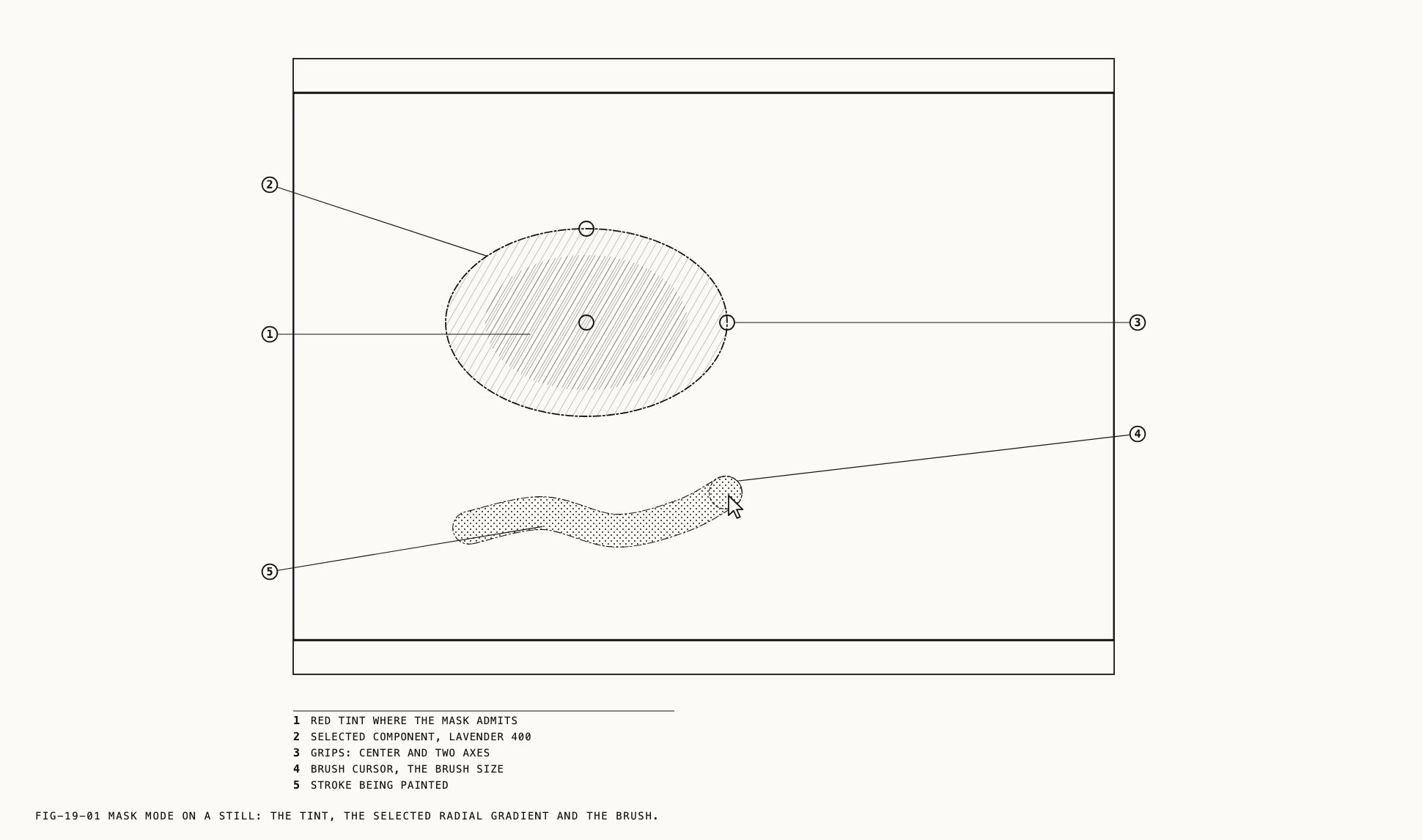
While the Mix tab is active on a maskable node the loupe is in mask mode. The region the
mask admits is tinted red over the picture. O hides and shows the tint; ⇧O cycles
its style through three looks: the red tint, the mask alone as white on black, and the
picture where the mask admits it with black elsewhere. The tint fades while any slider
other than the mask’s own is dragged, so the adjustment can be judged, and returns on
release.
The selected component is drawn over the picture in the mask color, with grips where
it can be reshaped; the table in 19.3 says what each kind draws. Only the selected
component is drawn, so selecting a row in the COMPONENTS list, or clicking the row
again to deselect it, changes what the loupe shows. Grips stay grabbable even when a
tracked component has carried them outside the picture. ⇧⌘H hides the handles and outlines together with the tint, and pressing it again brings both back.
Mask mode starts with no tool armed, so a drag on the picture pans as usual. B, G,
R and A arm the brush, the linear gradient, the radial gradient and the subject tool;
Esc disarms the tool, and a second Esc deselects the component. On a clip, Esc
first stops a tracking pass if one is running. An undo or redo leaves the inspector on
the Mix tab, so mask mode stays on while mask edits are stepped back.
M works only while mask mode is off. Pressed on an unmaskable node, a Colour Space
node for instance, it inserts a masked Adjustment after that node and opens its Mix
tab. The same happens if a mask gesture lands on such a node.
19.3 Components and how they combine
A mask is an ordered list. The first component sets the starting shape; each subsequent component changes the mask according to its row’s operation: + adds its area, − takes its
area away, ∩ keeps only where both overlap. The row’s operation menu is disabled on the
first row, since there is nothing before it to combine with. Change a later row’s
operation to reshape the whole mask without redrawing anything.
Each row carries a checkbox, an icon for the kind, a name, the operation menu and a
trash button. Names are the kind and the row’s position in the list, Linear Gradient 1,
Brush 2, so deleting a row renumbers those below it. A key from another node reads
Key from and that node’s name. Unticking the checkbox excludes the component from the mask and grays its row; undo Edit Mask Component. The trash button, or ⌫ with the
loupe in front, deletes the selected row; undo Delete Mask Component. Clicking a row
selects it and opens the COMPONENT section; clicking the selected row deselects it.
With no components the list says so and points at the buttons below it.
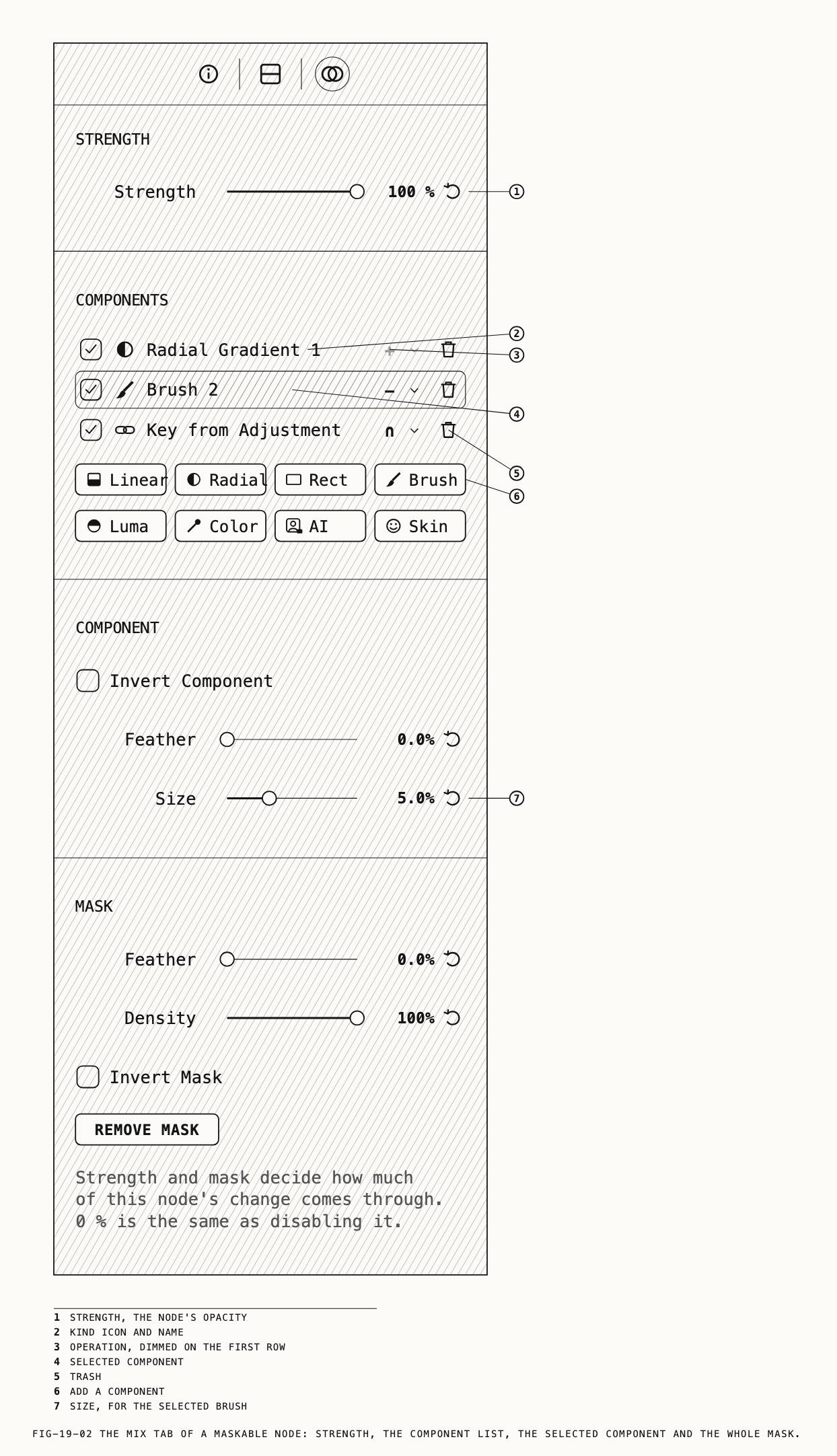
Two rows of buttons under the list add one component each, selected and ready to edit:
Linear, Radial, Rect, Brush on the first row, Luma, Color, AI on the
second, with Skin beside them on a Frequency Separation node only. The first
component on a node without a mask records the undo Add Mask; later ones record
Add Linear Gradient, Add Radial Gradient, Add Rectangle, Add Brush, Add Luma Range, Add Color Range or Add AI Subject.
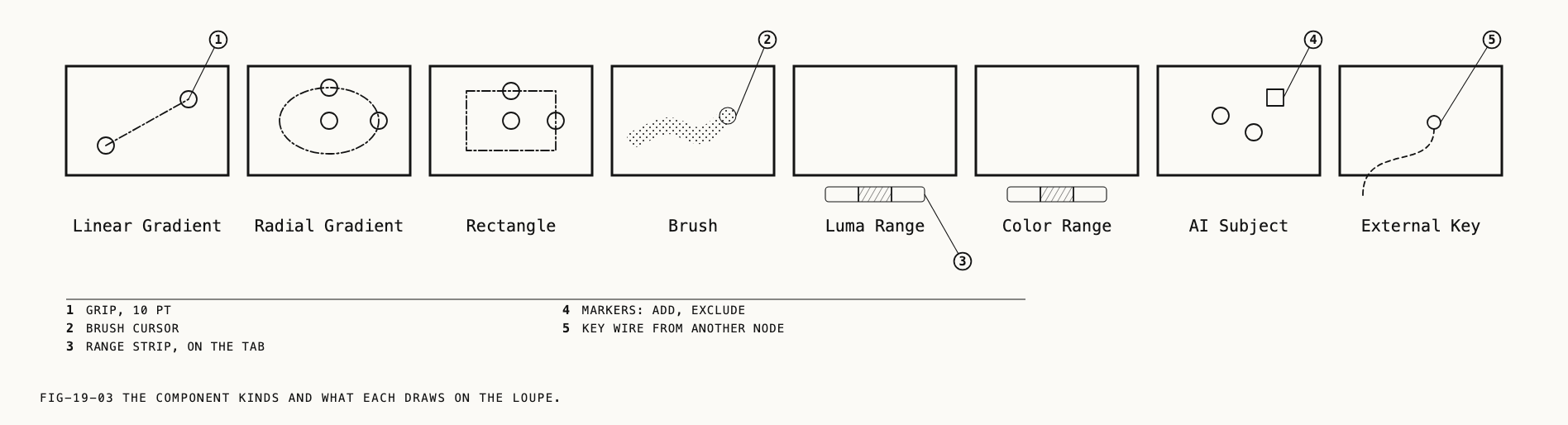
| Kind | Added by | Drawn on the loupe as |
|---|---|---|
Linear Gradient | Linear, or G and a drag | A line from start to end, with a grip at each |
Radial Gradient | Radial, or R and a drag | An ellipse with grips at the center and on two axes |
Rectangle | Rect | A box with grips at the center and on two edges |
Brush | Brush, or B and a stroke | Nothing at rest; a cursor circle while the brush is armed |
Luma Range | Luma, or ⌥-click | Nothing; its strip is on the tab |
Color Range | Color, or ⌥⇧-click | Nothing; its strips are on the tab |
AI Subject | AI, or A and a click | One marker per seed point |
External Key | A key wire from another node (19.10) | Nothing; the source node owns the drawing |
An unrecognized component appears as Unsupported, with its original kind in parentheses. It cannot be edited.
19.4 Gradients and rectangles
With G armed, drag across the picture: the gradient runs from where the drag began to
where it ended, fully admitting the mask on the start side and fading to nothing past
the end. With R armed, drag from the center outward; the gradient admits the mask at the
center and fades to the edge of a circle whose radius is the drag. A rectangle is added
from the tab, centered in the frame, and then shaped by its grips. All three can also be
added from the tab at a default position and placed afterward.
Drag a grip to reshape: the two ends of a linear gradient; the center, x radius and
y radius of a radial one; the center, width and height of a rectangle. Undo Move Mask Component.
The COMPONENT section offers, for every selected component, Invert Component (undo
Invert Mask Component) and Feather, 0.0 % to 10.0 %, which softens the component’s
edge (undo Set Mask Feather). A radial gradient adds Softness, 0 % to 100 %, the
share of the radius over which it fades, and Rotation, −180° to 180°; a rectangle adds
Rotation alone.
19.5 The brush
With B armed, drag on the picture to paint. A circle follows the pointer at the brush
size, and the stroke appears in the mask color as it is laid. ⌥-drag erases through
earlier strokes. Strokes go to the selected brush component, or to the most recent
enabled brush when none is selected; with no brush in the mask the first stroke creates
one. Undo Paint Mask Stroke or Erase Mask Stroke.
[ and ] shrink and grow the brush; the Size row in the
COMPONENT section sets it directly, 0.2 % to 15.0 % of the picture’s width, 5.0 % to
start. The size applies to the next stroke, not to strokes already painted.
A brush component has no grips: it is painted, not dragged. On a clip whose brush is tracked, a single grip appears at the brush’s reference point for correcting the track, which Chapter 23 covers.
19.6 Luma and color ranges
A range component admits the mask where the picture’s own values fall inside a band:
brightness for a Luma Range, hue, saturation and brightness together for a Color Range. Add one from the tab, or choose its starting range from the picture: ⌥-click a pixel for a luma range
centered on its brightness, ⌥⇧-click for a color range centered on its color. With the
brush armed, ⌥-click still creates a luma range; drag to erase. Changes to preceding nodes can change the area a range selects.
The COMPONENT section shows a strip for each axis. A Luma Range has one, Range; a
Color Range has Hue, Saturation and Luma. Each strip draws the band over a
gradient of the axis: a filled body between two edges, with a soft fringe fading outward
from each edge. Drag the body to move the band, an edge to set that bound, a fringe to set
how softly that edge falls off. A Luma Range softens each edge on its own; a Color Range has one softness, so dragging any of its fringes softens every edge on all three
strips.
On the Hue strip the two edges move together, widening or narrowing the band evenly
about its center. The Hue strip wraps, so a band across red is drawn as two segments
and drags continuously through 0°. The Saturation strip’s gradient takes on the hue at the
band’s center, so it previews the colors it is selecting.
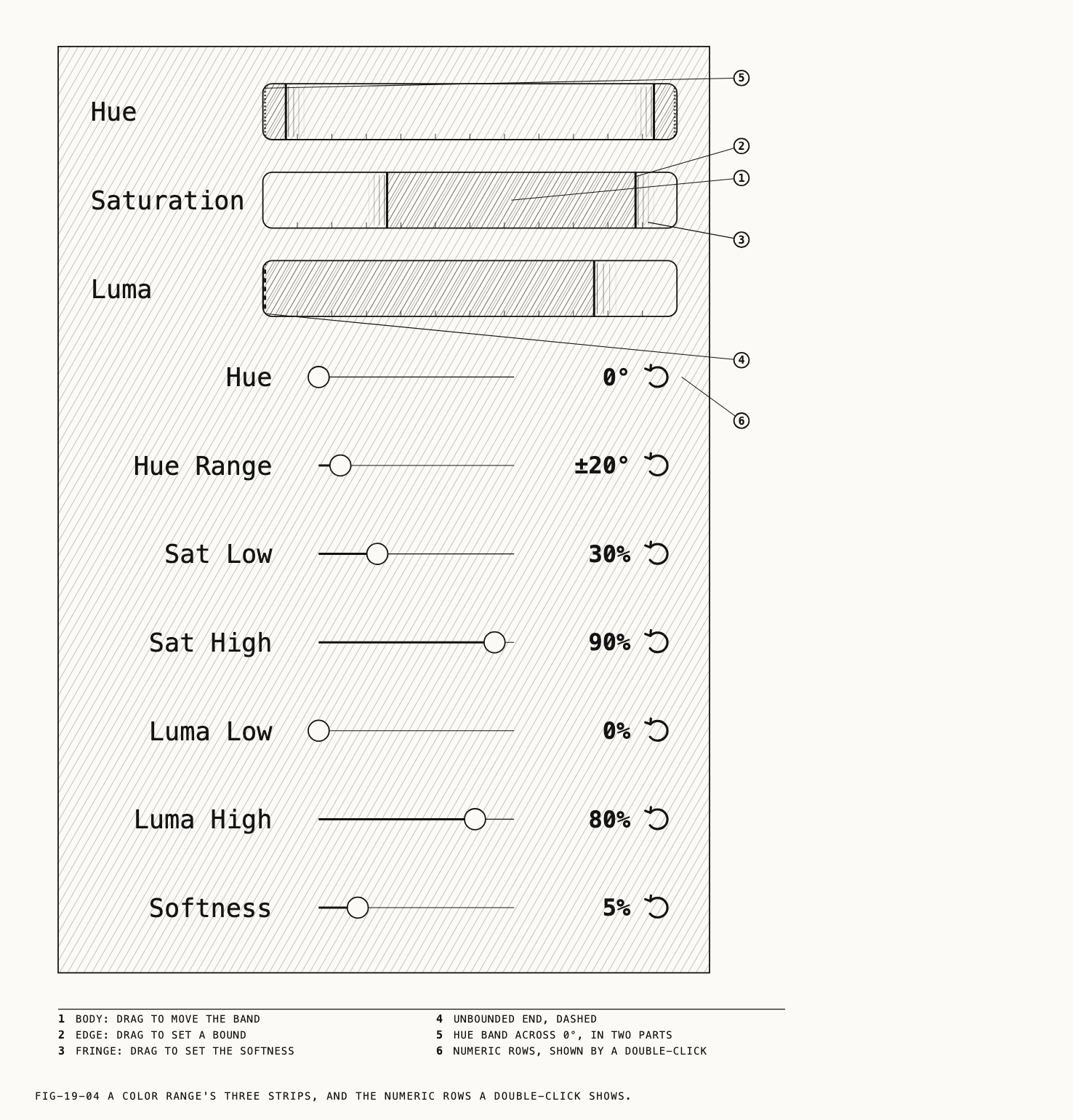
An edge of the color range’s Luma strip parked at the strip’s end is unbounded: no
limit on that side. It is drawn as a dashed marker just inside the end so it can still
be grabbed and dragged inward.
Double-click any strip to show or hide numeric rows under it, for precision. A Luma Range offers Low, High, Soften Low and Soften High; a Color Range offers
Hue, Hue Range (shown as plus or minus degrees), Sat Low, Sat High, Luma Low,
Luma High and Softness. Low and high values clamp against each other, so a band can
narrow to a point but never cross. Every strip and numeric change records the undo
Set Mask Range.
Note: Ranges update on every frame of a clip. They do not need or offer tracking.
19.7 The subject component
The AI button adds a subject component, which selects the main subject of a still
from a few points you place. Press A to arm the subject tool. If the component is still
empty when the tool is armed, Revela finds the subject on its own and places the seed
points for you. If the picture has no subject, nothing is placed and the hint line under
the component says to click the subject. Click the subject to select it, or to add another
whole object; ⌥-click to exclude an area. Each click places a marker, a circle for an
add point and a square for an exclude point, and the selection updates around the new
set.
Click a marker to remove it; drag one to move it, previewing the result as you drag;
⌫ removes the marker last dragged. The hint line under the component counts the add
and exclude points and restates the gestures. Undo records Add Seed Point, Add Exclude Point, Move Seed Point, Remove Seed Point and, for the automatic selection, Select Subject. When the selection cannot be made, for instance because the original is
offline, the alert Could Not Select the Subject says why.
The subject component selects whole objects, not edges. To refine it, add a Brush or
another component set to − or ∩ after it, as the hint suggests.
Note: the subject component is available on stills only. On a clip the AI button
is disabled with a caption beneath it saying so, and A beeps.
19.8 Skin
Where to find it: the Mix tab of a Frequency Separation node, the Skin button.
Skin adds a mask for the subject’s skin, excluding similarly colored surroundings. The list shows a Color Range with the ∩ operation and an AI Subject component. On a clip, or when no subject is found, only the Color Range is added. Undo Add Skin Mask. Edit these components as described in 19.6 and 19.7.
19.9 The whole mask
The MASK section appears once the node has a mask. Feather, 0.0 % to 10.0 %, softens the finished mask’s edges (undo Set Mask Feather).
Density, 0 % to 100 %, caps how strongly the mask admits the node anywhere, so a mask at
50 % density lets half the node’s change through at its fullest (undo Set Mask Density). Invert Mask swaps admitted and excluded for the whole mask (undo Invert Mask), and Remove Mask discards it, components and all (undo Remove Mask).
The card’s right-click menu offers Invert Mask and Remove Mask as well, and one more
verb: Add Inverted Copy After inserts a new Adjustment after the node carrying a copy
of its mask with the inversion toggled, so one mask can govern two opposite treatments.
Keys from other nodes are not carried into the copy. Undo Add Inverted Mask Copy.
Resetting a node (Chapter 11) removes its mask along with every key wire into and out of it.
19.10 Copying and sharing masks
Where to find it: right-click a maskable card on the node canvas.
Copy and paste. Copy Mask keeps a copy of the node’s mask for use in any open Catalogue window. Copying text or an image does not replace it; copying another mask does. Paste Mask appears on any maskable card while a mask is held and
replaces that node’s mask with the copy, creating one if the node had none (undo Paste Mask). Keys from other nodes are dropped from the paste, because no wire travels with
it. These commands are unavailable from the menu bar.
Sharing as a key. Rather than copying a mask, one node can use another’s mask as a
key. The receiving node gains an External Key component whose row reads Key from and
the source node’s name, and the two cards are joined by a key wire, drawn in the mask
color and dipping below the cards so it reads apart from the image wires. The key carries
the source node’s mask with its Feather and inversion; the source’s Density stays
with the source node. The key updates whenever the source changes. In the receiving mask
it combines like any other component, with its own operation, Invert Component and
Feather.
To share, right-click the receiving card and choose Use Mask From, then the source by
name; the list offers every node whose mask can be shared here, left to right as drawn.
Or drag from the source card’s key output port, at the right of its bottom edge, onto
the receiving card; the ports appear as the pointer nears a maskable card’s bottom edge.
⌥-dragging a card’s mask badge starts the same drag. Undo Connect Mask Key.
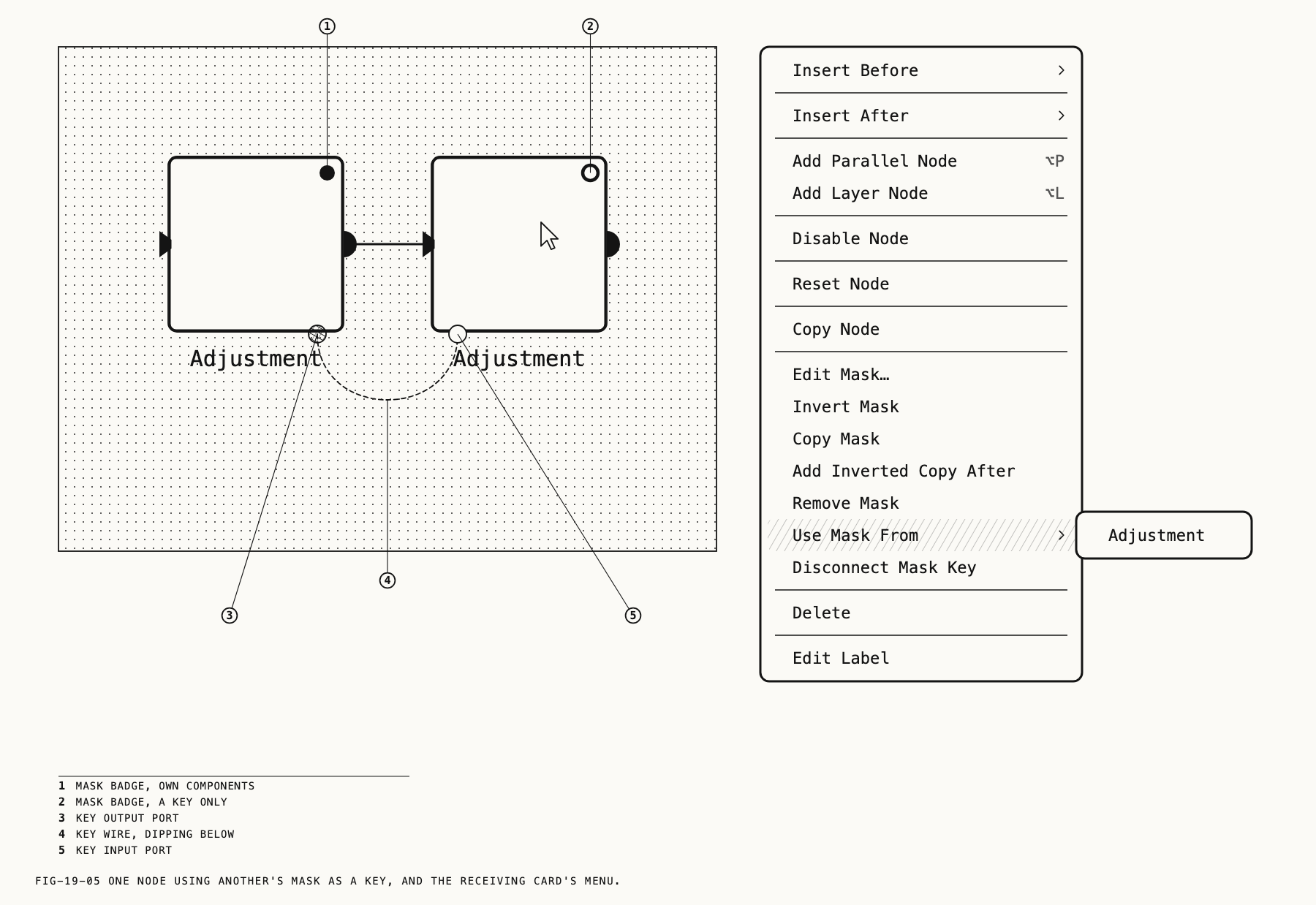
Selecting the key’s row shows a Source row naming the node it comes from and a
Disconnect button. Disconnect Mask Key on the receiving card does the same; with
several keys landing on one node it opens a submenu of their sources. Dragging the wire
away from the receiving card’s key input port detaches it: drop it on another node that
can supply a key to re-source it (undo Rewire Mask Key), or on empty canvas to
disconnect (undo Disconnect Mask Key). Dropped on a card that cannot supply a key, or
back on the port it came from, the wire stays as it was.
A mask can feed any number of nodes, and a node can take keys from several; a share
that would form a loop is not offered. Pasting a copied node (Chapter 11) leaves its keys
behind, as Paste Mask does, and says so. How a Layer node reads the masks of its
inputs is in Chapter 15.
19.11 Masks on video
On a clip the gradient, rectangle and brush components can follow motion. Selecting one
adds a TRACKING section to the Mix tab with Track motion and a status line. Once
Track motion is on, the section adds Follow, a transport, a lifetime and Reset Tracking, with a re-track button on a keyframe or after a failed pass, and a lane appears
on the scrubber for the selected component’s track. Ranges update on every frame without tracking. A shared key follows its source node’s track. Subject components are available only on stills.
Tracking, keyframes, correction drags and the lane are covered once for masks, heals and
frequency separation in Chapter 23.