On a clip, a mask component, a heal item or a frequency separation node can follow what
it was placed on as the picture moves. That motion is its track. Tracking is the same
everywhere in Revela: the same TRACKING section on the inspector tab, the same lane
above the scrubber, the same keyframes and the same menus.
The tools themselves are Chapters 19, 20 and 21, and the playback bar is Chapter 9.
Revela follows the subject. Correct the track where it goes wrong. A correction is a keyframe: a frame on which you have put the retouch where it belongs. A keyframe is exact on its own frame and never moves when the clip is tracked again, so a correction is never lost to a re-track.
23.1 What Tracks, and How
Mask components, heal items and frequency separation nodes can track motion.
Mask components. Linear Gradient, Radial Gradient, Rectangle and Brush
components can track. A Luma Range or Color Range updates on every frame without tracking. An External Key follows its source node’s track. Subject components work on stills only.
Heal items. Every spot and stroke on a Heal node can track, and so can its
source, the area it borrows from.
The frequency separation node. The node tracks as one: every heal item and every Smooth stroke on it rides a single track that follows the retouched face or region.
What a track follows is set by the Follow row at the top of the TRACKING section.
| Tab | Follow choices | What they do |
|---|---|---|
| Mix | Component, Face, Region | Component, the default, gives the component a track of its own, which moves and scales it. Face and Region make it ride its node’s one track instead |
| Healing | Items, Face, Region | Items, the default, gives every item its own track. Face and Region make every item on the node ride one track |
| Frequency Separation | Face, Region | The node’s one track |
Face follows a face and bends the retouch with it, so a brush stroke over a cheek
deforms as the cheek turns. Region moves the retouch as a rigid piece. On a frequency
separation node Revela picks Face by itself when a face lies under the retouch at the
frame where it was placed, and Region otherwise; choose either to override it. While
Face is in force and the tab is active, a thin white outline is drawn around the face
being followed. A mask component set to Face or Region follows its node’s track. On a frequency separation node, it shares that node’s track. On a heal node set to Face or Region, it shares the heal track. Otherwise, it uses a track for the masked node.
Changing a grade does not discard a track, and raw clips track like any other clip.
23.2 The Tracking Section
Where to find it: the Mix tab with a trackable component selected, the Healing tab with an item selected, or the Frequency Separation tab, on a clip.
The section appears at the foot of the tab on a clip and never on a still. On the
Healing tab with Face or Region chosen, it shows whenever the node is selected; on
the Frequency Separation tab it always shows.
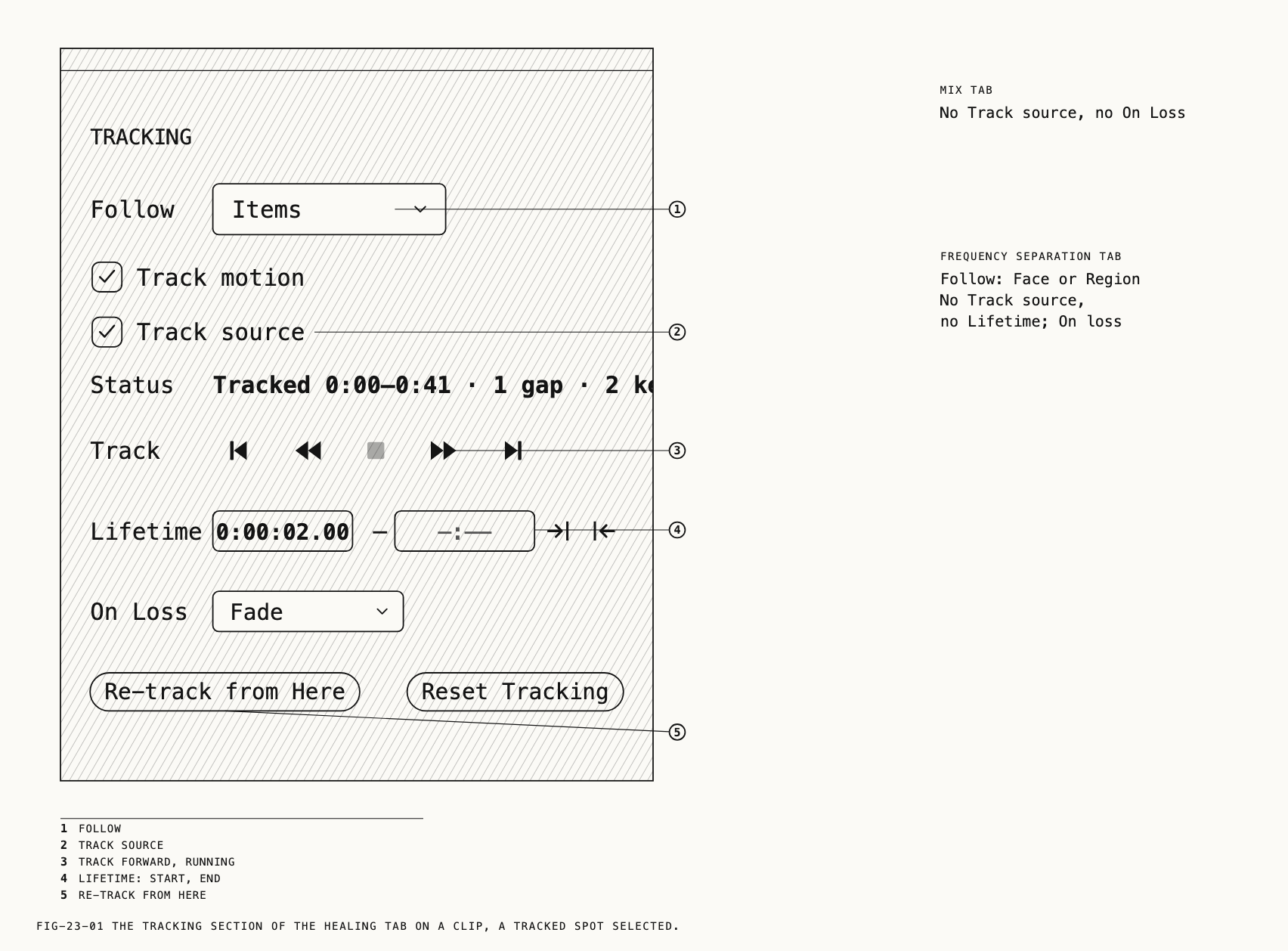
| Row | Tabs | What it does |
|---|---|---|
Follow | All three | What the track follows (23.1). On the Mix tab it appears once Track motion is ticked |
Track motion | All three | Turns tracking on or off. Off, only this checkbox and Status remain, and the settings below are kept for when it is ticked again |
Track source | Healing | Off, the item’s source keeps a fixed offset from the repair instead of being tracked itself (23.12) |
Status | All three | One line reporting the track (23.3) |
Track | All three | The tracking transport (23.3) |
Lifetime | Mix, Healing | The span of the clip in which the item renders (23.10) |
On Loss, On loss | Healing, Frequency Separation | What happens where the track is lost: Fade or Hold (23.6) |
| Buttons | All three | Reset Tracking (23.13), and a re-track button when one applies (23.11) |
The re-track button is Re-track from Here while the playhead sits on a keyframe. After
a failed track it is Re-track Item on the Healing tab and Retry on the Mix tab.
Otherwise it is absent.
23.3 Starting a Track
A track starts from its anchor frame: the frame on screen when the item was placed, or
when tracking was first turned on. Tracking starts enabled for a heal item or the first stroke on a frequency separation node. Its anchor is the frame where it was placed. A mask component starts still: tick Track motion to anchor it at the
playhead.
Nothing is tracked until you ask. The Track row is a five-button transport:
Track one frame back, Track backward, Stop tracking, Track forward and Track one frame forward, as their tooltips read. Track forward or backward and the playhead
follows the track as it is made, which is the progress display. The button for the
running direction is tinted. Stop tracking is live only while a track runs, and Esc
on the loupe stops it too, in mask mode and in heal mode. A one-frame step tracks that
frame, unless it is already tracked, in which case it only moves the picture. Pressing a step button during tracking completes one more frame, then stops.
The Status line reads, in turn:
Status | Meaning |
|---|---|
Static | Track motion is off |
Waiting for analysis | Tracking is on and the clip is not ready to track |
| (a line saying the item is static and not tracked) | Tracking is on and nothing has been tracked so far |
Tracking 42% | A track is running; the share of the clip covered so far |
Stopped 42% | A track was stopped part way |
Tracked 0:00–0:41 | The whole clip is covered, between those times |
Static (edited) | An edit at the anchor frame set the track aside (below) |
Tracking failed | The track could not be made (23.6) |
A tracked line adds counts after a middle dot: · 2 gaps, · 3 keyframes and, for a
heal item, · 1 re-source. A node track adds No face found, when Face is chosen
and the anchor frame has none; Face lost, while the playhead is on a frame where the
face was lost; Tracked · 2 strokes to re-measure, when strokes have changed since the
last track and the next Track forward will bring them up to date; and, while a re-track
runs, a line such as Re-tracking the region from 0:06:08 (23.11).
On a clip each row of the Healing tab’s items list carries a chip with the same
vocabulary: ◌ tracking, ◌ 42% when stopped part way, ● tracked, ▲ 2 gaps and
⚠ failed, or a static mark for an item that is not tracking.
Editing an item’s position, shape or size on its anchor frame discards the track. The status reads Static (edited) until the item is tracked again. Undoing the edit restores the old track. Changing Follow starts the track over in the same way. Edits on any
other frame are corrections, and never set the track aside (23.7).
23.4 The Lane
Where to find it: the scrubber in the playback bar, while a tracked item is selected.
A lane is a thin strip drawn just above the scrubber’s track, at the track’s scale. The
Healing tab shows the selected item’s lane; the Frequency Separation node shows its
node’s lane whenever it is selected; the Mix tab shows the selected component’s lane,
above the heal or node lane when both are drawn. Range tags (Chapter 9) sit above the
lanes. A lane can carry a second row above its first: the selected stroke’s own
keyframes on a node track, or a heal item’s source. ⇧⌘H hides the lanes with the
other editing overlays.
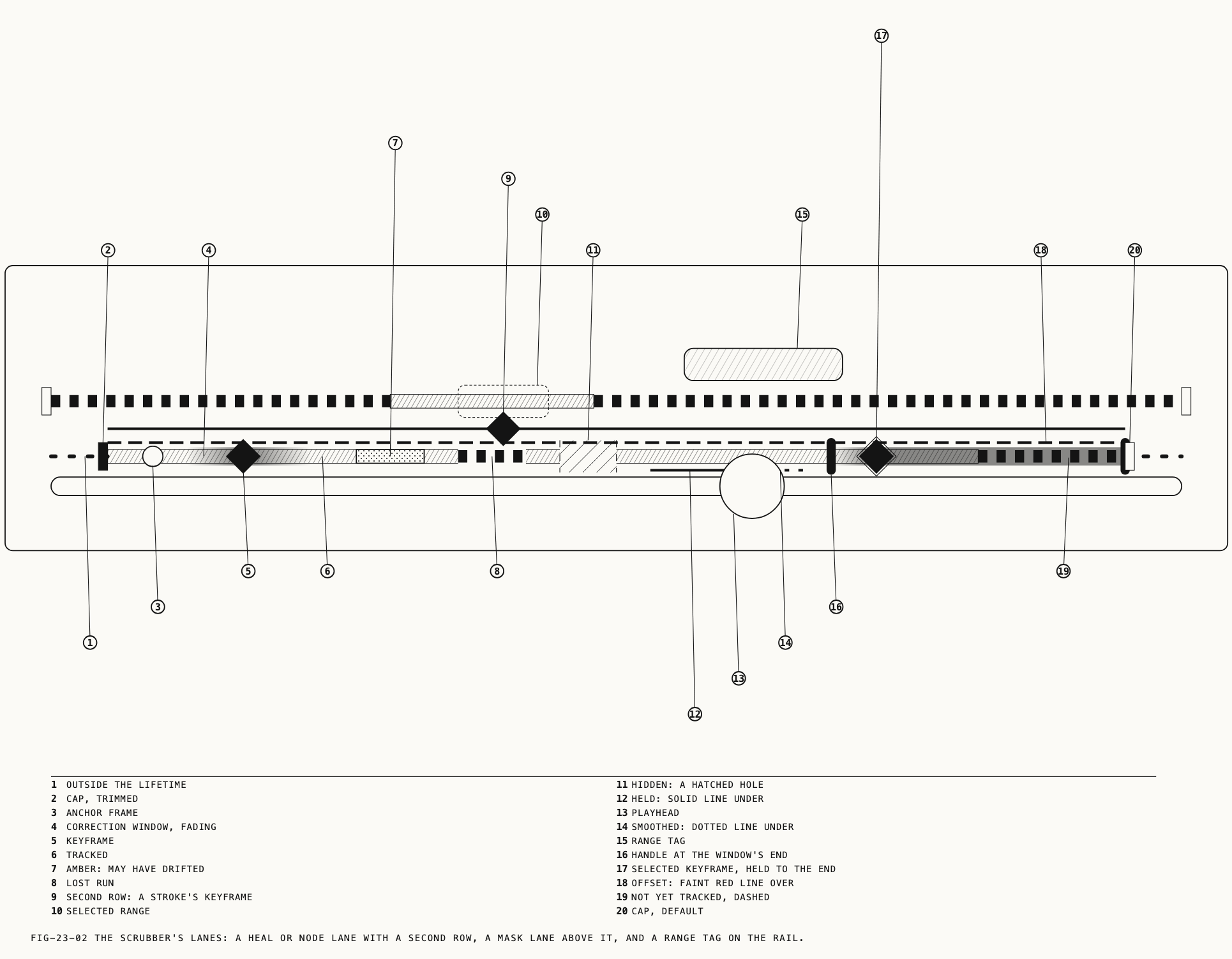
| On the lane | Means |
|---|---|
| A solid lavender band | Frames that are tracked |
| A dashed lavender band | Frames still to be tracked. The dashes lengthen while a track runs |
| Dashes inside the tracked span | A lost run: the tracker could not find the subject there (23.6) |
| An amber band | Frames where the track may have drifted. Check these first |
| A hatched amber hole | A hidden range: the retouch is not rendered there (23.9) |
| A faint dotted gray line beyond the ends | Frames outside the item’s lifetime |
| A short lavender cap at each end | The lifetime’s ends, drawn brighter once trimmed (23.10) |
| A small white dot | The anchor frame |
| A red diamond | A keyframe (23.7). Selected, it gains a white outline |
| A soft red bar either side of a diamond | The keyframe’s correction window, fading to nothing (23.8). Solid where it holds |
| A thin white line under the band | A held range when solid, a smoothed range when dotted (23.9) |
| A faint red line over the band | An offset applies to the whole track (23.12) |
| A light box | The range selected on the lane |
Click the lane to move the playhead there. Click a diamond to select it; double-click it to go to its frame; click the white dot to go to the anchor frame. Drag along the lane to select a range. Drag a cap to trim the lifetime. Right-click a diamond or the band for its menu (23.8, 23.9).
23.5 On the Picture
A tracked item on the loupe sits where the track puts it on the frame shown, and its grips stay grabbable even when the subject has carried them outside the picture. A tracked heal marker carries more. A dashed ring circles it while it is being tracked and a dotted amber ring where it is lost or its source is held. A small white diamond above it marks a keyframe on this frame. An amber dot below it marks a failed track, and its tooltip says that tracking failed and can be retried from the inspector. The selected item also draws a faint path of where it travels over the second either side of the frame shown.
Right-click a tracked heal marker for its menu, listed in Chapter 20. On a frequency
separation node the same menu acts on the node’s one track, adds Correct This Stroke Only, Disable This Frame and Disable From Here, and drops Delete Re-source. The following sections describe these commands.
23.6 When the Track Is Lost
A track is lost where the tracker cannot find its subject: a hand passes in front, the face turns away, the subject leaves the frame. A lost run shows as dashes inside the tracked span of the lane, and the status counts it as a gap. Amber frames are different: the track continues there but may have drifted, and the lane marks them as the place to look.
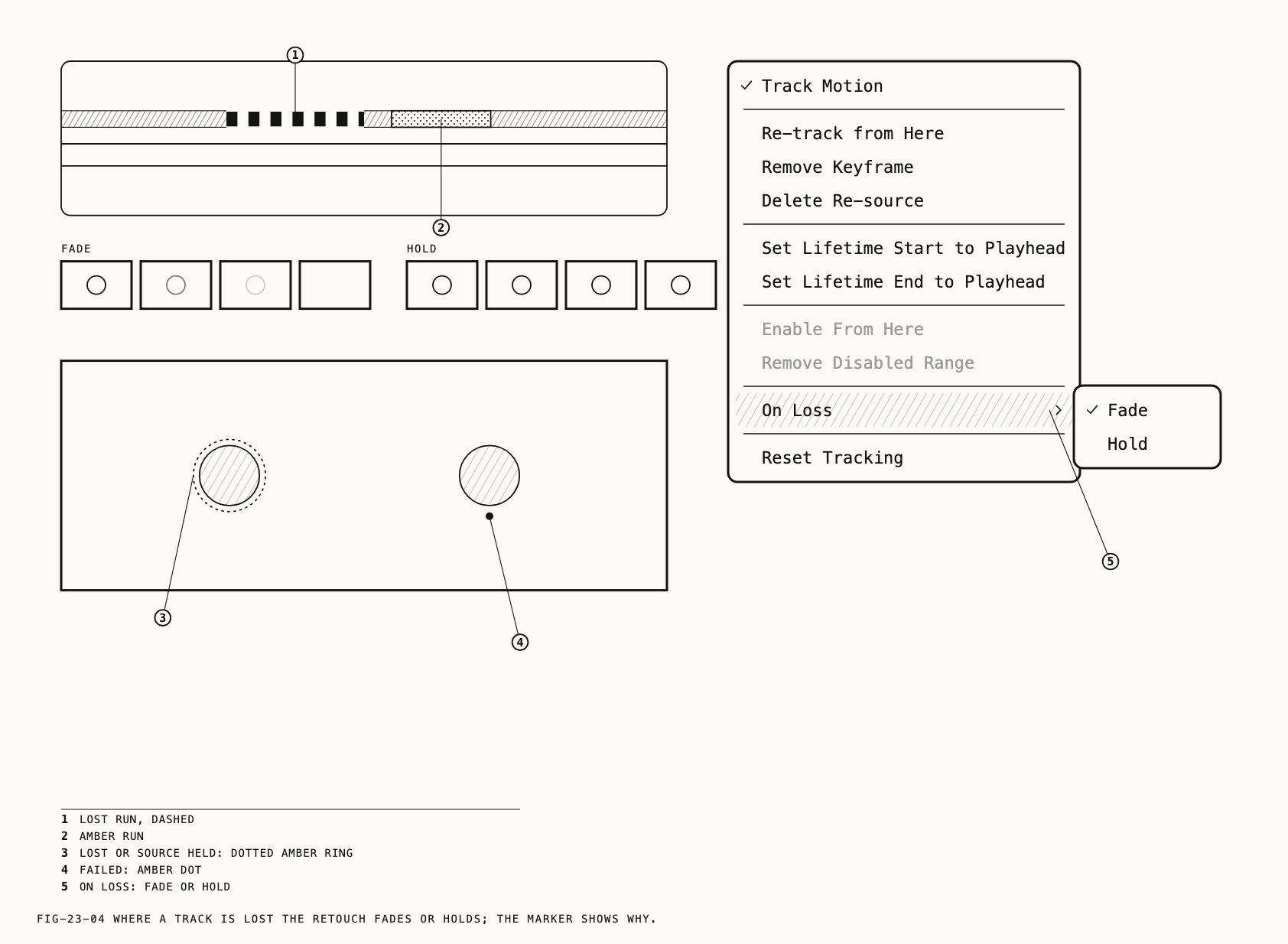
Where to find it: the On Loss row on the Healing tab, the On loss row on the
Frequency Separation tab, or On Loss ▸ on a heal marker’s menu.
| Choice | Through a lost run |
|---|---|
Fade | The default. The retouch fades out over a few frames and fades back when the subject is found again. A run that reaches the end of the tracked span does not fade back |
Hold | The retouch stays where it was at the nearer edge of the run, fully visible |
Fade suits a blemish on a face that turns away. Hold suits a subject with too little
detail to follow, such as an even patch of sky. A mask component has no choice: it
always fades.
A keyframe inside a lost run keeps the retouch visible through the gap and moves it through the corrected position. The run no longer counts as a gap. Drag the retouch into place on a frame within the run (23.7).
A heal item’s source is treated separately. Where the source is lost the repair carries on, with the source held at its last good position, and the marker shows the dotted amber ring.
When tracking fails outright, the status reads Tracking failed, the chip
⚠ failed and the marker carries its amber dot. Re-track Item on the Healing tab or
Retry on the Mix tab runs the whole track again.
23.7 Keyframes
On the anchor frame a drag edits the item. On any other frame a drag on a tracked item
makes a keyframe on that frame: the item appears exactly where you drop it on that frame, and the track itself does not change. A ghost outline shows where the track had
the item while you drag, labeled Retouch for a node track or with the item’s name. A
click, a tiny movement or Esc makes nothing. Dragging an existing keyframe’s frame
again moves that keyframe. Undo Correct Track.
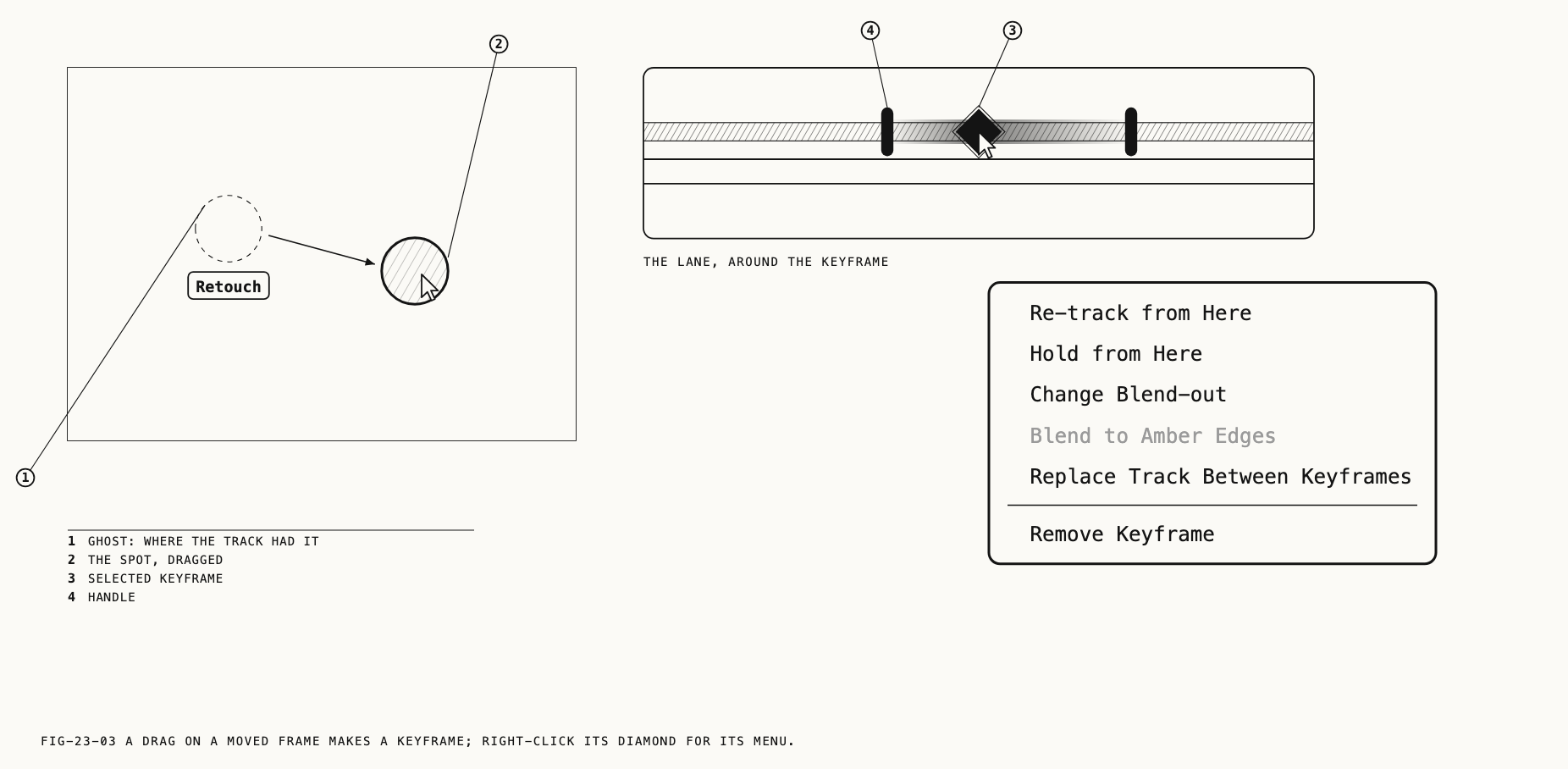
What the drag corrects depends on what is grabbed:
- The item’s body or center grip corrects position.
- A radius, width or height grip of a mask component, or the
Sizeslider on the Healing tab, corrects size: the keyframe scales the tracked size on that frame. UndoCorrect Size. - A heal item’s source marker makes a source keyframe, shown on the lane’s second row. The repair stays where it is.
On a node track, a drag on any one item corrects the whole retouch. Hold ⌥ to correct
that stroke, spot or component alone, or choose Correct This Stroke Only from its
marker menu to arm the next drag the same way; its keyframes appear on the lane’s
second row.
A keyframe corrects only its own frame; elsewhere, the existing track remains. To correct drift over several frames, place a keyframe on each bad frame or give one keyframe a correction window (23.8).
Where to find it: right-click a diamond on the lane, Remove Keyframe.
Removing a keyframe returns that frame to the track as tracked. With the Frequency
Separation tab active, ⌫ removes a selected diamond. On the other tabs ⌫ deletes the
selected item or component, so use the menu. A heal marker’s menu offers the same verb
on a keyframe frame, as Remove Keyframe on a heal item and Delete Keyframe on a
frequency separation node; it is grayed on any other frame.
23.8 Correction Windows
A keyframe’s correction window is the span before and after it over which its correction fades to nothing, drawn as the soft red bar. A new keyframe has none.
Hover over a diamond, or select it, and a small red handle appears at each end of its
bar, or beside the diamond when it has no window. Drag a handle to set how many
frames the correction fades over on that side. Drag it to the end of the lifetime and
the correction holds to the end instead of fading. Where the windows of two keyframes
meet, the correction runs straight from one to the other, and the bar between them is
solid. Undo Change Blend-out.
The diamond’s menu carries the rest. Right-click a diamond:
| Verb | Does |
|---|---|
Re-track from Here | Re-tracks from this keyframe (23.11) |
Hold from Here | The correction holds from this keyframe to the end of the lifetime |
Change Blend-out | Opens a sheet for the two sides of the window in frames |
Blend to Amber Edges | Sets both sides to reach the trusted frames either side of the amber or lost run the keyframe sits in. Grayed outside one |
Replace Track Between Keyframes | Between this keyframe and the next, the item moves in a straight line from one to the other, whatever the track says. Checked when on; choose again to turn it off. Grayed with no later keyframe |
Remove Keyframe | Removes the keyframe |
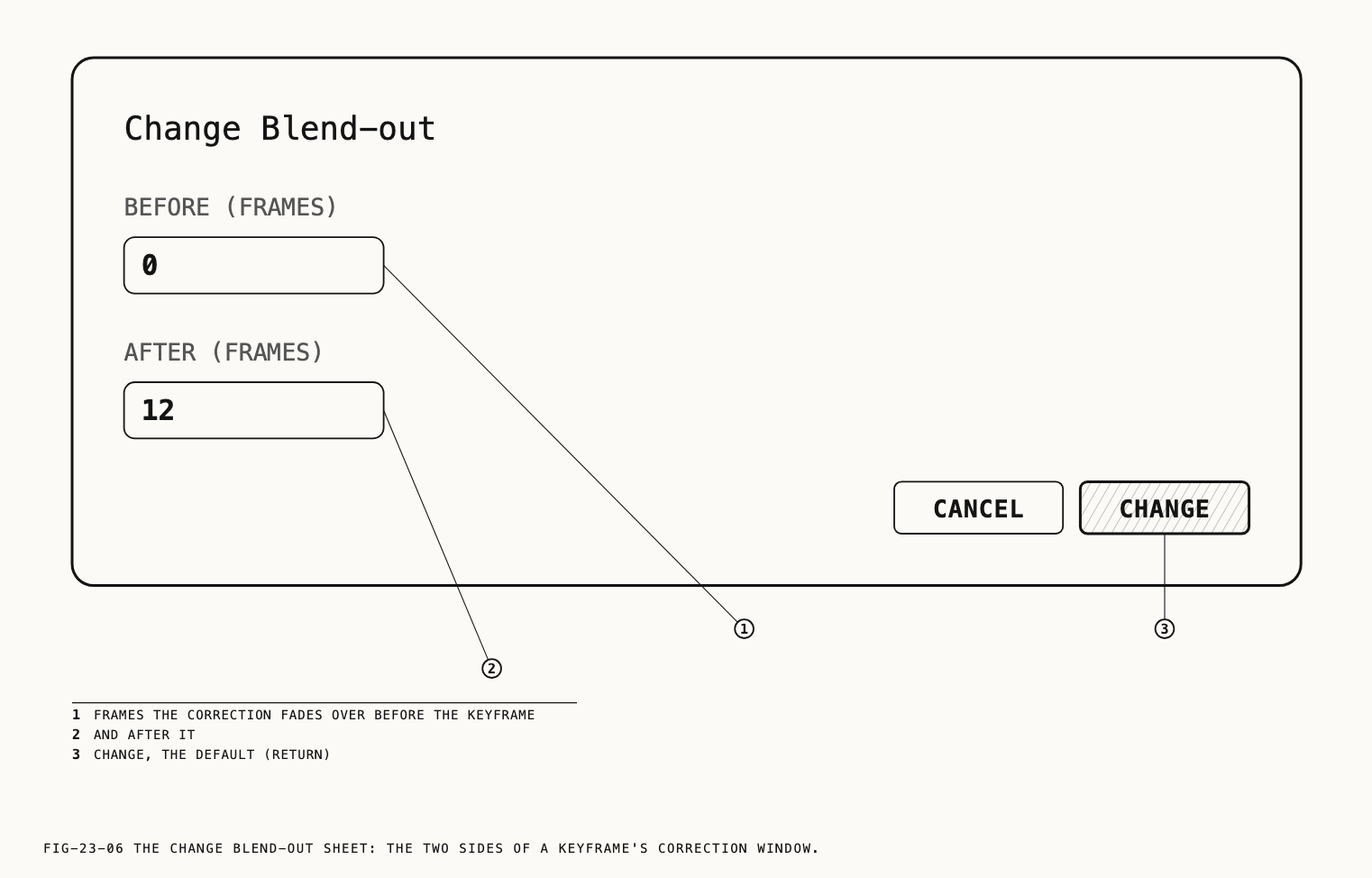
The Change Blend-out sheet has two fields, Before (frames) and After (frames),
filled with the keyframe’s current window, and the buttons Cancel and Change.
Change is the default and Esc cancels. Whole frames only; zero means no window on
that side.
Blend to Amber Edges is the quick repair for a drifting run: put one keyframe in the
middle of the amber, then let its window reach the good frames either side.
Replace Track Between Keyframes is for a run the track cannot follow at all, such as
a fast whip: key both ends, then replace what lies between.
23.9 Ranges on the Lane
Drag along the lane to select a range of frames; a light box marks it. A click on the lane clears it. Right-click inside the range for the lane’s menu, which then acts on the whole range; right-click anywhere else on the band and it acts on that one frame.
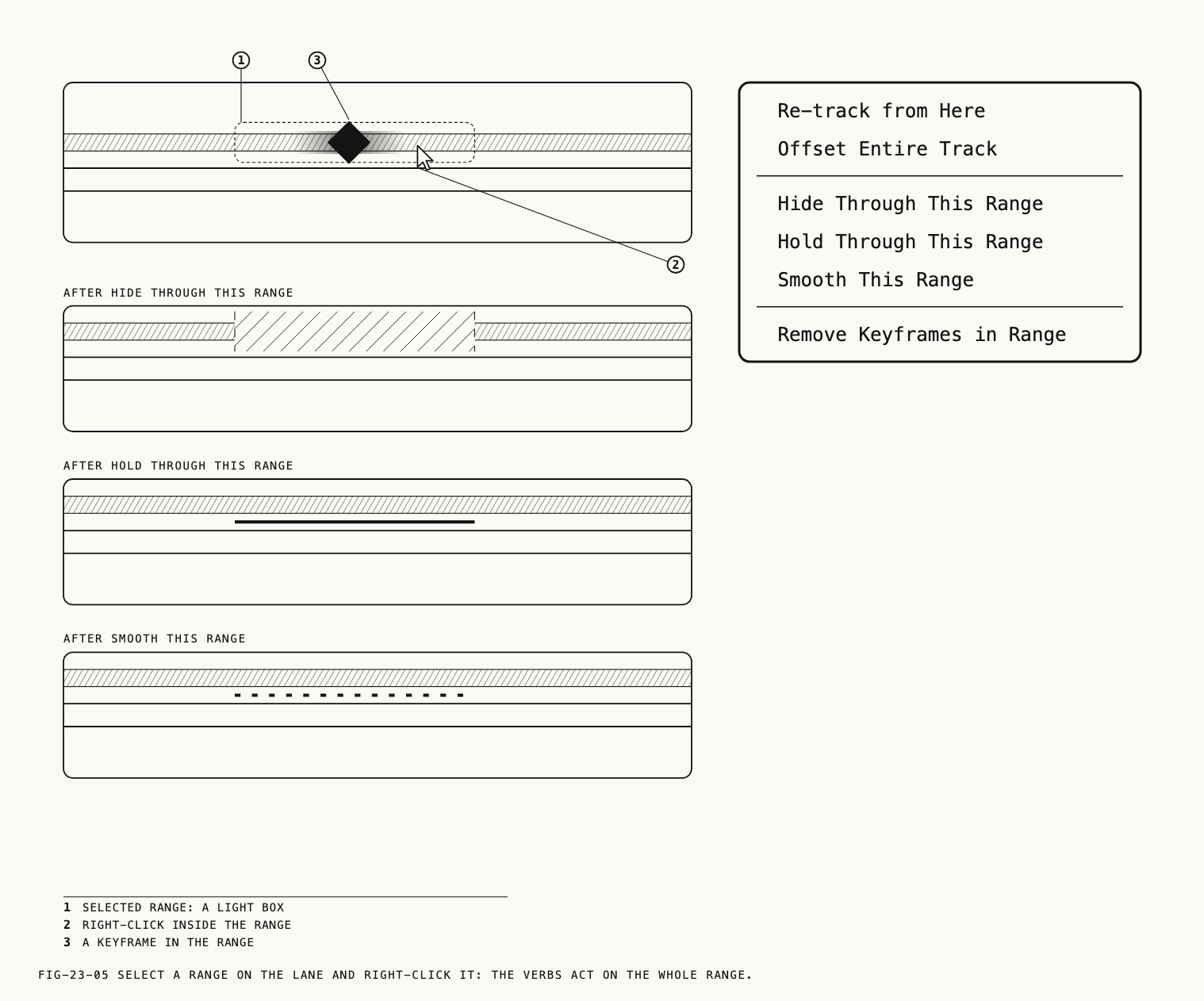
| Verb | Does |
|---|---|
Re-track from Here | Re-tracks from the start of the range, or from the frame (23.11) |
Offset Entire Track | Arms the next drag to shift the whole track (23.12) |
Hide Through This Range | The retouch is not rendered in the range. Drawn as a hatched hole |
Hold Through This Range | The retouch stays where the track had it on the range’s first frame, for the whole range |
Smooth This Range | Smooths the track’s motion across the range, to calm jitter |
Remove Keyframes in Range | Removes the keyframes of the row clicked within the range. Grayed when there are none |
A heal marker’s menu handles hidden ranges from the picture. On a frequency separation
node, Disable This Frame hides the frame shown and Disable From Here hides from it
to the end. On any heal marker, with the playhead inside a hidden range, Enable From Here ends the range so the retouch returns from the frame shown, and Remove Disabled Range removes it; both are grayed elsewhere.
There is no command to remove a held or smoothed range. Edit → Undo (⌘Z) takes one
back while it is the latest change; Reset Tracking clears them all (23.13).
23.10 Lifetime
Where to find it: the Lifetime row on the Mix or Healing tab, the caps on the lane,
or a heal marker’s menu.
The lifetime is the span of the clip in which an item is visible. By default it is the
whole clip. The Lifetime row has a start field and an end field, each reading
–:–– when unset, and two buttons that set the start or the end to the playhead,
Set lifetime start to playhead and Set lifetime end to playhead. The fields accept
seconds or minutes and seconds, as 41, 41.2, 1:05 or 0:01:05.25; clear a field
to return that end to the clip’s start or end. A heal marker’s menu has the same two
verbs as Set Lifetime Start to Playhead and Set Lifetime End to Playhead.
On the lane, drag either cap. A frequency separation node has no Lifetime row; its
lane’s caps are the only route. Undo Trim Mask Lifetime or Trim Heal Lifetime.
23.11 Re-tracking a Range
Where to find it: the Re-track from Here button with the playhead on a keyframe, or
the verb on a diamond’s, the lane’s or a heal marker’s menu.
Re-track from Here tracks again from a keyframe’s frame, starting where the keyframe
puts the item, as far as the next keyframe or the end of the lifetime. Nothing outside
that span changes, and no keyframe moves. From the lane’s menu it starts at the frame or
range clicked. While it runs the status line says what it is doing: Re-tracking Spot 2 from 0:13:05 for a heal item, Re-tracking the region from 0:06:08 on Region, or,
on Face, that it is finding the face again from that frame. On a frequency separation
node, or a heal node on Face or Region, Track backward pressed with the playhead
on a keyframe re-tracks backward from it to the previous keyframe. Undo
Re-track from Here.
This is the remedy when the track has gone wrong from a point onward: correct the first
bad frame with a drag, then re-track from that keyframe so the frames after it follow
the corrected subject. Re-track Item and Retry, by contrast, discard the whole
track and track again from the anchor.
23.12 Offsets and Sources
Offsetting the whole track. Choose Offset Entire Track from the lane’s menu and
the next drag on the item shifts every frame of the track by the distance dragged,
keyframes included, rather than making a keyframe. Use it when the track follows the
right motion but sits a little off throughout. The lane draws a faint red line over the
band while an offset applies. Undo Offset Entire Track. A further offset drag adjusts
it; Reset Tracking removes it.
Re-sourcing a heal item. On a tracked item of a Heal node, ⌥-drag the source
marker to give the item a new source from the frame shown onward. Earlier frames keep
the old source,
and the status counts each change as a re-source. Delete Re-source on the marker’s
menu removes the one in force at the playhead, and the source before it resumes; it is
grayed before the first. Untick Track source when the source lies on something with
no detail to follow, such as open water: the source then keeps a fixed offset from the
repair, and the change is immediate, with no re-track.
23.13 Resetting
Where to find it: the Reset Tracking button, or the last item on a heal marker’s
menu.
Reset Tracking clears the item’s tracking. Keyframes, correction windows,
lifetime, hidden, held and smoothed ranges, the offset and every re-source go; On Loss returns to Fade and Track source is ticked again. Tracking stays on, so the
next Track forward starts afresh from the anchor. Undo restores the settings but not
the track, which must be tracked again.
Unticking Track motion preserves the tracking settings and holds the item still. Removing an item, a component or the whole mask removes its
track with it (Chapters 19 and 20), and Reset Node on a card’s menu (Chapter 11)
clears the node’s items and their tracks together.