An export writes an output to a file using the format, color space, size and metadata set on the Output tab (Chapter 24). Monitor progress with the exports button in the title band.
Each export is a job in the window’s queue. Jobs run one at a time and are kept when Revela quits. View them with the exports button, its panel or the Exports sheet.
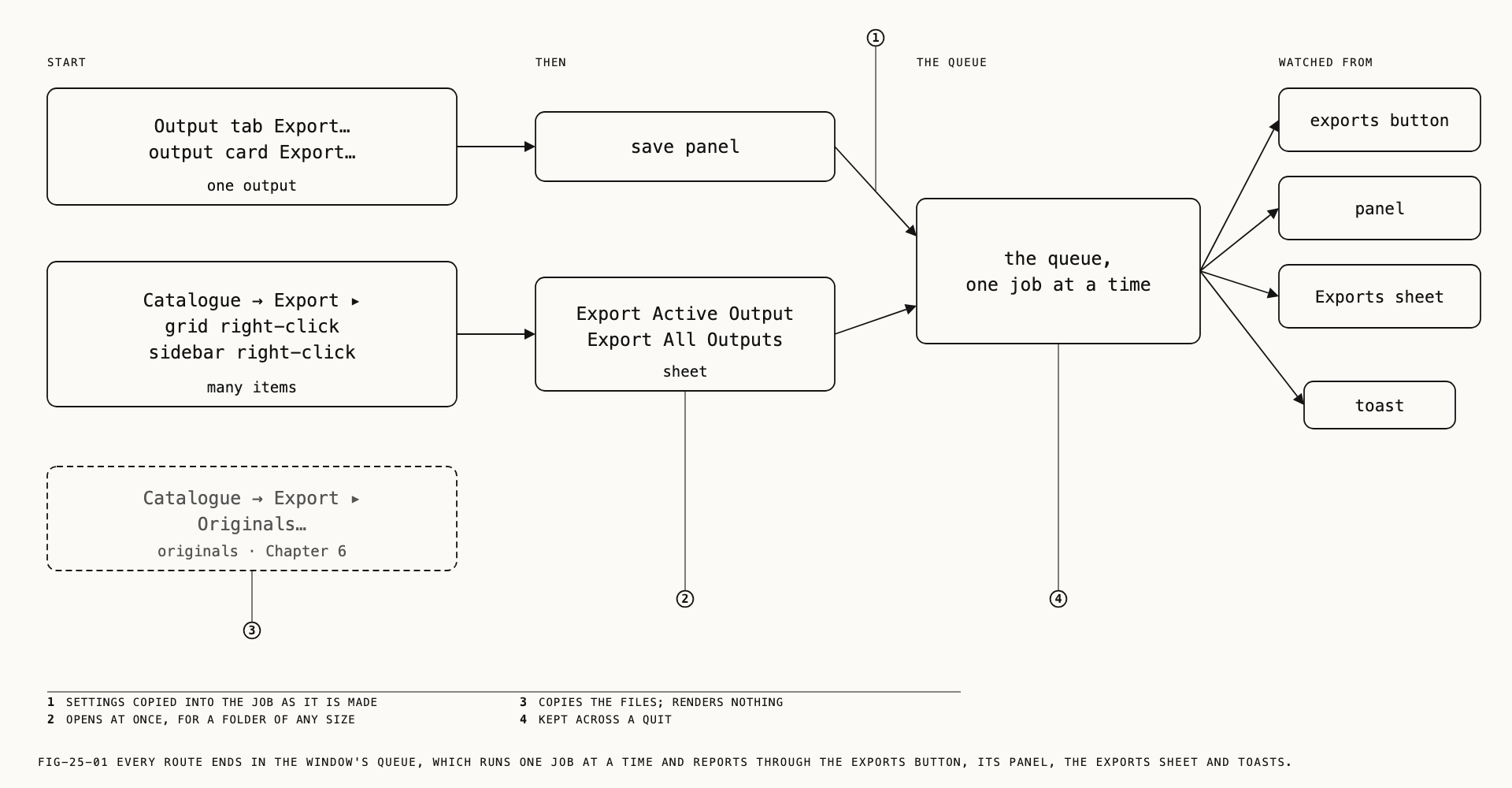
25.1 The export routes
There is no export item in the File menu and no keyboard shortcut for export. The routes are these.
| To export | Route |
|---|---|
| One output of the picture in the loupe | The Output tab’s Export… button, or right-click the output card on the node canvas and choose Export |
| The output each item shows in the loupe, for many items | Catalogue → Export ▸ Active Output, or Export ▸ Active Output on the grid’s or a sidebar row’s right-click menu |
| Every output of many items | Catalogue → Export ▸ All Outputs, or the same item on the grid’s or a sidebar row’s right-click menu |
| The original files | Catalogue → Export ▸ Originals, or the same item on the grid’s or a sidebar row’s right-click menu |
| A grade as a LUT or a Verana profile | File → Export LUT, File → Export Verana Profile, or the output card’s menu (Chapter 14) |
The originals route copies files rather than rendering them, and belongs to Chapter 6.
25.2 Exporting one output
Where to find it: the Output tab, Export…; or right-click the output card on the node
canvas, Export.
Both routes act on the output they belong to: the tab’s button on the output the tab shows, the card’s menu item on the clicked card. Changing the output’s settings afterwards does not affect an export already queued.
A photo’s output, or a clip’s Frame output. A save panel opens, named
<photo>_<output>.<ext> (an output with no name is called Output) and filtered to the
output’s format. Saving makes the job. A Frame output renders the frame at the
timecode set on the Output tab; a timecode past the end of the clip renders the last
frame, and the Exports sheet notes the file with the clip’s last frame.
A clip’s Video output. If the clip carries tracked heals or masks whose tracking has not finished, an alert comes first, titled Heal tracking analysis is incomplete:
Some tracked heals haven't finished analysing. Unanalysed ranges will export with static heal positions. You can export now or wait for analysis to finish. Export Anyway
continues; Wait stops. Tracking is covered in Chapter 23.
For a movie, a save panel opens, named <clip>_<output>.mov or .mp4 after the
output’s format. For an image sequence the panel asks for a folder instead, with the
message The frames go in a new folder, <clip>_<output>. The frames are written into a
new folder of that name inside the one chosen; if a folder of that name is already
there, the new one takes _2, then _3.
Reviewing from a proxy. While the picture in the loupe is a proxy rather than the
original, the tab’s Export… button and the card’s Export item are both disabled,
and the button carries the tooltip Needs the original. Proxies and originals are
covered in Chapter 6.
When the job finishes, a toast reads Exported <file> with a Show in Finder button,
which selects the file in Finder.
25.3 Batch export
Where to find it: Catalogue → Export ▸ Active Output or All Outputs; or the same
submenu on the grid’s right-click menu and on a sidebar row’s right-click menu.
Active Output writes one file per item: the output its loupe shows. All Outputs
writes every output of every item.
What the command acts on depends on where it was given. From the menu bar it acts on
the selected items, or, with nothing selected, on the folder the grid shows. From the
grid’s right-click menu it acts on the clicked or selected items. From a sidebar row it
acts on that row: a folder, the catalog’s own row, All Photos, All Videos or
Favorites. Other sidebar rows carry no Export ▸; to export what a smart folder or a
tag shows, select the row and use the menu bar. The menu bar’s items are disabled while
Recently Deleted is showing.
The sheet is titled Export Active Output or Export All Outputs. It appears at once,
whatever the size of the folder.
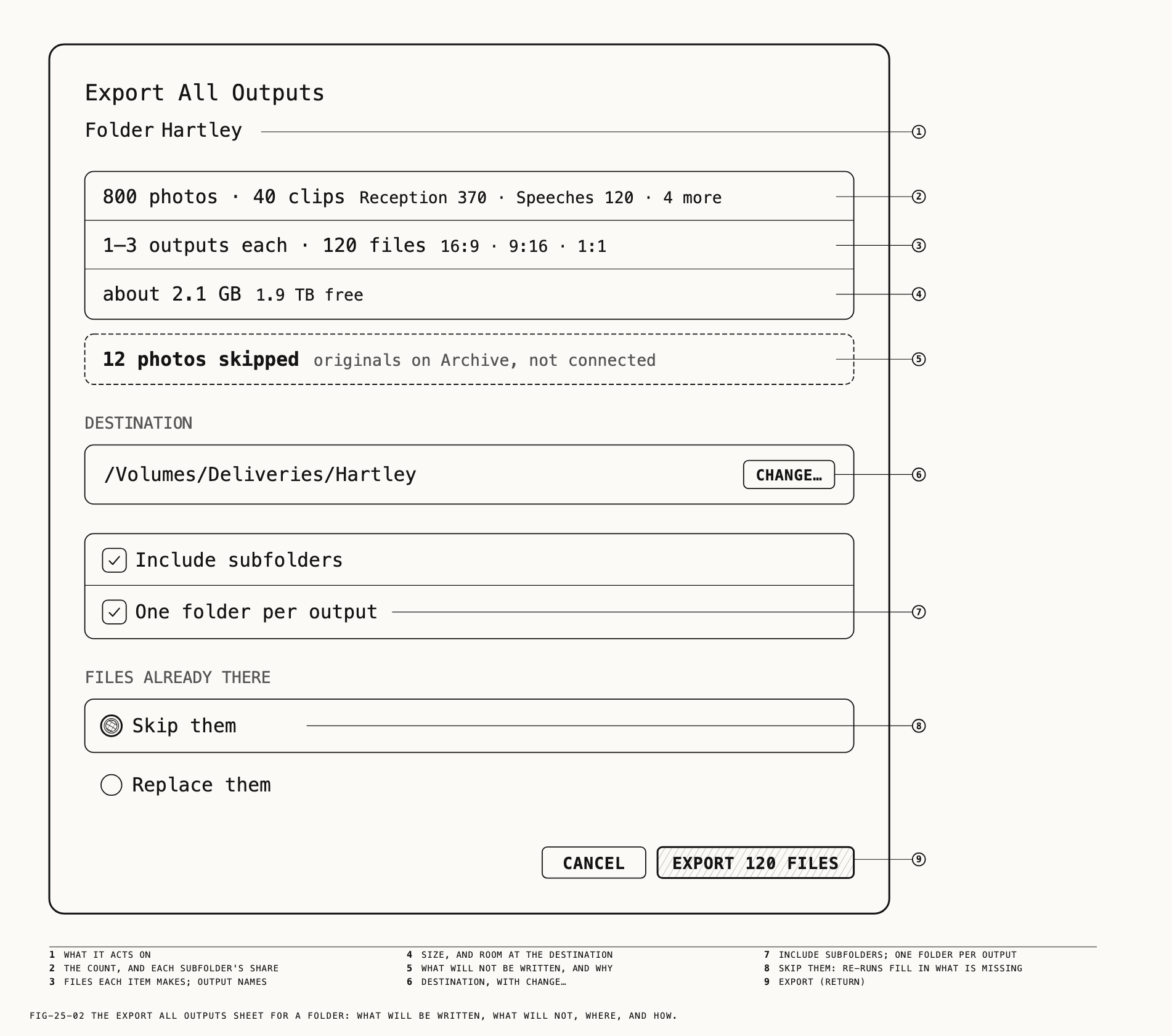
What will be written. The first band names the source: Folder <name>,
Catalogue <name>, or 24 selected photos, 40 selected clips, 41 selected items.
Below it are the item counts, such as 800 photos · 40 clips, broken down by subfolder (Reception 370 · Speeches 120 · 4 more). The sheet lists the outputs and file count, such as 3 outputs each · 120 files, then the estimated size, about 2.1 GB, beside the destination’s free space, 1.9 TB free.
What will not. Amber bands list what is left out and why: 12 photos skipped or
3 clips skipped with the reason originals on <store>, not connected, originals not on this Mac, originals missing, edits from a newer Revela or raw format not supported. When the destination has too little space the band reads <folder> has 1.2 GB free with about 2.1 GB needed, and the export button is disabled until it fits.
Choices. Include subfolders appears only when the source has subfolders holding
photos; it is on by default and keeps the folder layout under the destination. One folder per output appears on All Outputs only, on by default; it is explained in
25.4. Files already there is a choice between Skip them and Replace them. Skip
treats a file already at its name as done, so a re-run of the same export fills in
what is missing and writes nothing twice; a whole movie already there counts as done,
and a sequence writes only its missing frames. Replace writes over whatever is there.
Destination. The Destination row reads No folder chosen until one is picked with
Choose… (the panel’s message is Choose the folder to export to); afterwards the
button reads Change…. The last destination used in this catalog is offered again,
after a relaunch too. It is remembered on this Mac only, and a folder that can no longer
be reached is not offered.
Export. The button reads Export 788 Photos, Export 1 Photo, Export 40 Clips
or, for all outputs and for mixed photos and clips, Export 120 Files. Return presses
it. It is disabled with nothing to write, no destination, or too little room. Cancel
closes the sheet. Pressing Export closes the sheet and adds one job to the queue.
When a batch finishes, the toast reads Exported 788 photos to Hartley, followed by
· 12 skipped or · 24 already there where either applies, or All 24 photos already in Walks when Skip found every file in place. Its Show in Finder opens the
destination folder.
25.4 How exported files are named
A file is named <photo>_<output>.<ext>: the original’s filename without its extension,
an underscore, the output’s name, and the extension of the output’s format. An output
with no name is Output. This is the name a single export proposes in its save panel
and the name a batch writes.
With One folder per output on, a batch of all outputs writes <output>/<photo>.<ext>
instead: one folder per output under the destination, each holding one file per item
named for the item alone.
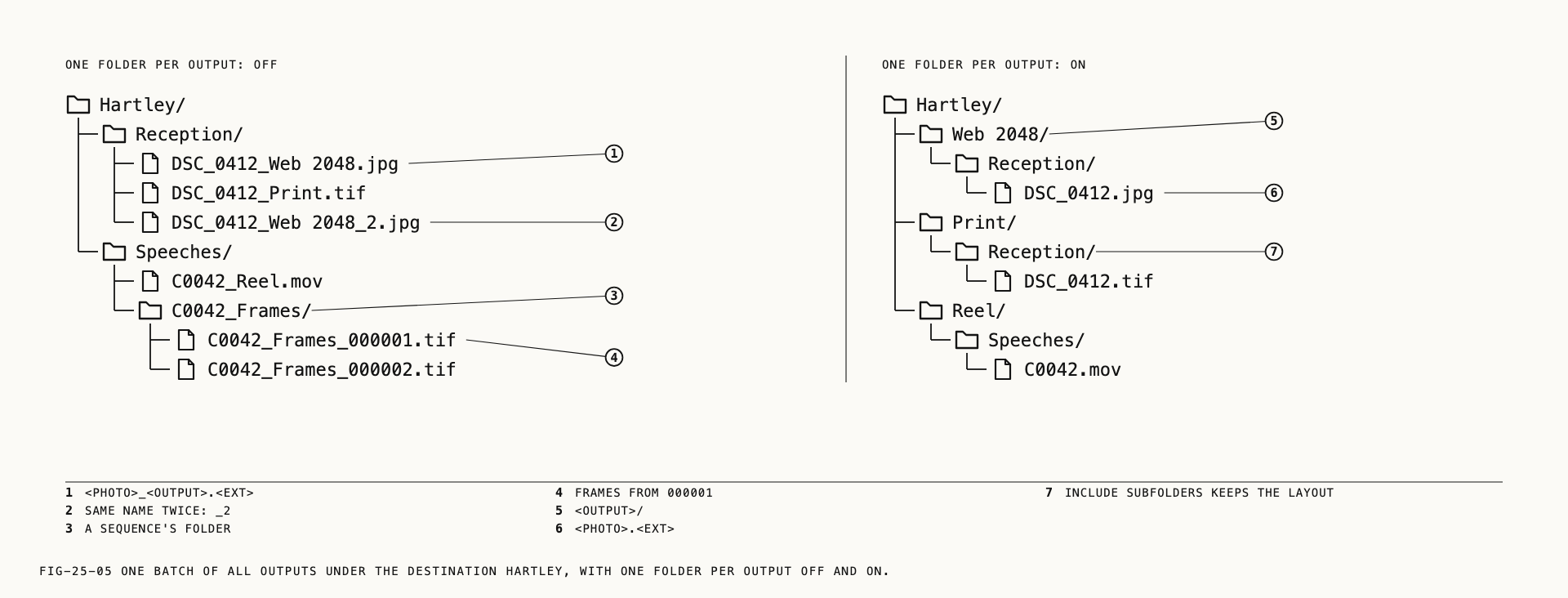
With Include subfolders on, the source’s folder layout is repeated under the
destination, so a photo in Reception lands in <destination>/Reception/.
If two files in a job would have the same name, the second takes _2, the third _3. This order stays the same between runs, so Skip them recognizes files from a previous export. An image sequence is a folder named the same
way, without an extension; its frames are named <folder>_000001.<ext> onward, counted
from 1 at the output’s in point. No folder or output name can place a file outside
the destination.
25.5 Exporting originals
Where to find it: Catalogue → Export ▸ Originals.
The Originals item copies the original files of the selected items, or of the
folder the grid shows, to a folder chosen in a panel titled Export Originals. It does
not render anything and no edit is applied. The flow, its options and its manifest are
covered in Chapter 6.
25.6 The exports button and panel
Where to find it: the exports button in the title band, left of the bell.
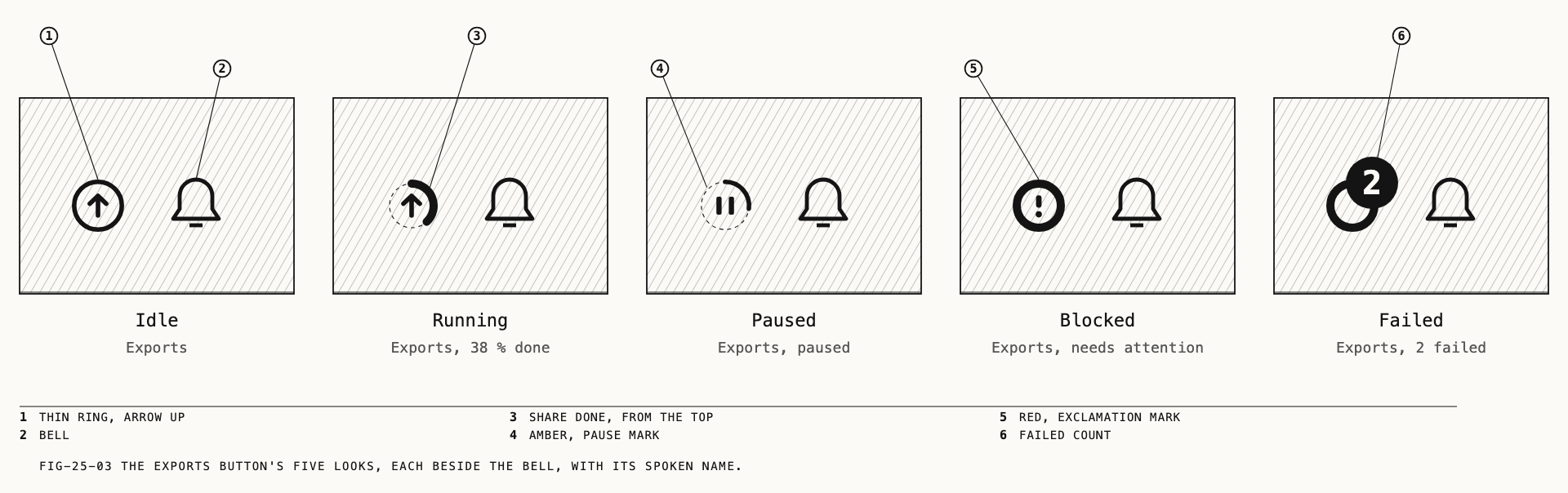
The button is always in the band. It is a ring with an arrow, and it has five looks:
| Look | Meaning | Spoken name and tooltip |
|---|---|---|
| An empty ring | Nothing running, waiting, paused, blocked or failed | Exports |
| A ring filling clockwise from the top | A job is running; the fill is its share done | Exports, <n> % done |
| Amber, with a pause mark | A job is paused | Exports, paused |
Red, with ! | A job is blocked and needs the user | Exports, needs attention |
| Red, with a count badge | A job finished with failures; the badge counts the failed files (999+ past three digits) | Exports, 1 failed, Exports, <n> failed |
A blocked job takes precedence over a running one, a running one over a paused one, and the failed count shows once nothing is running. A clean finish shows its toast and leaves the empty ring.
Clicking the button opens a panel under it, headed Exports; a second click, or a click
elsewhere, closes it. The panel lists unfinished jobs in queue order, followed by recent finished jobs, newest first. With no unfinished jobs, it shows recent exports. A canceled job that
wrote nothing is never listed. Before the first export it reads No exports yet.
Show All Exports… at the foot opens the Exports sheet.
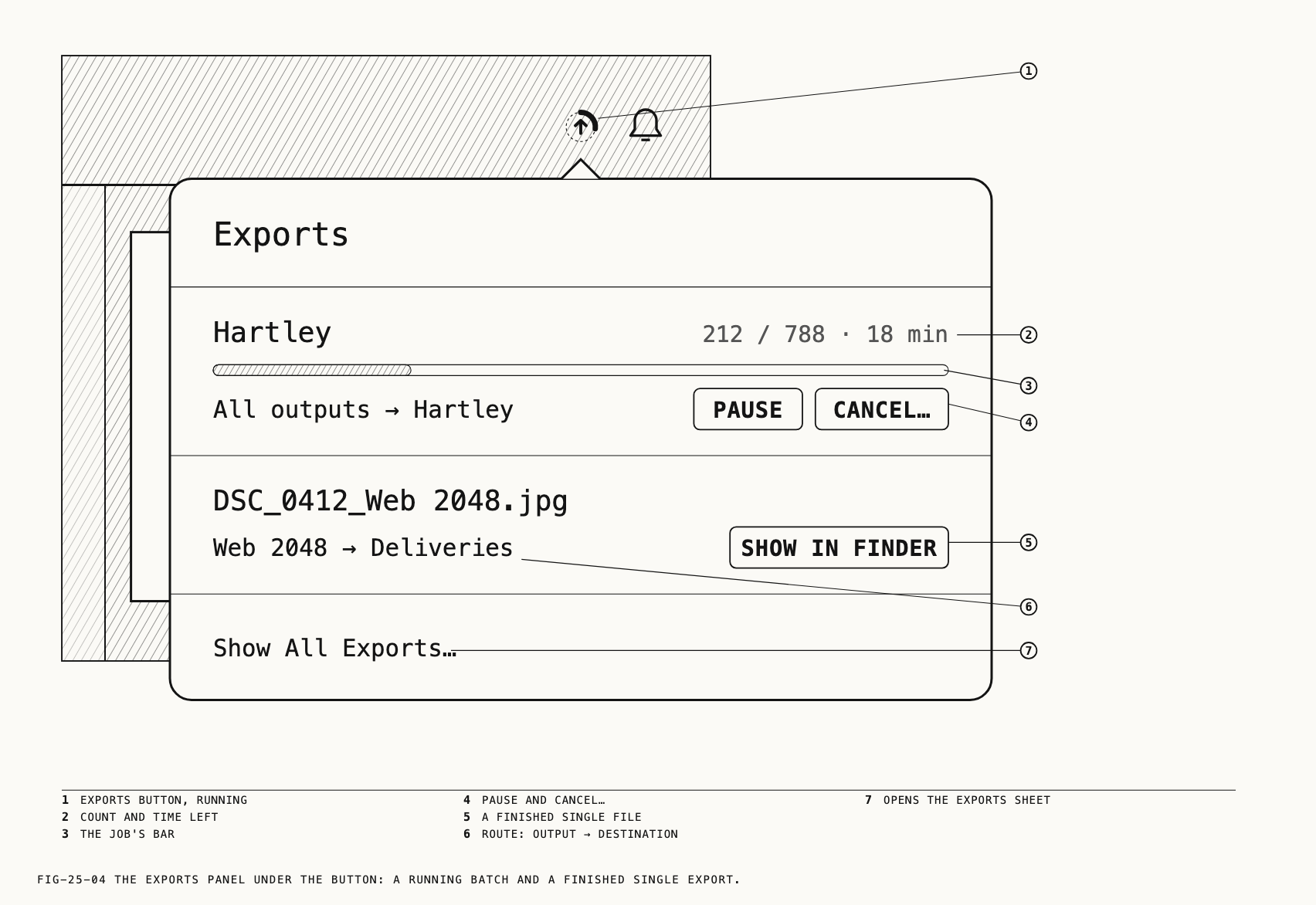
Each row carries the job’s name, its route in the form Web 2048 → Hartley,
All outputs → Hartley or Active output → Hartley, a bar, its count (212 / 788, or
38 % for one movie) with the time left once enough has been written to estimate one,
and one or two buttons:
| State | Reads | Buttons |
|---|---|---|
| Running | the count and time left | Pause, Cancel… |
| Waiting its turn | waiting | Cancel |
| Paused | Paused | Resume, Cancel… |
| Blocked, destination full | <name> is full, <bytes> more needed | Resume, Cancel… |
| Blocked, destination gone | <name> isn’t connected, <name> can’t be found or Can’t write to <name> | Locate…, Cancel… |
| Finished with failures | <n> failed | Retry Failed |
| Finished | the file count | Show in Finder |
| Canceled, some files written | cancelled | Show in Finder |
Cancel… asks once: Cancel the export of <job>?, with Files already written stay.
or <n> files already in <folder> stay., and the buttons Cancel Export and Keep Exporting. Canceling keeps every file that was finished; only the file in hand is
removed. Cancel on a waiting job asks nothing.
Locate… opens a folder panel (message Choose the folder to export to, button
Export Here) so the destination can be chosen again, for a drive that came back under
another name or a folder that moved. The job then continues where it stopped.
Retry Failed queues the failed files again and leaves the written ones alone.
25.7 The Exports sheet
Where to find it: Catalogue → Exports, or Show All Exports… in the panel, or
Show on a failure toast.
The sheet is titled Exports and lists every job the catalog remembers, unfinished
jobs first in queue order, then the finished ones, newest first. Each job shows its name
and its route in full (All outputs → /Volumes/Deliveries/October), a bar, and a detail
line such as 212 of 788 files · 18 min left or 788 files · today 14:02. Under the
line, where they apply, come the failed files with their reasons
(DSC_0412.ARW → Web 2048 · Needs the original, five at most, then and <n> more), any
notes, the skipped items with their reasons, and the job’s buttons. The buttons are the
panel’s, with Show in Finder added beside Retry Failed when some files were written.
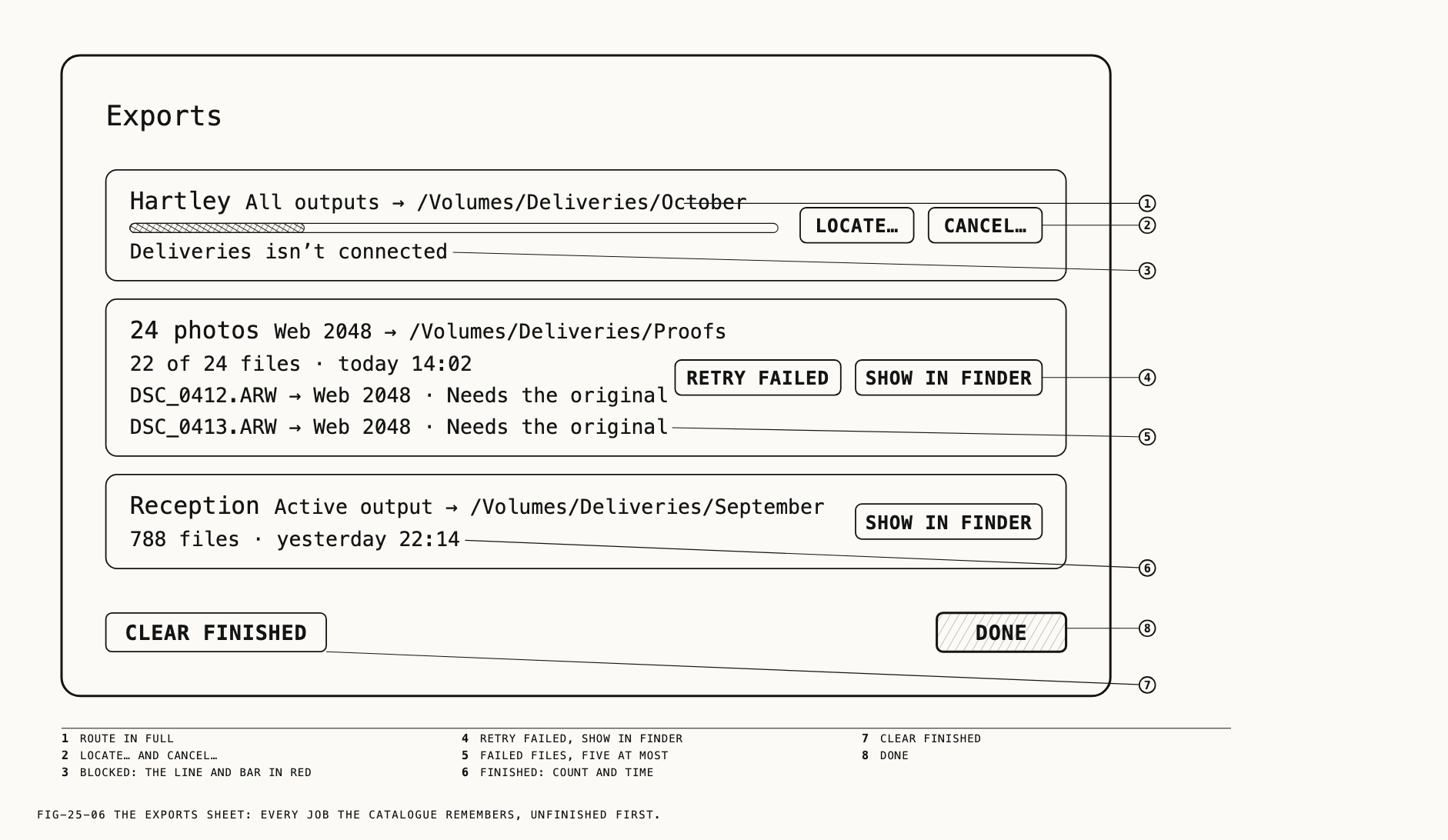
Clear Finished removes the finished, failed and canceled jobs from the list. Done
closes the sheet. With nothing listed it reads No exports.
The reasons a file can fail:
| Reason | Meaning |
|---|---|
Needs the original | The item’s original was not available and a proxy cannot be exported |
The photo is no longer in the catalogue | The item was removed after the job was made |
The output was removed | The output was deleted from the graph after the job was made |
The original could not be read | |
The clip could not be read | |
Its edits can’t be read by this version of Revela | The graph was saved by a newer Revela |
Its raw format isn’t supported by this version of Revela | |
Heal tracking not finished, Mask tracking not finished | A batch movie whose tracking had not finished analyzing (a single export asks first instead, 25.2) |
The file was not written | Any other failure |
25.8 While an export runs
One at a time. A job made while another runs waits behind it and reads waiting.
A blocked job does not hold the queue: the next job may run while it waits for its
destination.
Pause. A still in hand finishes before the queue goes idle; a movie holds between two
frames and continues from there on Resume. A paused job keeps the queue idle until it
is resumed or canceled; the next job does not start on its own.
Sleep. When the Mac sleeps, the file in hand is stopped and removed. The job continues by itself after waking.
Quit. Quitting with a job running or waiting asks once, in an alert titled An export is still running or <n> exports are still running, with one line per job
(B-roll · 11 of 40 files · 33 files in Deliveries., or <file> is being written to <folder>. for a single export). Quit and Resume Later pauses the jobs on this Mac;
after the next launch nothing starts on its own, and the jobs wait in the panel as
paused. Keep Exporting (Esc) cancels the quit. Cancel Export and Quit keeps the
files already written and drops the rest. An unfinished movie restarts from its first
frame when resumed; a file already written is not written again.
Memory. When the Mac is short of memory, the next file waits, without a message, and starts when memory frees up; the panel keeps counting. A very large file still exports.
Not in front. When a job finishes while Revela is not the front app, the toast’s words also arrive as a macOS notification. Permission for notifications is asked at the first finish that needs it.
Failures. A job that finishes with failures shows the toast Couldn’t export <file>
or Exported <n> of <m> files · <k> failed with a Show button that opens the Exports
sheet, and the button in the band turns red with the count.
25.9 What an exported file says about itself
Where to find it: the Output tab, Metadata; and the Settings window, Export tab.
The Metadata row on the Output tab (Chapter 24) chooses how much an exported file
carries: All, All but location (the default), Copyright only or None. Only the information listed below is included.
| Choice | Written |
|---|---|
All | Everything below, including location |
All but location | Camera make and model, lens make and model, capture date and time, exposure time, aperture, ISO, focal length, exposure bias, keywords, caption, the software name Revela, copyright and creator |
Copyright only | Copyright and creator |
None | Nothing beyond what the format itself requires |
Exported keywords and captions use the asset’s tags and caption from the catalog.
Copyright and creator come from the Settings window’s Export tab, which has two
fields under the headings Copyright and Creator. They are kept on this Mac and are
never synced. An empty field falls back to the camera’s own copyright or creator when
the original carries one; otherwise nothing is written. While neither the fields nor
the camera supply one, the Output tab’s Copyright only choice is disabled with the
tooltip Add your copyright in Settings ▸ Export.