Verana runs a short setup sequence the first time it is opened. It covers the permissions the camera needs, your Pearla account, and the subscription. It runs once. Every launch after that opens directly on the camera screen, which is described in Chapter 2.
The sequence cannot be skipped or dismissed, and it holds portrait orientation however the device is held. Each step has to be completed before the next one appears.
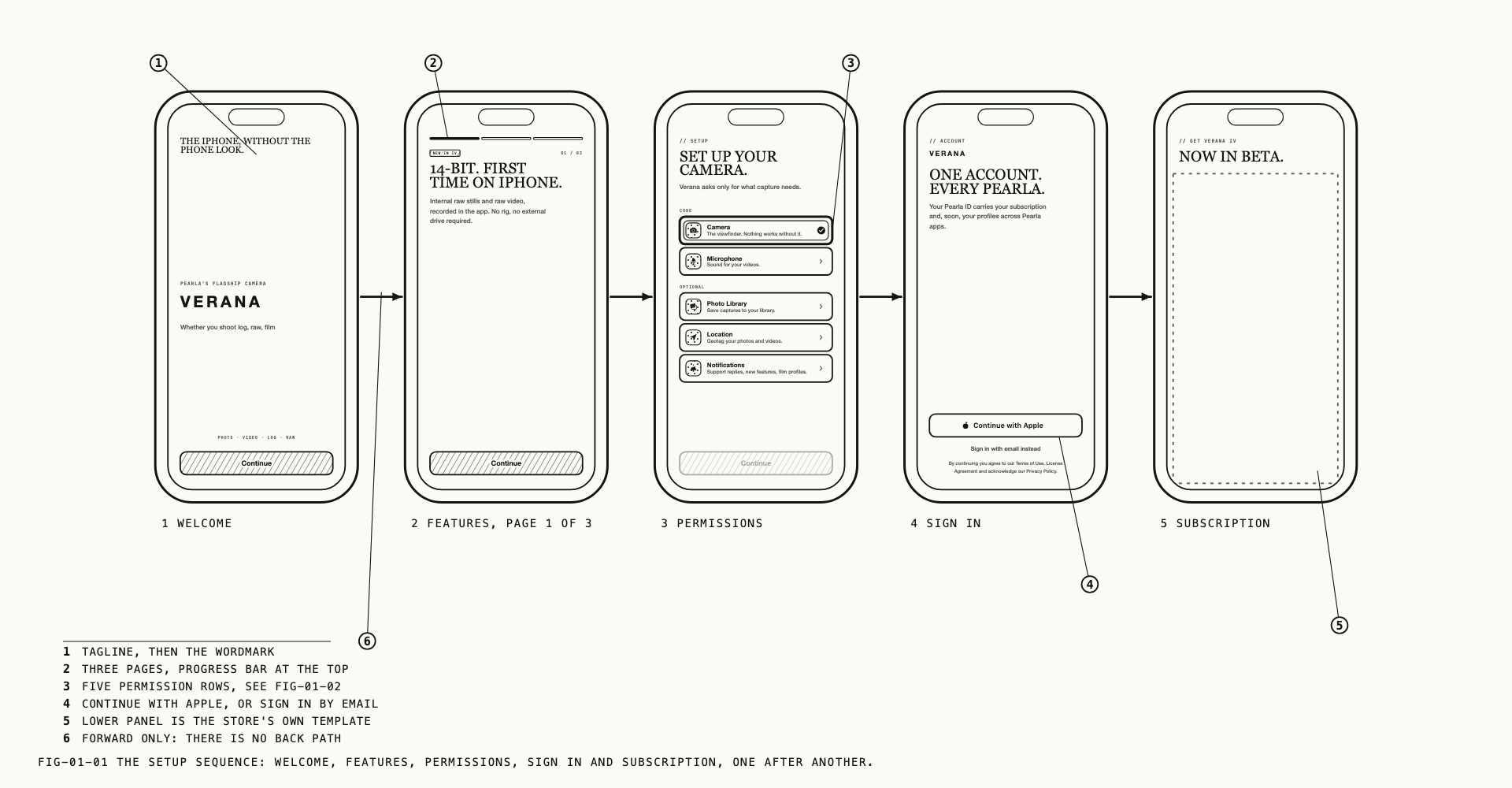
1.1 Installing
Verana IV is downloaded from the App Store and installs like any other iPhone app. There is nothing to prepare before the first launch, and no settings are carried in from outside the app.
Verana IV requires iOS 18 or later. Some features need a later version than that, and some are unavailable or reduced on particular iPhone models.
1.2 The Setup Sequence
The sequence has four steps, in this order.
| Step | What it does |
|---|---|
| Onboarding | Introduces what Verana captures and how it treats color |
| Permissions | The access Verana needs, described in section 1.3 |
| Sign in | Your Pearla account, described in section 1.4 |
| Subscription | The subscription that unlocks the app, described in section 1.5 |
Once camera access is granted at the permissions step, the live viewfinder appears behind the remaining screens. The sequence ends by clearing away to leave you in the camera.
1.3 Permissions
The permissions step is headed “Set up your camera.” and lists five items in two groups,
CORE and OPTIONAL. Each carries the reason Verana asks for it.
| Permission | Group | Why it is asked |
|---|---|---|
| Camera | CORE | The viewfinder. Nothing works without it. |
| Microphone | CORE | Sound for your videos. |
| Photo Library | OPTIONAL | Save captures to your library. |
| Location | OPTIONAL | Geotag your photos and videos. |
| Notifications | OPTIONAL | Support replies, new features, film profiles. |
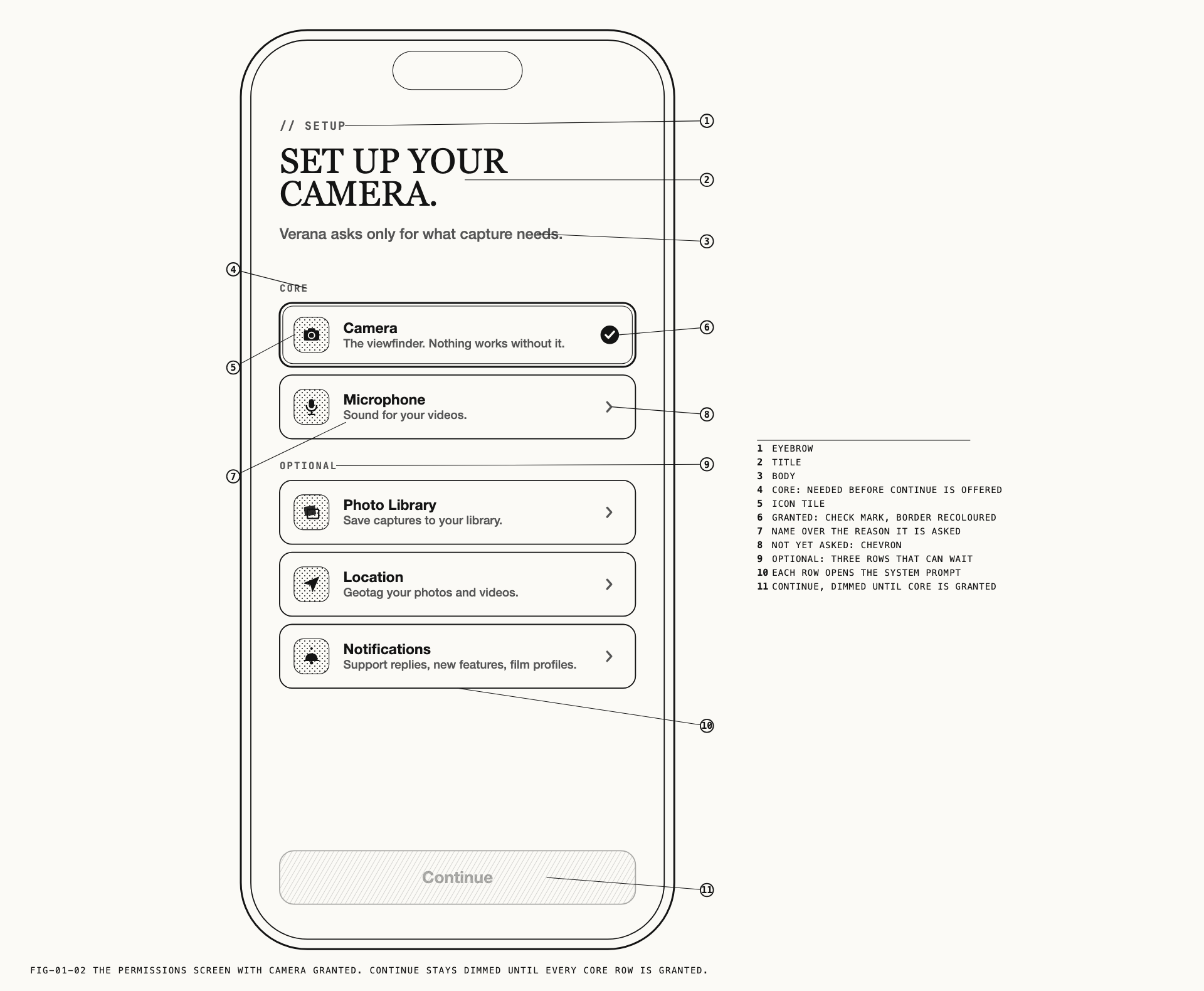
Tap a row to raise the system prompt for that permission. Nothing is requested automatically and nothing is requested in a fixed order, so the three optional items can be declined and the sequence still completes. A granted row shows a check mark in place of its chevron.
Continue stays disabled and dimmed until both core permissions are granted. Camera and microphone are the two the camera cannot operate without, so the sequence does not advance past them.
If a permission has already been declined at the system level, tapping its row opens the iOS Settings app rather than prompting again, since iOS asks only once. A change made in iOS Settings is reflected on the screen when you come back.
Note: Declining location during setup leaves geotagging unavailable. You are asked
again the first time you tap Save Location on the Photo or Video settings page, which
prompts if access has not been decided and opens iOS Settings if it was refused. Geotagging
is covered in Chapter 7.
1.4 Signing In
Verana signs in with Sign in with Apple. There is no password to set and no other method offered. The account this creates is your Pearla account, and it is what carries your subscription between Pearla applications.
Below the sign-in button are links to the Terms of Use, the License Agreement and the Privacy Policy. Continuing past this step is an acceptance of all three.
If sign-in does not complete, the screen reports it and stays where it is so the attempt can be repeated. Cancelling the system sheet is not treated as a failure and returns you to the same screen. The sequence never advances without an account.
Signing in happens once. If the setup sequence is ever run again on a device that is already signed in, this step is passed over.
1.5 The Subscription
Verana IV is sold as a subscription. There is one subscription and it unlocks the whole application. Everything described in this manual is included.
The final step of the sequence presents the available subscription options and completes when one is active. It also carries a restore action for a subscription that has already been bought with the same Apple Account, which is the route to take on a second device or after a device is replaced or reset.
If the subscription options cannot be loaded, the screen reports Subscription Required
and offers Retry and Restore Purchases instead. This is usually a connection
problem. Retry, and if it persists, close and reopen the app.
The subscription is managed in the subscription settings of your Apple Account, in the same place as every other App Store subscription.
1.6 Later Launches
Camera and microphone access is confirmed at each launch. If either has since been turned off for Verana in iOS Settings, the app opens on a permissions screen listing all five permissions with their current state, and a Get Started button that is enabled once camera and microphone are restored. Rows that were declined at the system level offer a Settings action that takes you to the iOS Settings app.