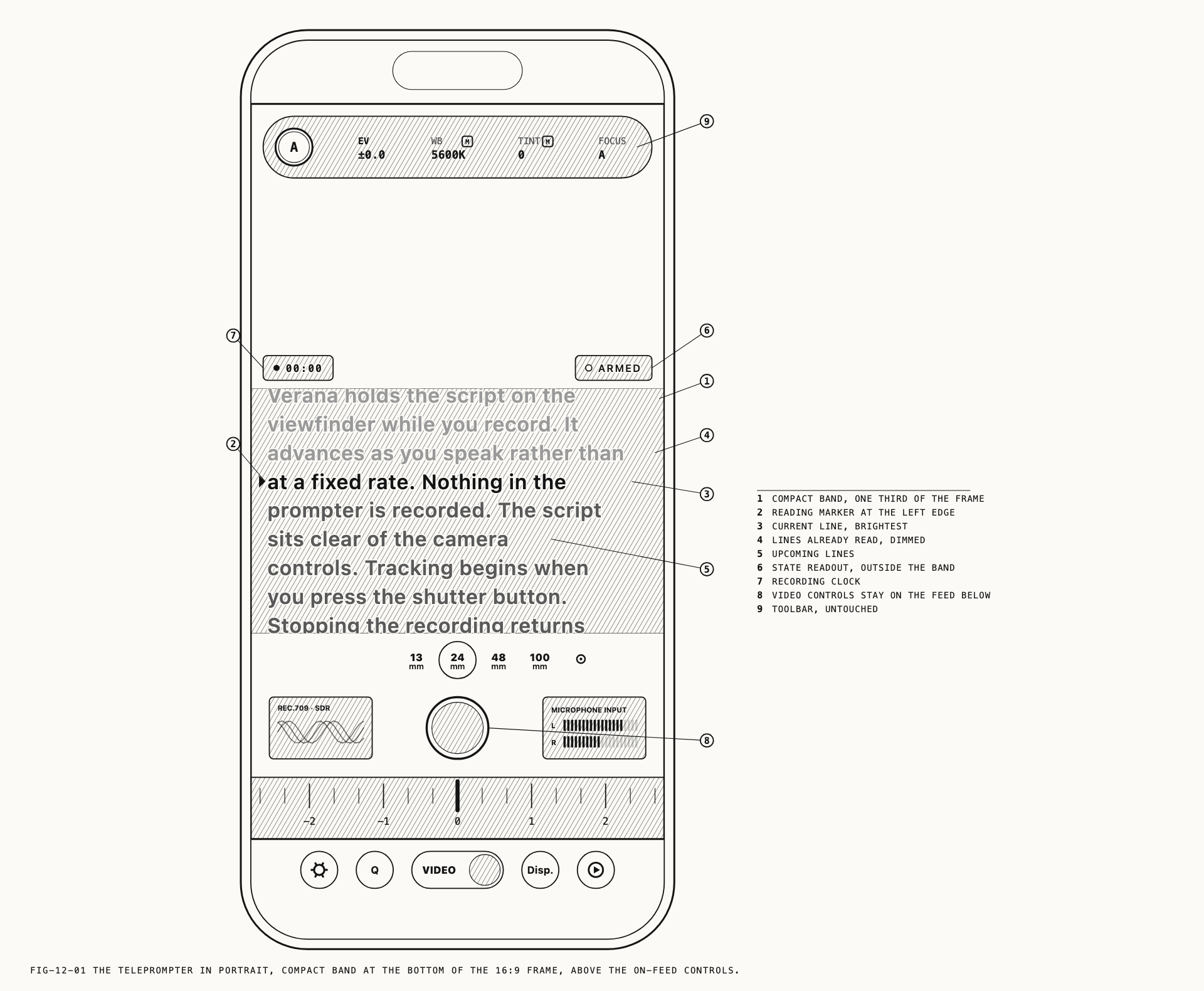
Verana can hold your script on the viewfinder while you record and advance it as you speak. The script is drawn over the image, clear of the camera controls, and it follows your delivery rather than crawling at a fixed rate. Nothing in the prompter is recorded: it is there for the operator to read and never reaches the file.
The teleprompter is a video feature. It appears when the capture mode is video, and switching to photo puts it away until you return. It also requires iOS 26. On earlier versions the settings page dims and its toggle states the requirement.
12.1 Turning It On
The teleprompter is armed from settings rather than from the toolbar. Turning
Teleprompter on arms it, and the script appears on the viewfinder as soon as you
return to the camera. The setting is remembered, so the prompter is still armed the next
time you open the app.
Where to change it: Settings → Teleprompter.
Arming does not begin the take. It puts the script on screen at the top, ready to read, and tracking starts when you press the shutter button. Stopping the recording returns the prompter to its ready state.
The script is shown on the device holding the camera. A second iPhone used as a monitor does not display it. Remote monitoring is covered in Chapter 21.
12.2 Scripts
Verana keeps a library of scripts. One of them is active at a time, and the active script is the one the prompter reads.
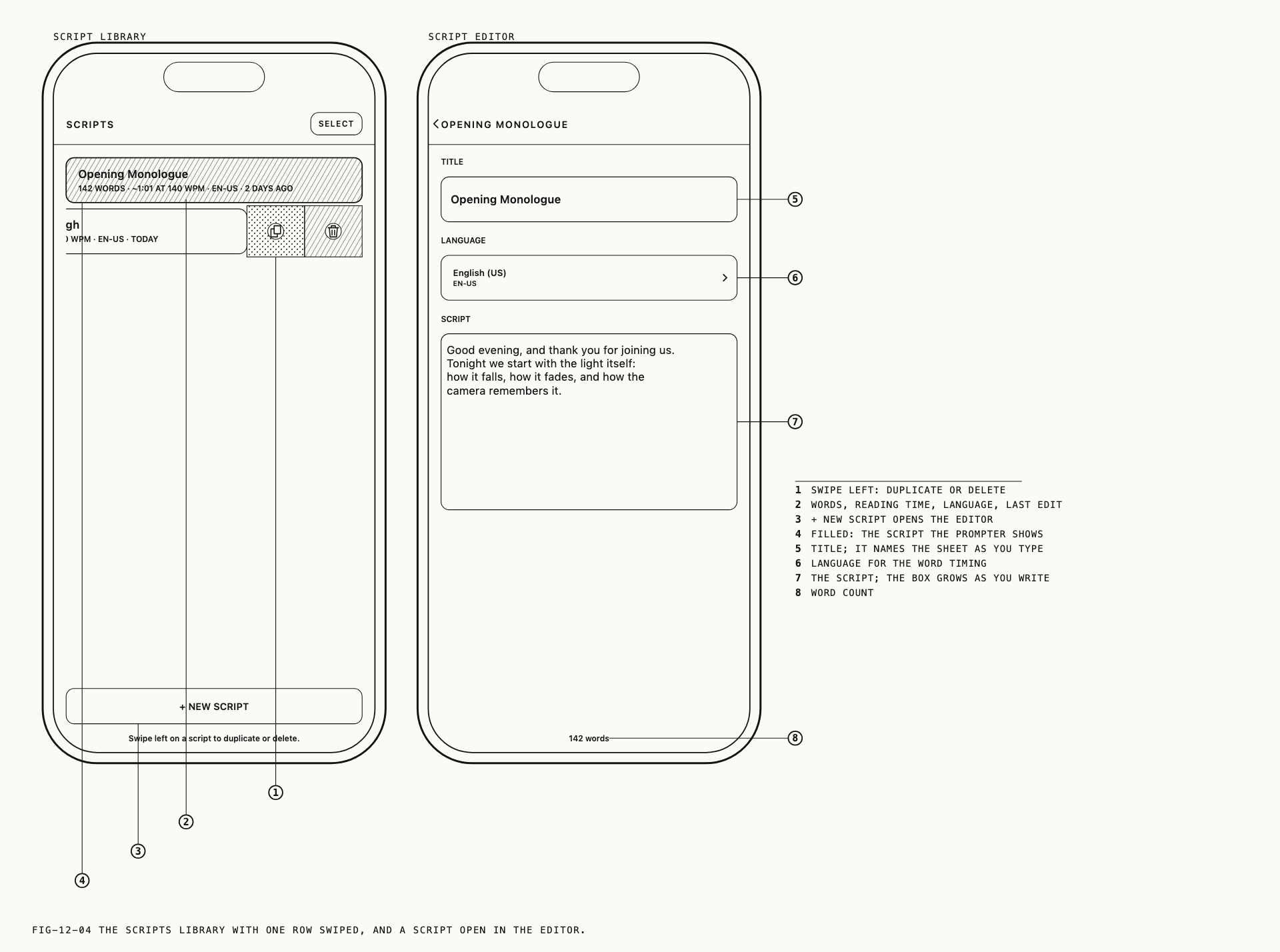
Active Script lists your scripts by title and selects between them. MANAGE SCRIPTS
opens the script library, where scripts are written, edited, duplicated and deleted.
The library starts empty, so write a script before your first take: the prompter has
nothing to show until one exists.
Each row in the library gives the script’s title and a summary line: the word count, an
estimated reading time at the speed set on the settings page, the language, and when it
was last edited. Rows are ordered by most recent use. Swiping a row to the left offers
Duplicate and Delete, and a duplicate is created with copy appended to its
title. Tapping a row makes that script active and opens it for editing.
A script has a title, a language and a body. The language is set per script rather than per app, so a bilingual shooter keeps one library. English is ready immediately. Other languages need a network connection the first time they are used. The editor counts the words as you type and estimates how long the script will take to read.
Note: changes to the active script, the scroll mode or the speed take effect the next time you are between takes. A recording in progress is never interrupted by a settings change.
12.3 Scroll Modes
Scroll Mode decides what moves the script while you record.
| Option | Behavior |
|---|---|
| Speech | The script follows your voice. This is the default |
| Timed | The script advances at a constant speed |
| Manual | The script never advances by itself. You move it |
In Speech, Verana listens to the take, finds where you are in the script, and moves the text so the line you are speaking sits at the reading marker. Pausing pauses the script. Speeding up speeds it up. Because the position is your voice rather than a clock, a natural delivery does not drift out of sync.
Timed suits a piece you have rehearsed to length, and Manual suits a reader with a hand free or an assistant. In Manual the script stays where it is until you drag it.
Timed Speed sets the constant rate in words per minute, from 80 to 220. It is available
when the scroll mode is Timed, and also when the off-script behavior below is set to
Timed Crawl, since both use the same rate. It is dimmed otherwise.
12.4 The Reading Marker and the Current Line
A small marker sits at the left edge of the script, a little above the middle of the reading area. That is the reading line. The script moves under it, so your eyes stay in one place instead of chasing the text down the frame.
Text is drawn in three weights. Lines you have already read are dimmed, the line at the marker is brightest, and the lines ahead of you sit between the two. The effect is that your place is visible at a glance from arm’s length.
Current Line controls the bright emphasis on the line being read. Turning it off draws
the current line like the rest of the upcoming text, which some readers prefer because it
removes a moving highlight from the frame. The dimming of read lines is not affected.
You can drag the script to move your place. Dragging works before a take and while the prompter is holding, and the line you leave at the marker becomes the new position. While speech is actively driving the scroll the drag is ignored, so a hand brushing the screen cannot pull you off your place mid-sentence.
12.5 Going Off Script
Leaving the script is expected, and Verana treats it as a normal event rather than a failure. When what you are saying no longer matches the text, the script stops where it is and waits. It picks you up again when you return to the written words, which it will do even if you skipped a paragraph while ad-libbing.
When Off Script decides what happens during the departure.
| Option | Behavior |
|---|---|
| Hold | The script freezes until you return to it. This is the default |
| Timed Crawl | After a few seconds the script begins advancing at the timed speed |
Hold leaves the rhythm with you. Timed Crawl is for readers whose improvisations run long and who would rather come back to a script that has moved on with them than to one holding a line they finished a minute ago.
12.6 State and the Recording Clock
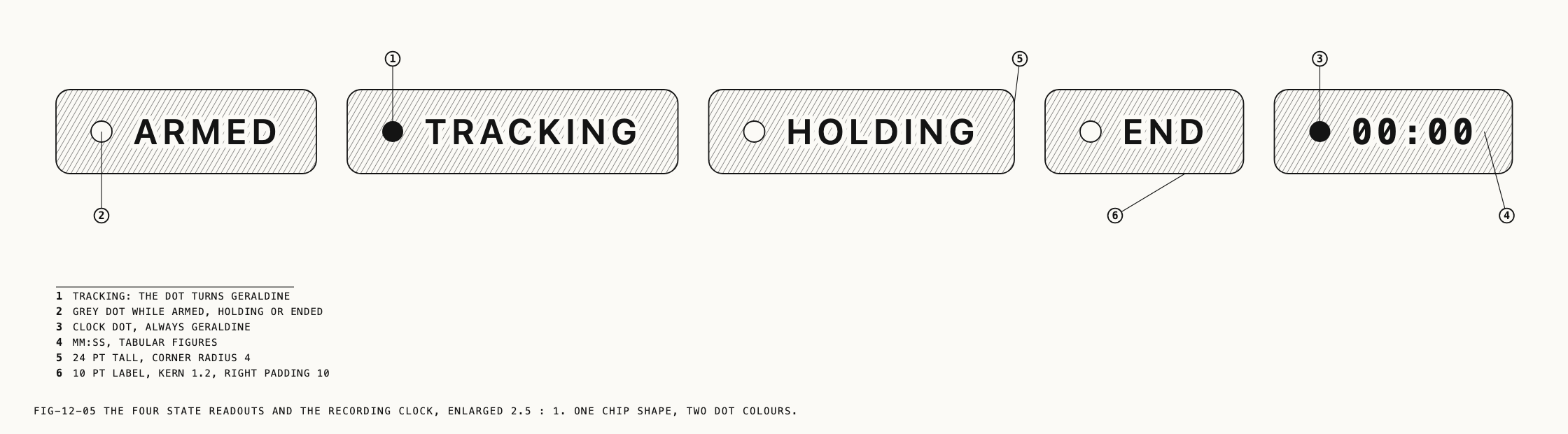
Two small readouts sit beside the script.
| Readout | Meaning |
|---|---|
ARMED | The prompter is ready. Recording has not started |
TRACKING | Recording, and the script is following you |
HOLDING | Recording, and the script is waiting. You are silent or off script |
END | The end of the script has been reached. Recording continues |
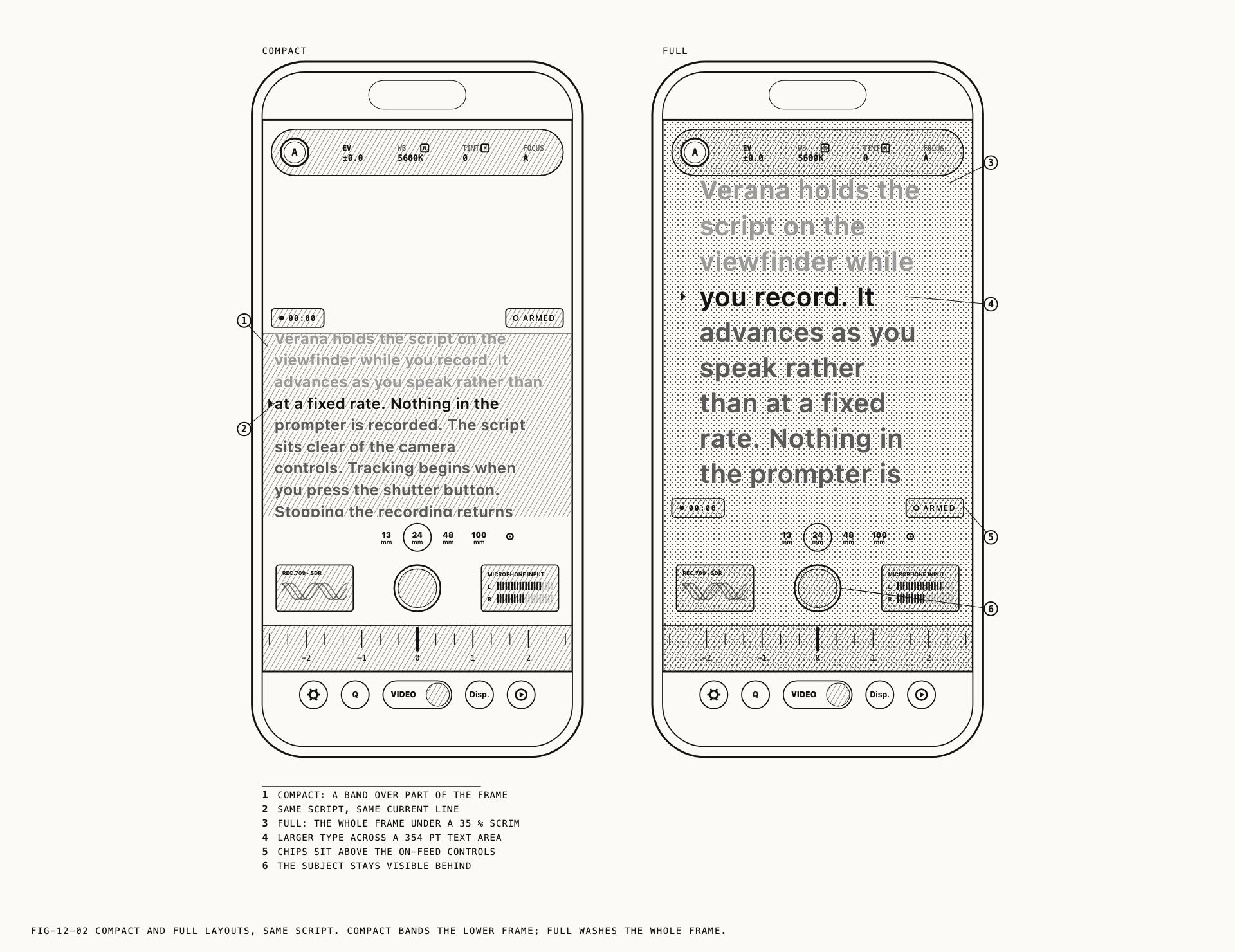
The second readout is the recording clock. While the prompter is on screen the clock appears beside the script rather than on the status line, so the elapsed time is in the same place as the words you are reading and you are not looking at two corners of the frame. The recording frame that marks a take in progress is drawn thinner at the same time, so it does not sit on top of the reading marker. The status line is covered in Chapter 2.
The script itself ends with a centered THE END, set apart from the last line, so the end
of the text is unmistakable and not confused with a script that has simply stopped
scrolling.
12.7 After Recording
After Recording decides where the script sits when a take ends.
Reset returns it to the top, which is what a second take of the same piece needs. Resume leaves it where you stopped, which is what a long script recorded in sections needs. Reset is the default.
12.8 Layout and Type
Two layouts serve two ways of working.
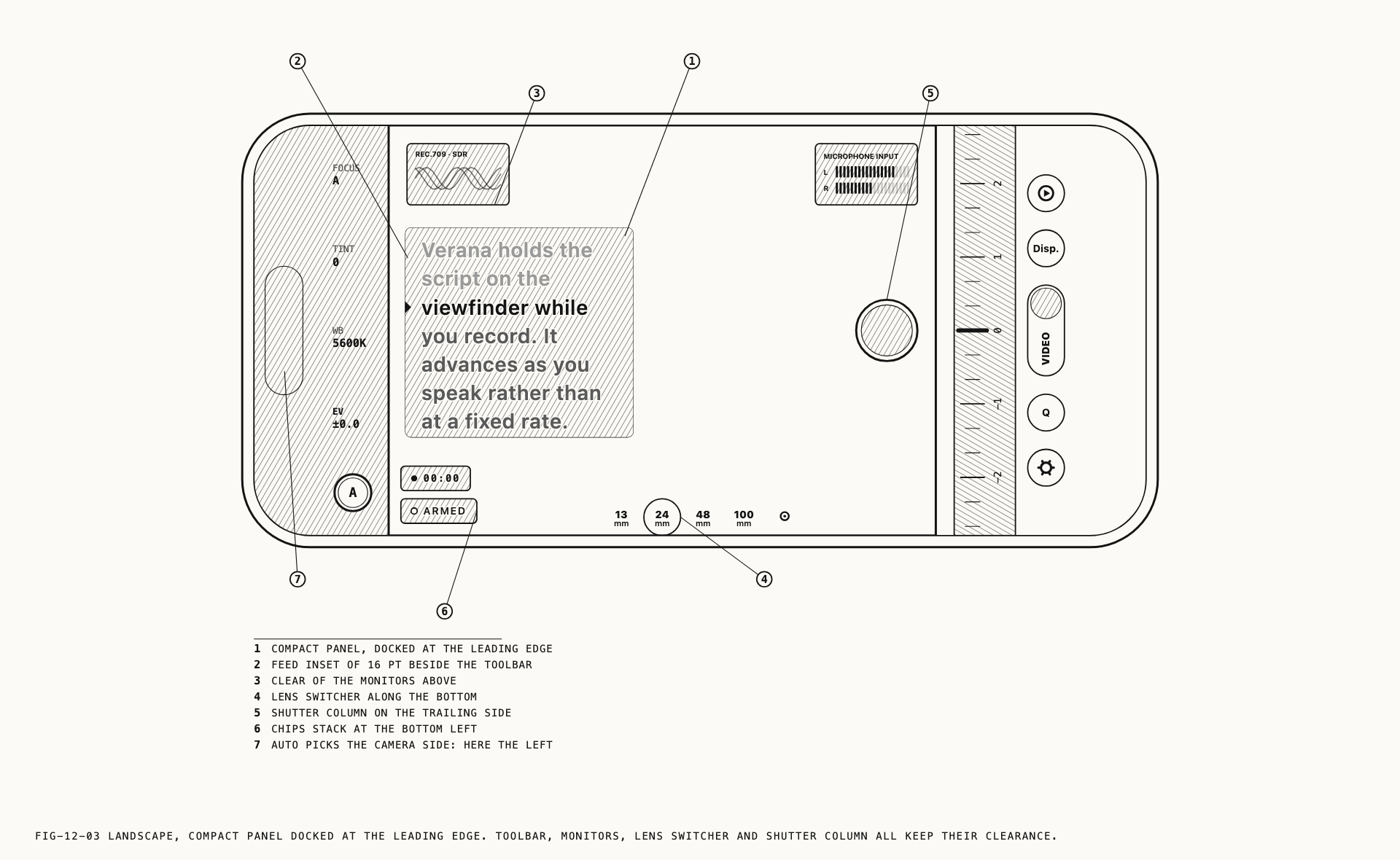
Compact is for reading at arm’s length, with the phone held or on a short stand and the front camera in use. The script occupies a band across the frame in portrait, or a panel at one side in landscape, and the rest of the image stays clear so you can see yourself.
Full is for reading at a distance, with the phone on a tripod one to two meters away. The script is set larger across the whole frame over a light scrim, with the image still visible behind it.
Type Size offers S, M, L and XL. The four steps map to a different set of sizes
in each layout, so M in Full is considerably larger than M in Compact and you do not
have to reset the size when you change how you are working.
SIZE · COMPACT sets how much of the frame the Compact band uses, as a quarter, a third
or a half. It applies to the Compact layout only and is dimmed in Full.
Background sets how dark the panel behind the script is. Each layout keeps its own
value, so the darker background that makes a small band legible does not follow you into
Full, where a lighter scrim keeps the image readable behind the text.
12.9 Position
The script is placed clear of the camera controls in every arrangement. It never covers the lens switcher, the shutter button, the dial, the toolbar or the monitoring tools, and it moves out of their way when a change of aspect ratio brings them onto the image. Where the controls leave no usable space, the prompter shows nothing rather than obscuring them.
POSITION · PORTRAIT places the Compact band at the top or the bottom of the frame.
Bottom is the default and keeps your face clear of the text. Top puts your eyes nearer
the front camera, which is the more convincing eyeline if the reader is the subject.
POSITION · LANDSCAPE places the Compact panel at the left or right edge, or leaves the
choice to Auto. Auto docks the panel on the side the camera sits on for the way you are
holding the phone, which keeps your eyes beside the lens whichever way you rotated it.
Auto is the default and is the setting to leave alone unless a rig dictates otherwise.
Both positions apply to the Compact layout. Full fills the space available to it in either orientation.
When the front camera is in use the preview is mirrored, and the script is drawn the right way round regardless. There is nothing to set for this.
12.10 Mirroring
Mirror flips the script for beam splitter rigs, where the phone’s screen is read as a
reflection through glass in front of the lens.
Off is normal reading. H flips the text horizontally and V flips it vertically.
Only the text is flipped. The panel, the reading marker and the readouts stay as they
are, so the rest of the display remains legible while you are setting the rig up.
12.11 Hiding the Script for a Framing Check
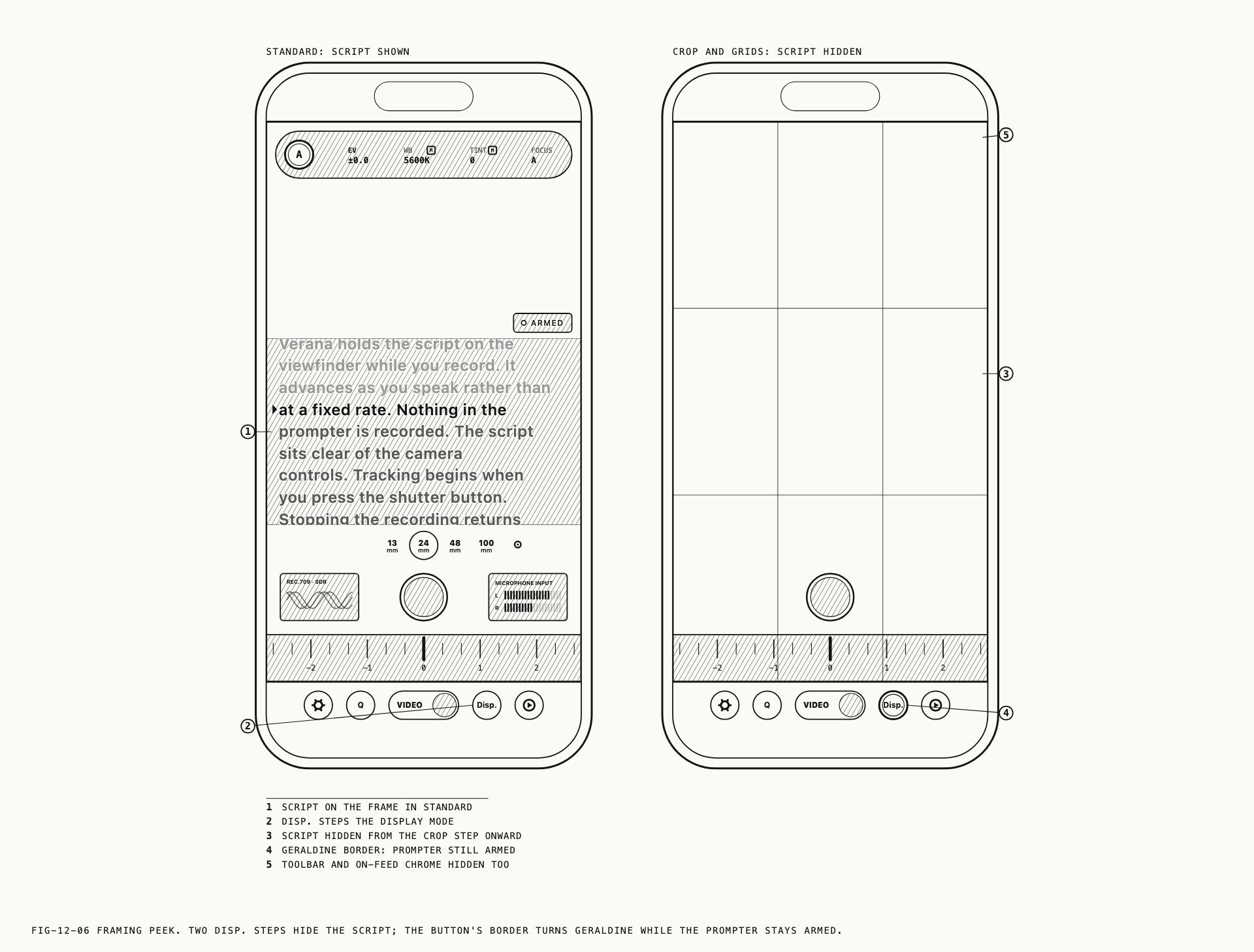
The prompter follows the viewfinder display cycle, which gives you a way to see the unobstructed frame without disarming anything. In Standard and HUD off the script is shown. The three remaining display modes hide it, so a press or two of Disp. clears the image for a framing check and the same button brings the script back.
Tracking is not interrupted while the script is hidden. If you are recording, Verana keeps following your delivery, and the script reappears at the place you have reached rather than where you left it.
A colored ring appears around the Disp. button whenever the prompter is armed but hidden, so a script that has vanished is never mistaken for one that failed to load. The display cycle itself is covered in Chapter 2.