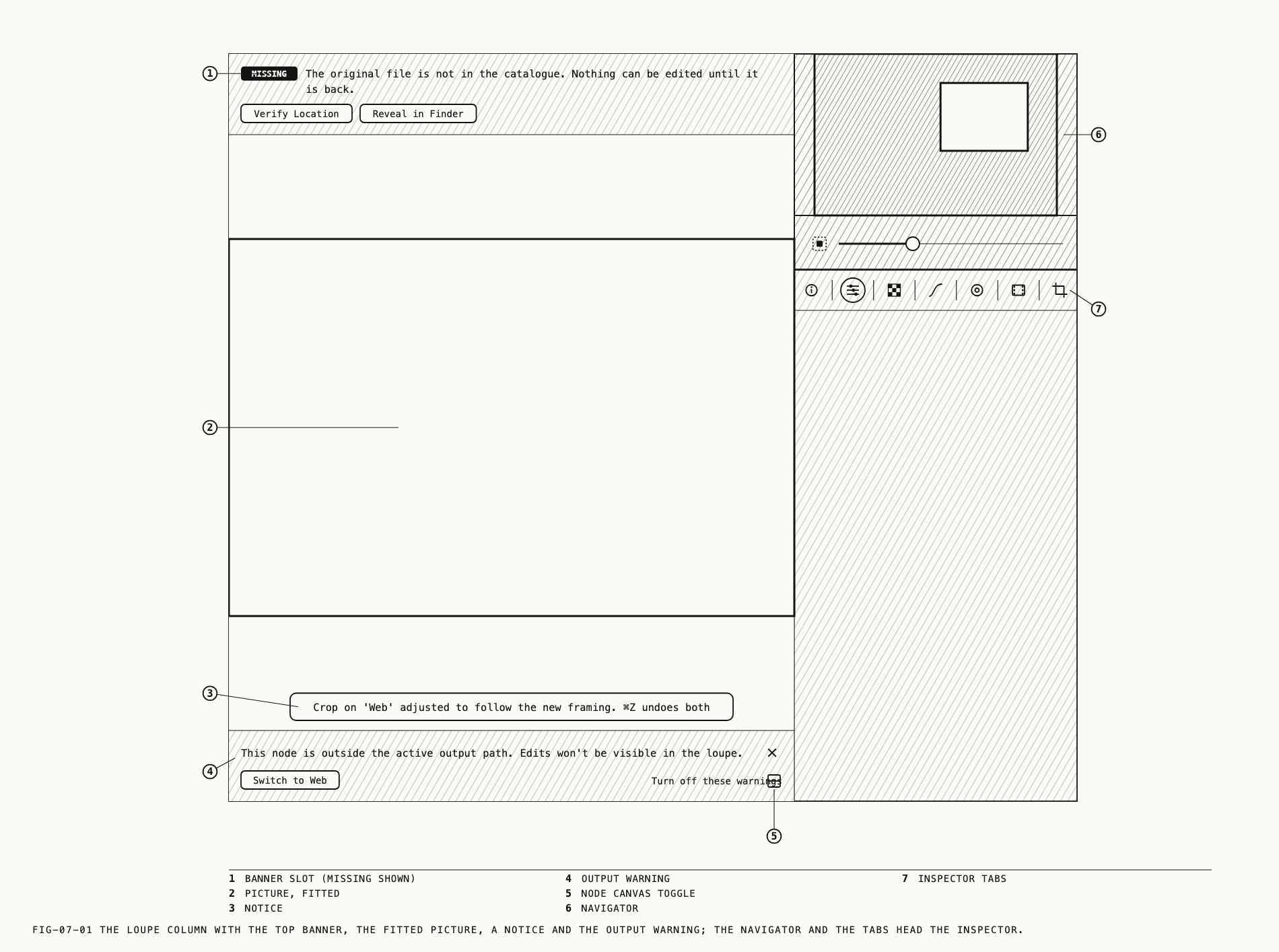
The loupe is the middle column of the Catalogue window. It shows the active output for viewing, playback and editing. Comparing against a reference is Chapter 8, playing video is Chapter 9, the scopes are Chapter 10, and the modes that draw on the picture (crop, mask, heal, text, frequency separation) are Part V.
A click anywhere on the loupe gives it the keyboard focus and ends any text editing elsewhere in the window, so the bare keys described in this and the following chapters work after a click on the picture.
7.1 What the Loupe Shows
With nothing open the loupe shows a grid pattern. The pattern is the empty surface, not the background setting described in section 7.5, and it stays whatever that setting is.
When a photo is opened, a thumbnail that already shows its current edit may stand in briefly until the full picture is ready, so the picture never jumps from one look to another. Formats that take longer to open show a spinner meanwhile.
If the picture cannot be shown at all, the loupe shows The file could not be loaded. in
the middle of the surface.
Three further states depend on where the original is. An original whose store is offline and which has no proxy leaves the thumbnail on the loupe with editing off until the drive returns. An original that has a proxy is shown and edited at the proxy’s size. An original that is missing shows the last thumbnail with a banner and nothing editable. Each state carries a banner at the top of the loupe, listed in section 7.6. Stores, locations and proxies are Chapter 6.
A photo selected in Recently Deleted is shown dimmed and is never opened for editing;
section 7.7 describes it. A reference selected in the sidebar’s References section
fills the loupe on its own, without zoom or pan; Chapter 8 covers references.
The loupe resizes with the window’s columns and node canvas. It keeps room for the playback bar and range tags (Chapter 9). Window size is covered in Chapter 2.
7.2 Zooming and Panning
Where to find it: View → Zoom In (⌘=), View → Zoom Out (⌘-), View → Zoom to Fit (⌘0), View → Actual Size (⌘1), View → Zoom To ▸
A newly opened picture fits the loupe. Change the zoom with the View menu, navigator or trackpad.
| Item | What it does |
|---|---|
Zoom In | Enlarges by one step, about the center of the loupe. |
Zoom Out | Reduces by one step, about the center. |
Zoom to Fit | Fits the whole picture to the loupe. |
Actual Size | One native image pixel per device pixel. |
Zoom To ▸ 50 %, 200 %, 400 % | Fractions of actual size. |
Zoom In, Zoom Out and Zoom to Fit are grayed with no picture open. Actual Size
and Zoom To are grayed with no picture open and also while a reference split is
showing, because a split’s zoom is fitted to each half rather than to native pixels
(Chapter 8).
On the trackpad, a pinch zooms about the pointer. Scrolling pans the picture, and only when the picture is larger than the loupe; there is no scroll-to-zoom. Dragging the picture pans it when it is not at fit. Double-clicking the plain picture does nothing; double-clicks act only in the editing modes described in Part V. In crop, mask, heal, text or frequency separation a drag belongs to that mode, and the picture is moved by scrolling instead.
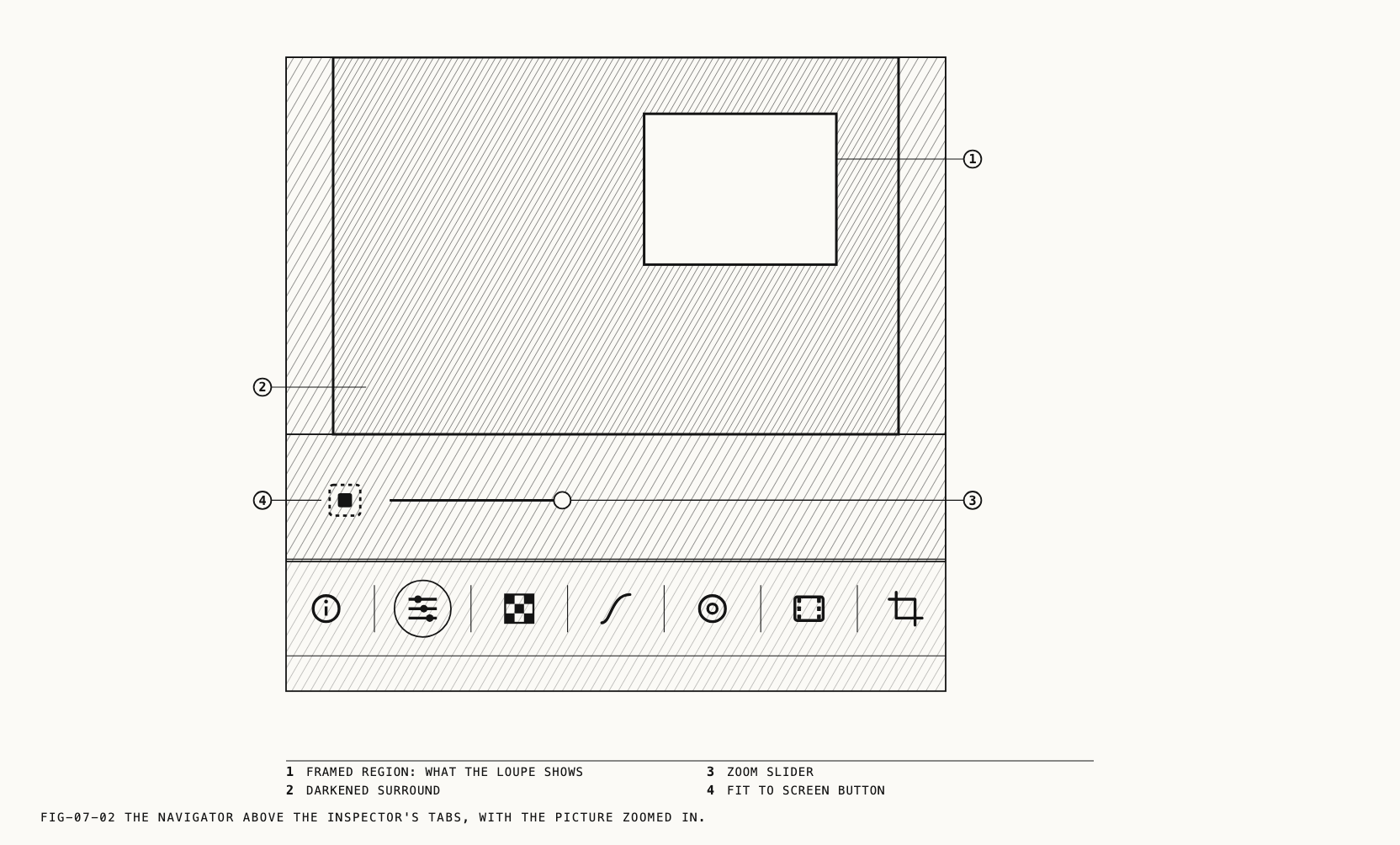
The navigator. Above the inspector’s tabs sits the navigator: a small thumbnail of
the picture, a zoom slider and a Fit to screen button. When the picture is larger than
the loupe, the region in view is framed on the thumbnail and the rest is darkened.
Clicking or dragging on the thumbnail moves the loupe so that point is at its center. The
slider covers the same range as the menu items, and the button does what Zoom to Fit
does. The navigator hides while a reference is being viewed on its own.
7.3 Before and After
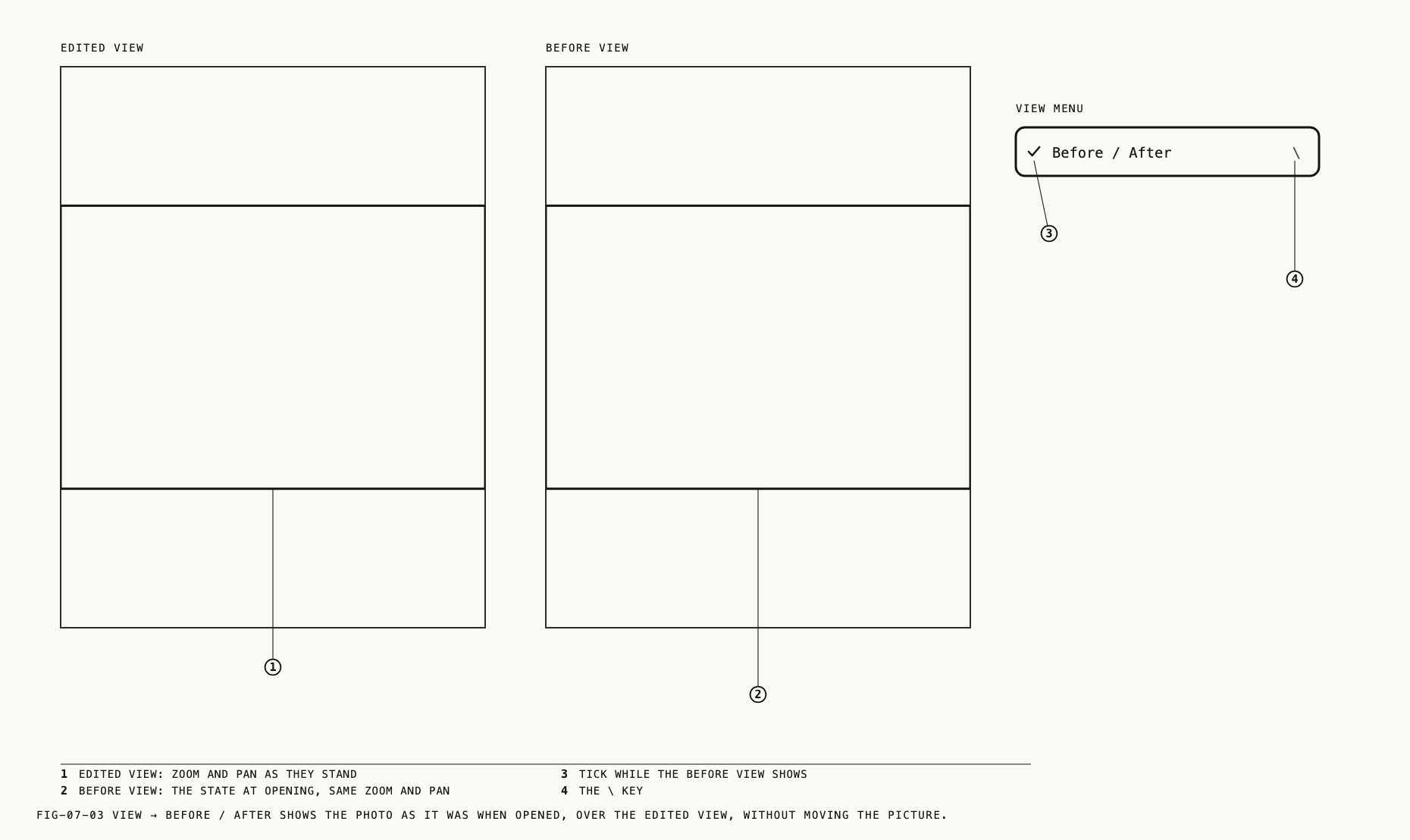
Where to find it: View → Before / After (\)
Before / After shows the photo as it was when it was opened, over the edited view, at
the same zoom and pan. Choosing it again returns to the edited view. The menu item
carries a tick while the before view is showing. The \ key works anywhere in the Catalogue window except in a text field.
The before view ends on its own with any edit, undo, redo, or a switch to another asset. It is grayed when no editable photo is open and while a reference is being browsed.
The comparison is against the state at opening, not against the unedited original. To
see the picture with every edit removed, use Reset All Edits (Chapter 11) and undo it
afterwards. If a reference split is open, the before view fills the whole loupe.
7.4 Hiding Editing Overlays
Where to find it: ⇧⌘H. There is no menu item.
Press ⇧⌘H to hide crop controls, mask outlines, heal markers, the text box and the frequency separation brush overlay while keeping the tool active. Press it again to restore them. Pointer indicators, such as the brush circle, remain visible.
Hiding clears any selected heal item, since an invisible item cannot be dragged or deleted safely. Placing a new item, or clicking the picture while crop is armed, brings the overlays back. They are also reset to visible each time a mode is entered and whenever another asset is opened. The key does nothing when no such mode is active or while a text field is being edited.
7.5 Background, Warnings and Notices
Where to find it: the Settings window, Loupe tab
Background behind photos sets the color drawn around the picture: Black (default),
White, or Custom colour with a color well. The change applies at once to every open
window and to the surround of a reference half. The empty loupe keeps its grid pattern
regardless.
The output warning. When the node selected on the canvas is not on the path to the
active output, the loupe cannot show its effect. What happens then is decided by the
Loupe setting When selecting a node outside the active output path. With Show a warning in the loupe (the default), a banner at the bottom of the loupe reports that the
selected node is outside the active output path and that its edits will not be visible.
The banner carries a Switch to <output name> button (Switch Output when the output
has no name), a Turn off these warnings button, which sets the preference to
Do nothing, and a close button that dismisses the banner for the session. Two related
warnings use the same
slot: This output isn't active. Double-click the node to make it active. and This output has no connected input., each with OK. Outputs and the active path are
Chapter 11.
Notices. A short dark capsule appears above the bottom of the loupe when the app has adjusted something on your behalf, for example a crop downstream of a change (Chapter 18). It disappears after a few seconds.
7.6 Missing, Offline and Proxy Banners
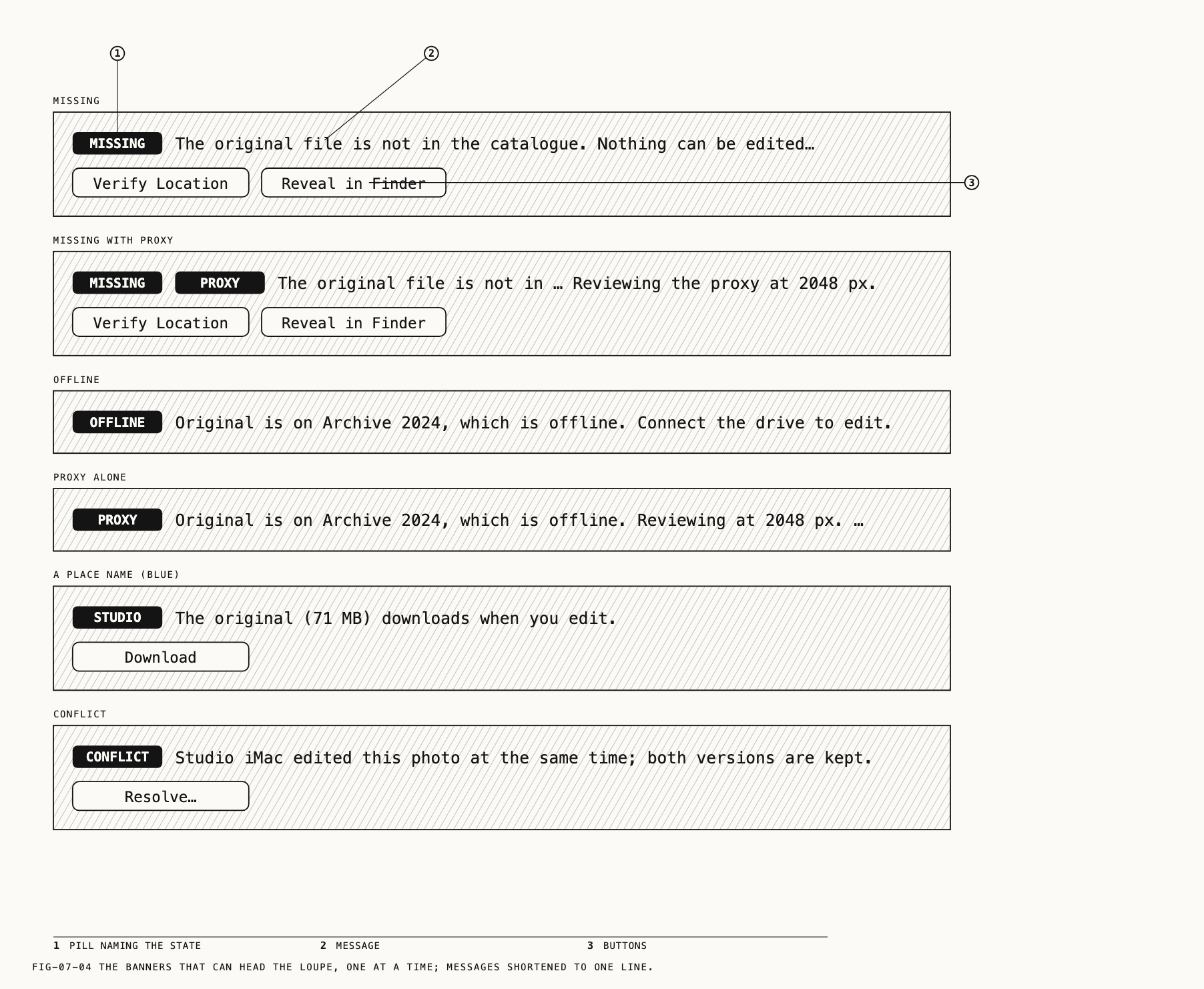
Original status banners appear at the top of the loupe. The output warning appears at the bottom (section 7.5). Each banner names the state, explains it and offers any available actions. Stores, locations, proxies and verification are Chapter 6; repositories and conflicts are Chapters 26 and 27.
| Pill | What it reports | Buttons |
|---|---|---|
MISSING (red) | The original file is not in the catalogue. Nothing can be edited until it is back. or, when the file differs from the one imported, a message saying the original file has changed since it was imported and no longer matches the file Revela recorded | Verify Location, Reveal in Finder. Download, or Download from <folder>, when a sync folder holds the original. |
MISSING with PROXY beside it | The missing sentence, followed by Reviewing the proxy at <N> px. The proxy stands in for a lost original. | As for MISSING. |
OFFLINE (gray) | Original is on <location>, which is offline. Connect the drive to edit. or Original is on <location>, which now belongs to "<catalogue>". No proxy is available. | None. |
PROXY alone | Original is on <location>, which is offline. Reviewing at <N> px. Connect the drive to edit fully. or the “now belongs to” form followed by Reviewing at <N> px. | None. |
A place name (blue) or REMOTE | Lines reporting that the original lives in a repository or on another Mac. | Download, or Download from <folder>. |
CONFLICT (amber) | Two Macs changed this photo before syncing. | Resolve… |
While MISSING or OFFLINE shows, editing is off. While PROXY shows, the proxy can be
viewed and edited at its size; the develop, heal and mask tools, and export, wait for the
original. The inspector’s tabs report the same state in their own words.
7.7 A Deleted Photo
Selecting a photo in Recently Deleted shows it dimmed on a dark surface with a
card across the top: an amber ONLY COPY pill when this catalog holds the only copy, a
sentence naming the folder it was deleted from, how long remains, and a row of small
buttons (Restore, Delete Now and their variants). A gray line under a button explains
why it is off. The photo is shown fitted, is not opened for editing, and the right-click
menu is withheld. The words on the card and what each button does are Chapter 6.
7.8 The Right-Click Menu
Where to find it: right-click on the picture
A right-click on the picture opens a menu acting on the open photo. On a clip the last item names a video instead. The menu is withheld over a heal marker, which has its own menu (Chapter 20), and on a deleted photo.
| Item | What it does |
|---|---|
Reveal in Finder | Shows the original in the Finder (Chapter 6). |
Set as Reference | Makes the open photo its own reference, for comparing against its history (Chapter 8). |
Use Reference ▸ | Saved references, this catalog’s first and then each kit’s (Chapter 8). Grayed when there are none. |
Clear Reference | Ends the split (Chapter 8). |
Export and Delete Photo or Export and Delete Video | Exports the original, then moves the item to Recently Deleted (Chapter 6). |
7.9 Full Screen
Where to find it: View → Enter Full Screen
The Catalogue window can take the whole screen. The title band becomes the top of the
screen with the catalog’s name, the exports button and the bell in place, and the loupe gains the space previously used by the window frame. The item reads Exit Full Screen while in
full screen, and on macOS 26 it carries the system’s own shortcut. Section 2.5 describes
the window in full screen.
7.10 The Loupe Settings
Where to find it: Revela → Settings (⌘,), then the Loupe toolbar item
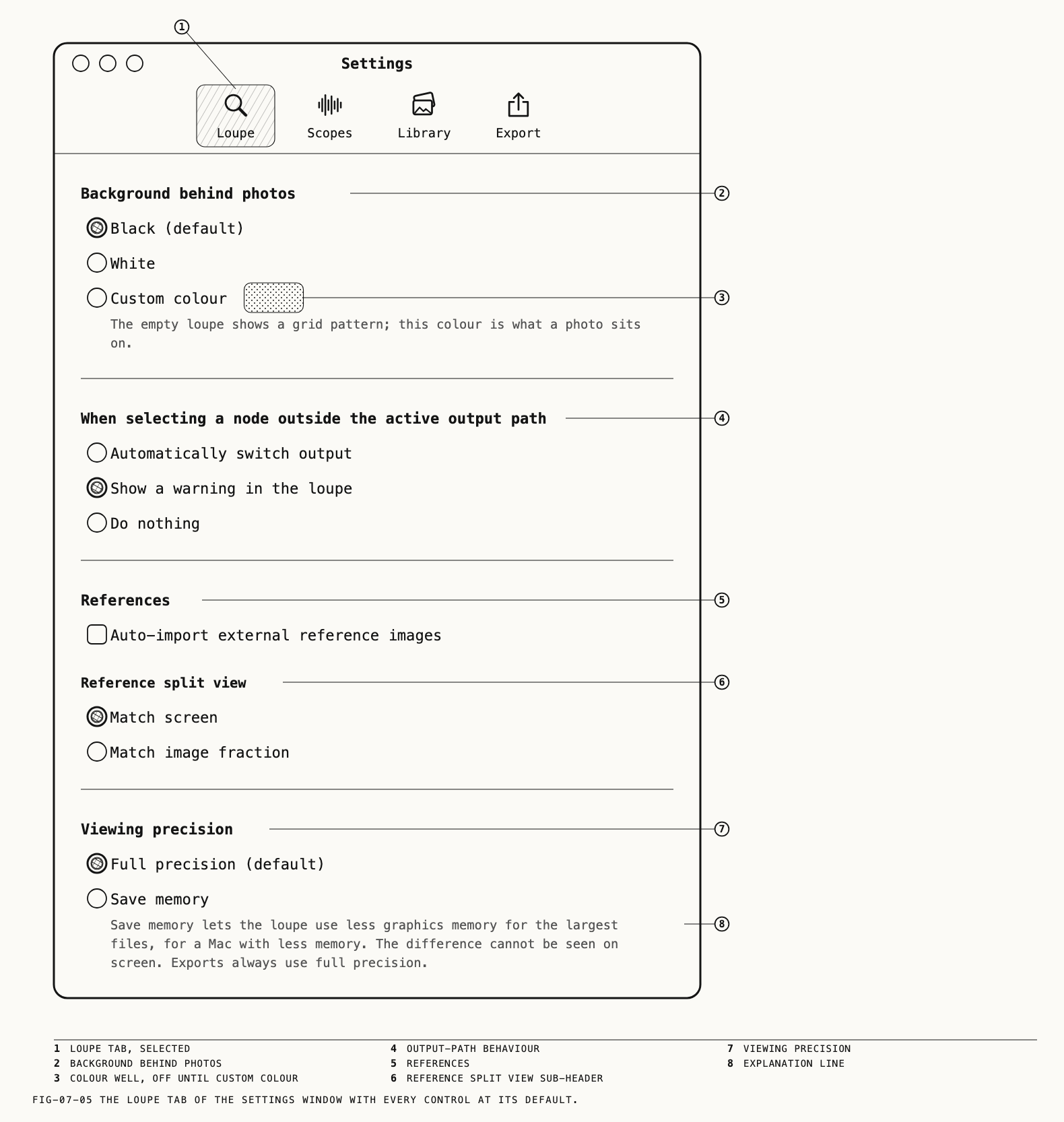
The Settings window opens on Loupe. The Loupe tab has four sections, and the
References section carries a sub-header, Reference split view. A change made from
the loupe’s warning banner or from the View menu is shown here when the window appears.
Background behind photos. Choose Black (default), White or Custom colour. The color well is enabled only with Custom colour selected; changing its color selects Custom colour. The explanation reads The empty loupe shows a grid pattern; this colour is what a photo sits on. Section 7.5 covers the background.
When selecting a node outside the active output path. Choose Automatically switch output, Show a warning in the loupe (the default) or Do nothing. Section 7.5 and Chapter 11 explain the warning and output paths.
References. Auto-import external reference images is off by default. When enabled, dropped reference images are saved in the catalog under References. Otherwise, they last only for the session. See Chapter 8.
Reference split view, under References, offers Match screen (the default) and Match image fraction. Match screen fits each image into its half and moves both by the same screen distance when panning or zooming. Match image fraction fills each half and keeps the same fraction of each image visible, which suits matching grades on similarly framed shots. View → Lock Reference Zoom (⇧L) changes the same setting. See Chapter 8.
Viewing precision. Choose Full precision (default) or Save memory. Save memory reduces graphics memory use for large files without a visible difference or any effect on exports. The choice applies from the next frame.
← 6. Stores, Locations and Originals · Contents · 8. Comparing with a Reference →