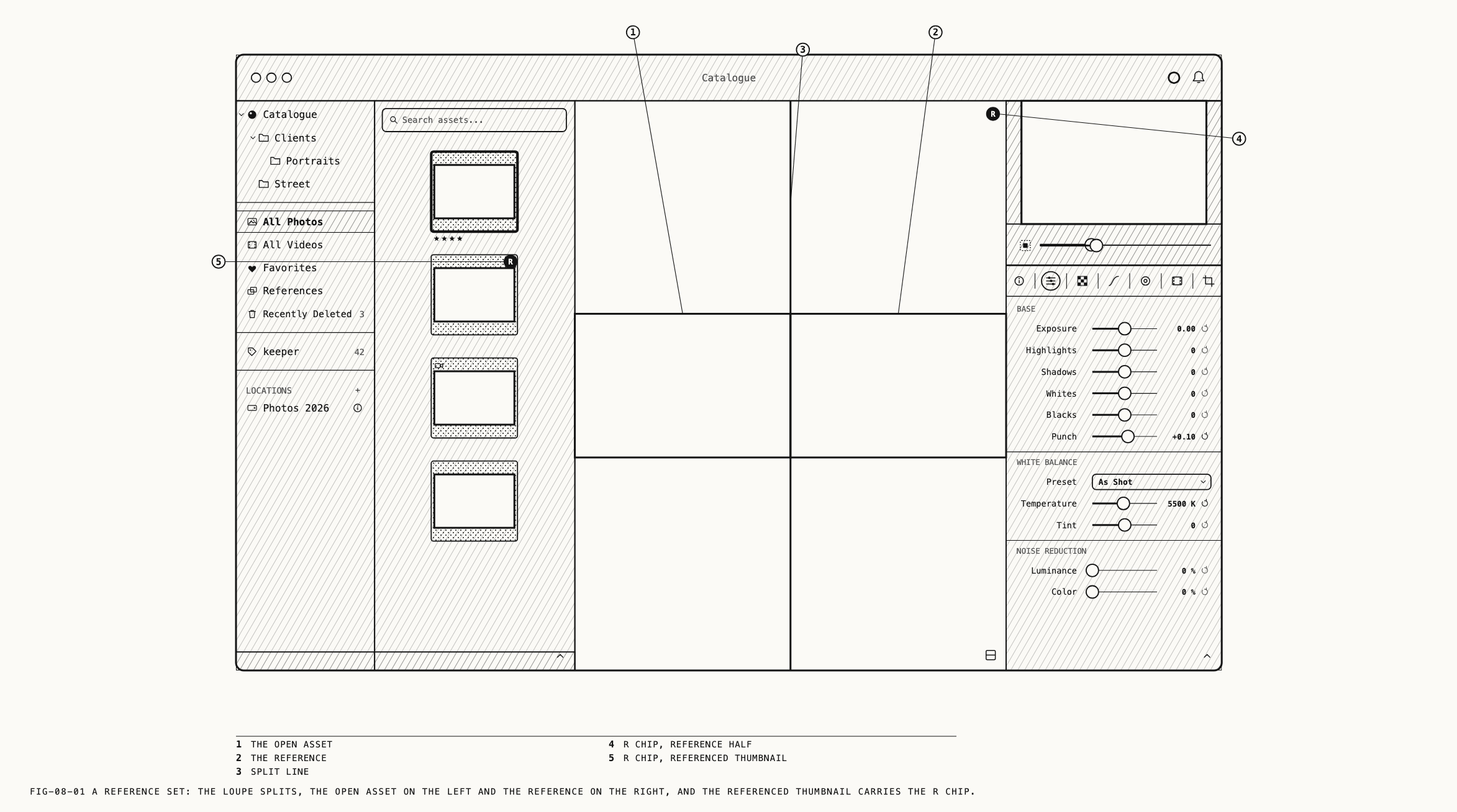
A reference is a second picture held beside the one you are working on. While a reference is set, the loupe splits in two: the open asset on one side, the reference on the other, with a line between them that you can drag. Zoom and pan move both sides together, so the comparison holds at any magnification.
A reference can be another asset in the catalog, an earlier step in the open asset’s own history, an image file dragged in from outside the catalog, or a reference already saved with the catalog or with a kit. There is one reference at a time. It belongs to the window rather than to the open asset, so clicking a different asset in the browser keeps the reference in place and puts the new asset beside it.
8.1 Setting a Reference
Where to find it: Catalogue → Set as Reference (⇧R)
Select one asset in the browser and choose Set as Reference. The split initially shows that asset on both sides. Select the asset to work on; the first stays on the reference side.
The item is available only when it has exactly one asset to act on and that asset is not
already the reference.
The same item is on the browser’s right-click menu and on the loupe’s. A right-click on a thumbnail that is not selected selects it first, and the loupe follows, so from either menu the asset under the pointer, or the open asset, becomes its own reference.
A reference to an asset shows its saved edits. If you edit that asset, the reference updates when the edit is saved.
Dragging puts another asset beside the open one in a single step. Drag a thumbnail from the browser onto the loupe: a tinted border appears around the loupe while the drag hovers, and dropping sets the reference. If several thumbnails are dragged together, the primary one is taken when it is among them, otherwise the first.
Wherever the reference came from, an R chip marks it: on the referenced thumbnail in the
grid, on the matching row of the resources panel’s History tab, and on the matching item
under the References row of the sidebar. The same chip sits in the top corner of the
reference half of the split.
8.2 The Split
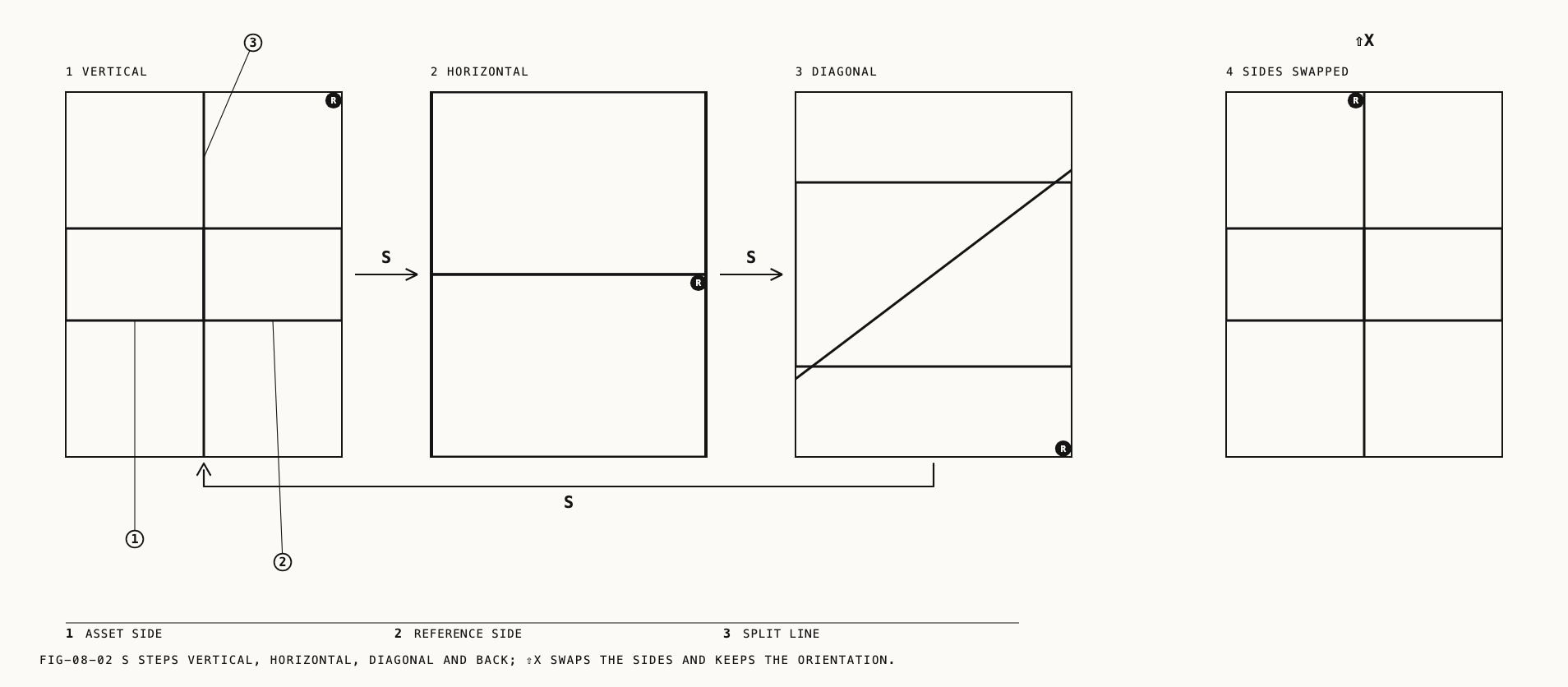
The split opens vertical, with the open asset on the left and the reference on the right, divided at the middle. Drag the dividing line to resize the two views. It stops short of either edge so both pictures remain visible. Over the line the pointer becomes a resize arrow (or a crosshair on the diagonal). Away from the line, clicks and drags reach the loupe as usual.
Press S to change the orientation. Each press moves to the next of three: vertical,
then horizontal (asset above, reference below), then diagonal, then back to vertical.
The diagonal angle follows the loupe’s shape. S has this meaning only while a reference is set and the Frequency
Separation tab is not active; on that tab S is the Smooth tool (Chapter 21).
Where to find it: View → Swap Reference Sides (⇧X)
Swap Reference Sides puts the asset where the reference was and the reference where the
asset was. The orientation and the position of the line do not change. The item is
unavailable while no reference is set.
Zoom and pan. In a split, Zoom In, Zoom Out, pinching and scrolling act on both
halves at once, and so does dragging the picture. Scrolling pans at any magnification, not
only when the picture is larger than the loupe. Zoom to Fit returns the split to its
starting state. Actual Size and Zoom To are unavailable while a reference is set,
because the split’s magnification is measured against the half, not against the file’s
pixels. The loupe’s zoom outside a split is covered in Chapter 7.
Where to find it: View → Lock Reference Zoom (⇧L)
How the two halves follow a zoom or pan is a choice between two modes. In the first, which is the default, each half fits its own picture independently, and a zoom or pan moves both sides by the same distance on screen. This works whatever the two pictures’ framings. In the second, both halves show the same fraction of their picture, so that a pan or zoom keeps the same region in view on each side. This suits matching grades between similarly framed shots.
Lock Reference Zoom switches between the two modes, for every open window at once, and
carries a tick while the second is in force. The same choice is made by the two radios
under Reference split view in the Loupe tab of the Settings window: Match screen is
the first mode and Match image fraction the second. The radios and the menu item always
agree. The item is unavailable while no reference is set.
Color. Changing the active output’s color space or delivery changes the asset side only. The reference keeps its own color. The area around a reference that is smaller than its half takes the loupe’s background color (Chapter 7).
8.3 Peeking and Clearing
Hold Space to see the open asset alone, filling the loupe, and release Space to
return to the split. Nothing is changed by a peek. If a clip is playing when you press
Space, it pauses for the peek and resumes on release; a clip that was already paused
stays paused. While no reference is set, Space plays and pauses a clip instead
(Chapter 9).
Where to find it: Catalogue → Clear Reference (Esc)
Clear Reference ends the split and returns the loupe to the single picture. The same
item is on the loupe’s right-click menu. The Esc key does the same, with one rule: when
the grid has keyboard focus and a search is live, Esc clears the search first, and a
second press clears the reference.
The reference is also cleared when the asset it points to, or the saved reference it points to, is deleted. Switching assets, closing the resources panel and changing the inspector tab do not clear it.
8.4 References from Outside the Catalog
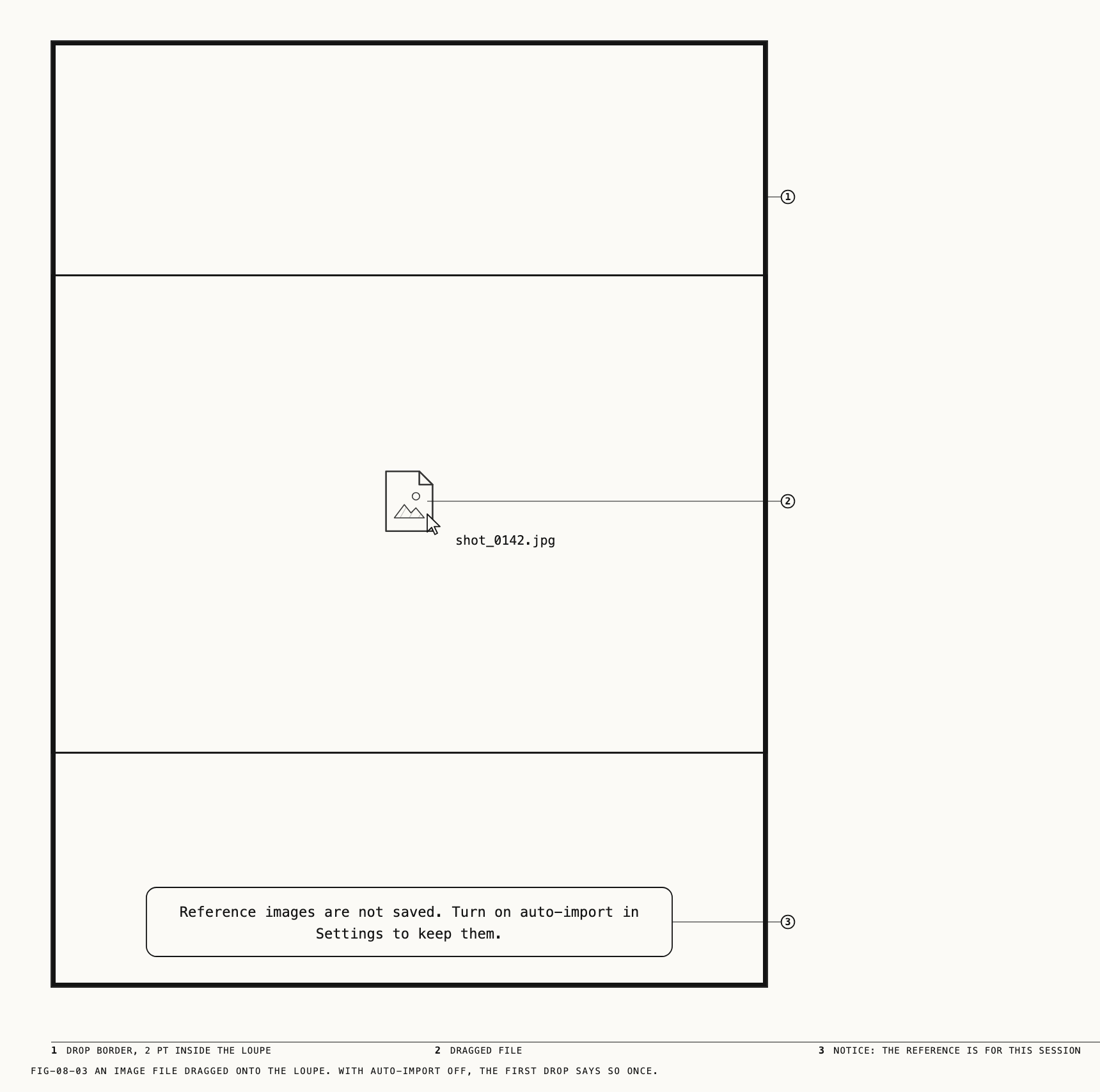
Drag an image file from the Finder, or from another app, onto the loupe. The border
appears as it does for a thumbnail, and on the drop the file becomes the reference.
Accepted files are .jpg, .jpeg, .png, .webp, .heic, .heif, .tif, .tiff
and .gif, and every raw still format the catalog can import except .praw. A raw still appears as a preview without raw development. A .praw
file dropped as a reference is refused; import it instead (Chapter 3) and set it as a
reference from the browser.
Where to find it: Revela → Settings (⌘,), the Loupe tab, under References
What happens to the dropped file depends on one checkbox, Auto-import external reference images, which is off by default. While it is off, a dropped file is used for
the session only: it is discarded when Revela quits, and the first time this happens a
notice says Reference images are not saved. Turn on auto-import in Settings to keep them. While it is on, the file is copied into the catalog and listed under the
References row of the sidebar, where it can be used again (section 8.6). A file whose
contents are already in References is not added twice; the notice Already in References says so, and if that copy was in Recently Deleted it is restored.
If several files are dropped together, the first becomes the reference. With auto-import on, all are saved in References.
8.5 References from History
Where to find it: View → Resources → History, then right-click a row
The History tab of the resources panel lists the open asset’s edit steps (Chapter 17). Right-click a row for two items.
Use as Reference makes that step the reference, so the loupe shows the asset as it was
at that step beside the asset as it is now. The item is unavailable on the step already
in use. If the step is about to leave the history, Revela saves a copy under References and reports Reference preserved as snapshot.
Save as Reference keeps the step as a saved reference straight away and sets it as the
reference. The saved copy appears under References with its Kind given as snapshot
and a note of the asset and the step it came from.
8.6 The References Row
Where to find it: the sidebar row References; right-click it for Show References
The References row of the sidebar lists every reference kept with the catalog: files
imported with auto-import on, and snapshots saved from history. When a kit also holds
references, the row gains a disclosure chevron and a count, and opens into one group per
place: This catalogue, then each kit. Kits, and where a new reference is kept, are
covered in Chapter 27.
Selecting References fills the browser with reference images rather than assets. Each
cell carries the file name only: references have no stars, flags, labels, favorites or
clip marks. Nothing can be dropped onto this grid; drops go onto the loupe. When the row
is empty the browser reads Drag reference images onto the loupe to add them.
Clicking a reference in this grid shows it alone in the loupe, filling it, with no split,
no zoom and no R chip. The node canvas closes and its split-square button is disabled until you return to an asset. The navigator is hidden, and Before / After is unavailable. The inspector keeps its column and shows a single tab for a reference,
Info.
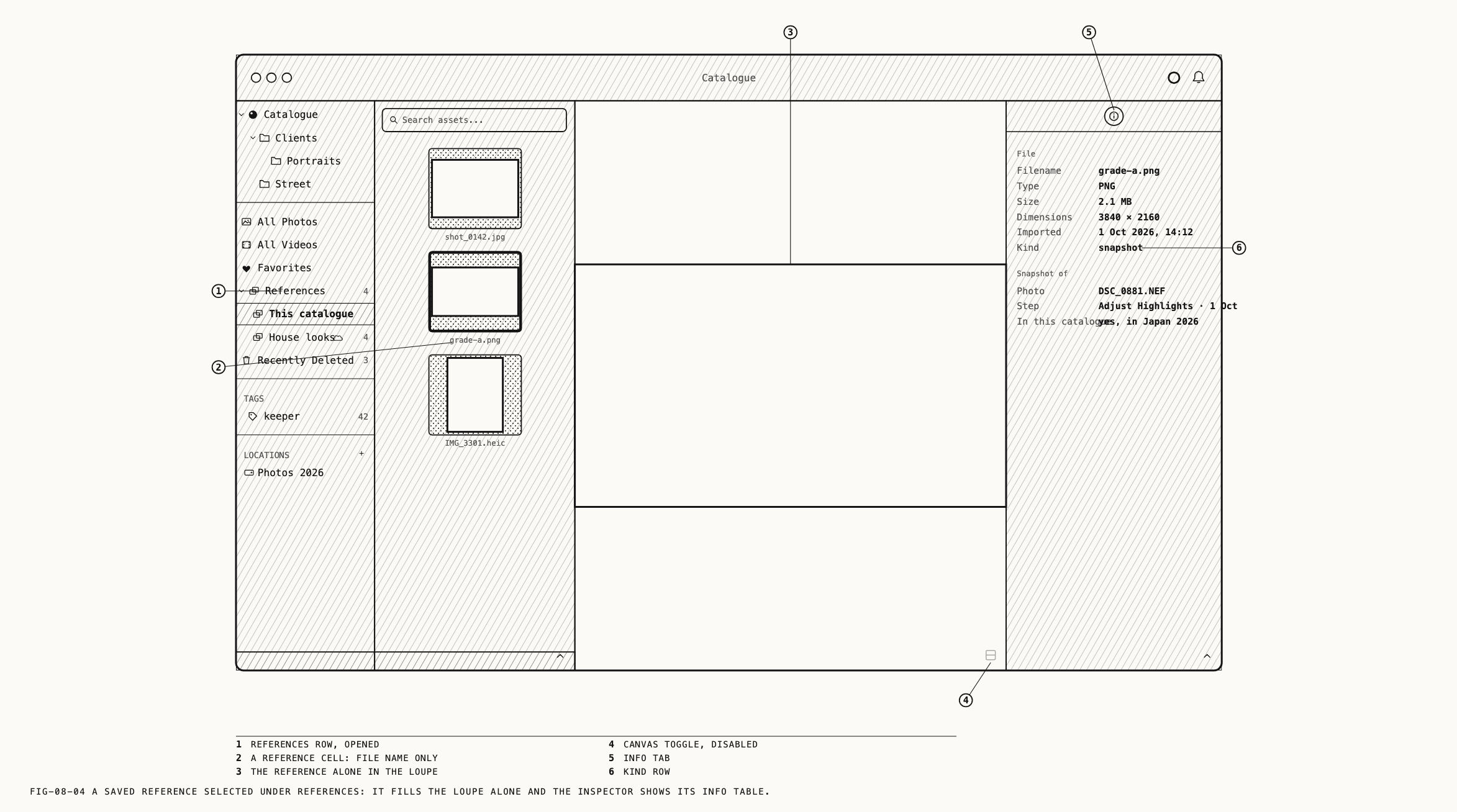
The Info tab for a reference is a two-column table. Under File it lists Filename,
Type, Size, Dimensions, Imported and Kind, where Kind reads dropped file or
snapshot. A snapshot adds a Snapshot of section with Photo, Step (the step’s
label and its day) and In this catalogue, which reports whether the asset the snapshot
was made from is in this catalog. A reference kept in a kit adds a Kit section with
Name and Repository. With no reference selected the tab reads
Select a reference to view info.
To use a saved reference against the open asset, drag it from this grid onto the loupe,
or pick it by name under Catalogue → Use Reference. That submenu lists the saved
references in sections, This catalogue first and then each kit named with its
repository, with the one in use ticked; its items are unavailable while no asset is open.
The loupe’s right-click menu carries the same submenu.
Where to find it: Edit → Delete, or right-click a reference
A reference is removed with Delete Reference, or Delete N References for several. It
goes to Recently Deleted, captioned Reference, and can be restored or erased from there
like an asset (Chapter 6). If the deleted reference was in use, the split ends.