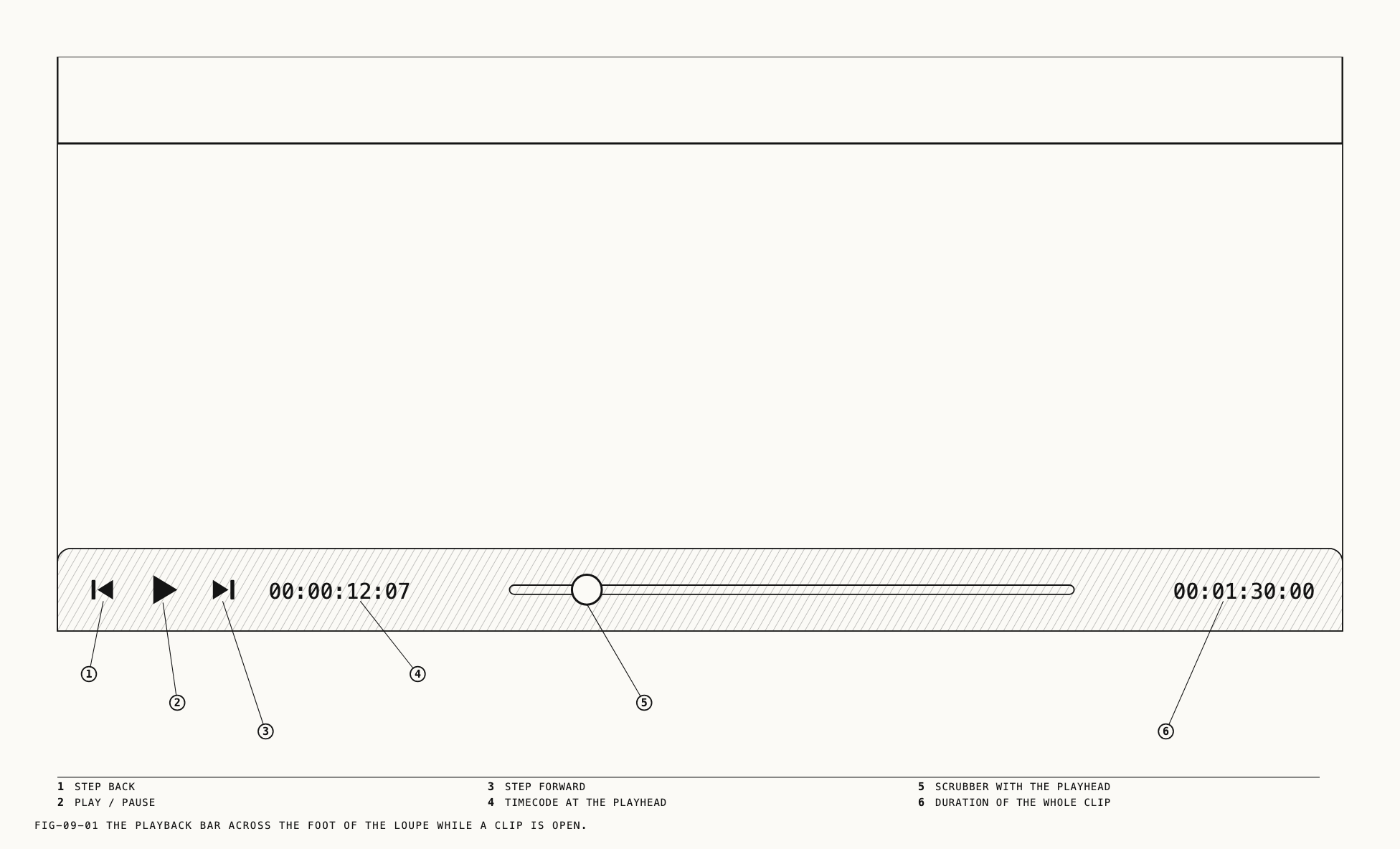
A clip opens in the loupe the way a still does, with one addition: a playback bar across the foot of the picture. The bar carries the transport buttons, the timecode, the scrubber and the clip’s duration. Use the bar or keyboard to play, step and trim the clip. The loupe itself, including zoom, the background and the Loupe settings, is Chapter 7. The Video Input tab and the development of raw clips are Chapter 12. Tracking, which draws its own lanes above the scrubber, is Chapter 23.
9.1 The Playback Bar
Where to find it: the foot of the loupe, while a clip is open.
The bar appears when a clip is opened and leaves when a still replaces it. From left to right it holds a step-back button, the play button (a pause button while the clip plays), a step-forward button, the current timecode, the scrubber and the clip’s duration. There is no loop control, no volume control and no mute; audio is covered in section 9.6.
Both time fields read hours, minutes, seconds and frames, as 00:00:12:07. The left
field follows the playhead and the right field is the length of the whole clip. The
right field does not change when the clip is trimmed.
The playback controls remain visible as the window or node canvas is resized.
The keys in this chapter work from anywhere in the Catalogue window while a clip is open,
except inside a text field being edited. A click anywhere on the picture, the bar or a
lane gives the loupe keyboard focus and ends any text editing elsewhere. The arrow keys
belong to the loupe even while the grid has focus; Home and End do not, so click the
picture first if those two keys are moving the grid’s selection instead of the playhead.
9.2 Playing, Pausing and Stepping
Click the play button, or press Space, to start the clip. The same button and key pause
it. After playback pauses, the picture takes a moment to settle at full quality.
J, K and L are the shuttle keys: J plays backwards at normal speed, K pauses,
L plays forwards at normal speed. With a reference set, Space peeks at the asset
alone (Chapter 8), so L is the key that plays.
The step buttons either side of play move one frame back or forward. ← and → do the
same from the keyboard, and ⇧← and ⇧→ move ten frames. A step pauses playback
first. The
arrows step the clip in every editing mode except crop, where they nudge the crop
box (Chapter 18).
Home and End move the playhead to the start and end of the clip’s range: the in and
out points when they are set, otherwise the first and last frame.
Playback stops at the end of the range and the playhead returns to its start, so pressing play again plays the range from the beginning. Playing backwards stops at the start of the range in the same way. There is no loop. If the playhead is outside the range when play is pressed, it jumps to the in point and plays from there.
Note: A clip whose original is offline plays from its proxy when one exists. Offline originals and proxies are covered in Chapter 6.
9.3 The Scrubber
The scrubber is the track in the middle of the bar. The playhead is the round knob on it. Click anywhere on the track to move the playhead there, or drag it. Dragging pauses playback and shows the frame under the playhead. Release the mouse to view that frame at full quality.
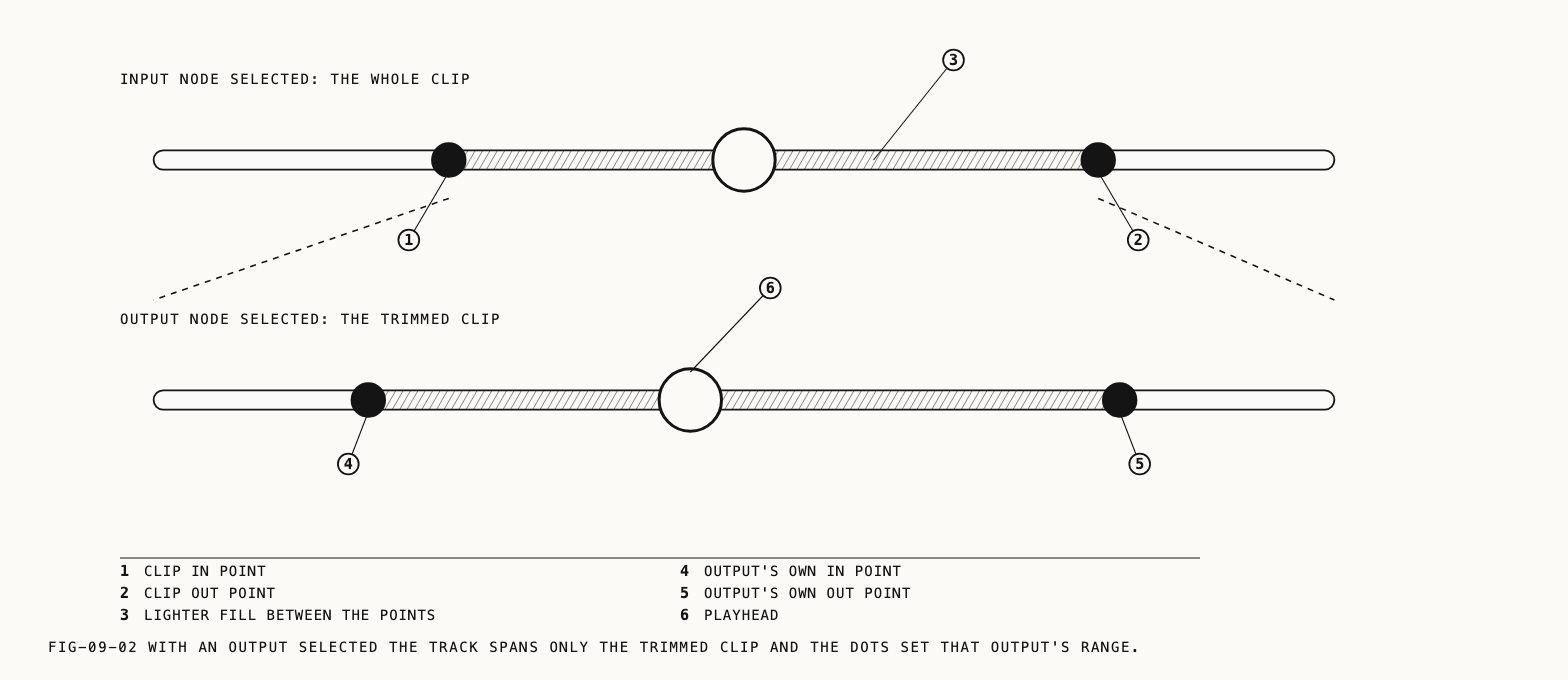
Two small dots on the track are the in and out points, and the track between them is filled a shade lighter than the rest. Until a point is set, the dots sit at the ends of the track. Whether the dots can be dragged, and what the track spans, depends on the node selected on the canvas (Chapter 11):
| Selected node | The track spans | The dots |
|---|---|---|
| The clip’s input node | The whole clip | The clip’s in and out points. Draggable |
| An output node | The clip between its in and out points | The output’s own range, which starts as the whole of the trimmed clip. Draggable |
| Any other node | The clip between its in and out points | The range of the output on screen when it lies downstream of the node, otherwise the combined range of the outputs that do. Read-only, in a second color |
Draggable dots and read-only dots use different colors, and the fill between them follows suit, so the color alone says whether the trim can be changed from here. Section 9.4 describes what each kind of drag sets.
Above the track, a tracking lane appears while a heal, a mask component or a frequency separation node with a track is selected. Above the lanes, a clip with range tags shows a rail of named spans, described in section 9.5. The lanes, their glyphs and their right-click menus are Chapter 23. The bar grows upward to make room for either.
9.4 In and Out Points
Where to find it: the I and O keys, or the dots on the scrubber.
Press I to set the in point at the playhead and O to set the out point. ⇧I and
⇧O clear them. An in point cannot be set after the out point, nor an out point before the in point. Each stops at the other point. The dots can also be dragged: the dot follows the
mouse and the point is written when the mouse is released. A dragged dot stops one frame
short of the other dot and never leaves the track.
The input node sets the clip’s trim. Playback follows this range whichever node is selected. With the input node selected, the dots and the I and O
keys set that trim. With an adjustment node or any other node between the input and an
output selected, the keys still set the clip’s trim, but the dots on the track are the
read-only markers of section 9.3 and cannot be dragged.
An output node is different. With an output selected, the dots and the keys set that output’s own range, which lies inside the clip’s trim and can be narrower than it. The loupe draws the output’s range but keeps playing the whole trimmed clip, so a narrow output range does not stop playback early. Each output carries its own range, which the Output tab reports; outputs and their ranges are Chapter 24, and exporting them is Chapter 25.
Setting an in and out point is also how a tag is applied to part of a clip rather than
the whole of it. The tag popover’s In to Out switch, and tagging in general, are
Chapter 5.
Note: There are no trim controls on the Video Input tab. The scrubber and the two keys are the only place a clip is trimmed.
9.5 Range Tags on the Rail
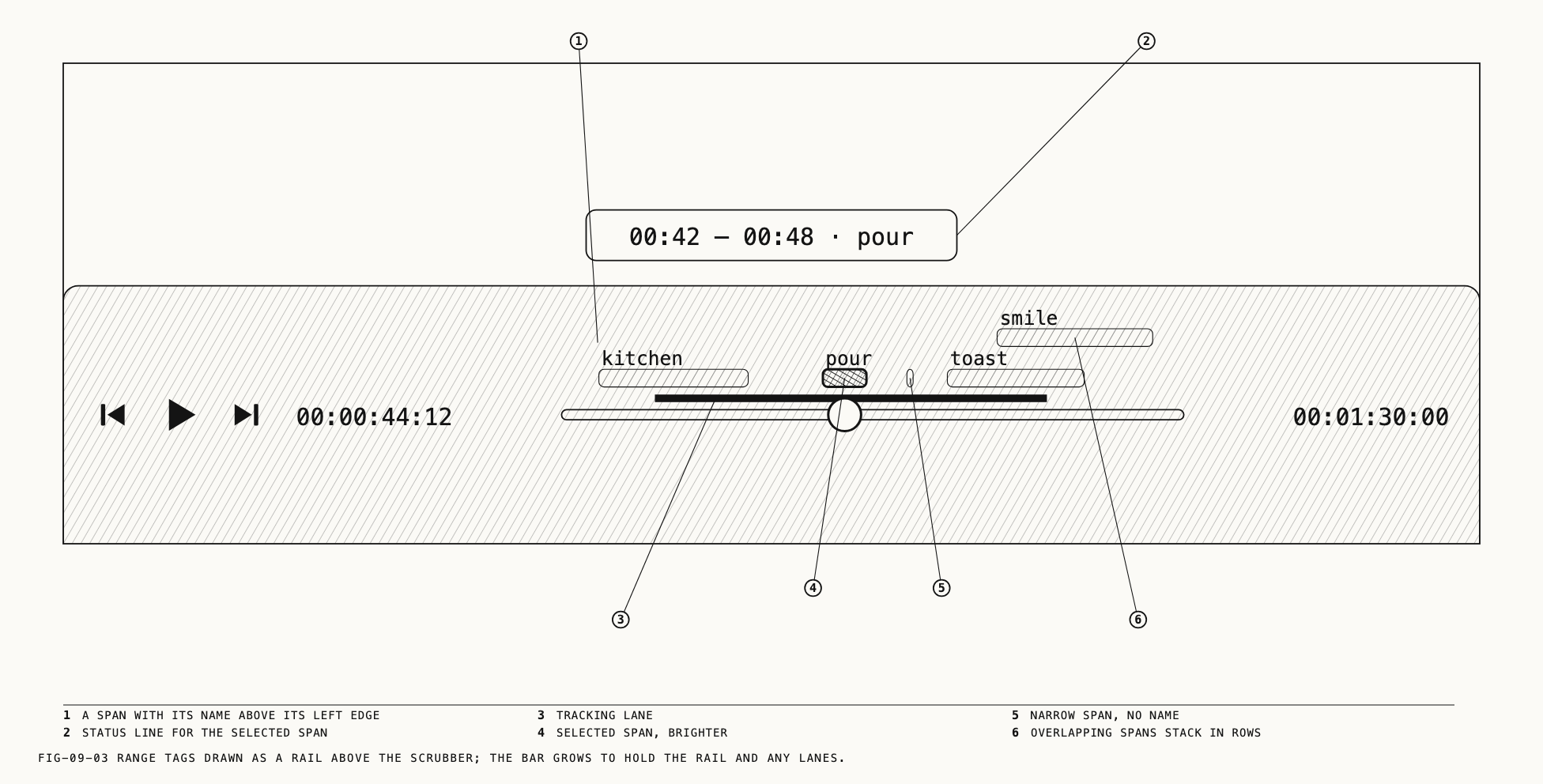
A tag that covers part of a clip is a range tag (Chapter 5). While the clip is open, its range tags are drawn as a rail above the scrubber’s track: one capsule per tag, spanning the tagged time, with the tag’s name written above its left edge. A narrow span appears without its name. Tags that overlap in time stack in rows. The rail uses the track’s scale, so with an output selected a span that lies outside the trimmed clip is not drawn.
Click a span to select it. The selected span is drawn brighter, and a status line
appears over the picture reading the span’s start and end and the tag’s name, as
00:42 – 00:48 · pour. A click anywhere else on the track clears the selection and then
seeks as usual.
With a span selected, ⌫ removes that tag from the clip. This is the same removal as
clicking the × on the tag’s chip in the tag popover, so it takes the tag off the clip
rather than trimming the span. With no span selected the key does nothing on the rail.
Where to find it: View → Next Tag Range (⌥→) and View → Previous Tag Range (⌥←).
The two menu items move the playhead to the start of the next or previous range tag.
There is no wrap: at the last span ⌥→ does nothing, and at the first ⌥← does
nothing. The keys belong to the rail only while the clip has range tags; on a clip
without any they keep their meaning as Catalogue → Next and Catalogue → Previous,
moving through the grid.
Finding a clip through a search that matches a range tag opens the clip at that span’s start with the span selected. The trim is not touched. Search is Chapter 5.
9.6 Audio
A clip’s audio plays with it. There is no mute, volume or loop control anywhere in Revela; the level is the Mac’s own volume.
Raw clip audio plays only at normal forward speed; reverse playback is silent. Clips with more than two audio channels are monitored in stereo. Exports keep every original channel (Chapter 25).
9.7 Precision and Raw Clips
Where to find it: the Settings window, Loupe tab, under Viewing precision.
The loupe has no playback-quality control. The one setting that affects playback is
Viewing precision, and a change applies from the next frame drawn. Save memory lets
the loupe use less graphics memory for the largest files, with no visible difference on
screen; exports are not affected. The Loupe tab is described in Chapter 7.
Raw clips play through the same bar, scrubber and keys as every other clip. That covers
.prawv, Apple ProRes RAW, Blackmagic RAW and Nikon N-RAW. A change on the Develop tab
shows on the frame on screen at once (Chapter 12).
Note: Some raw clips play below real time. The loupe holds the current picture until the next frame is ready.
9.8 The Keys
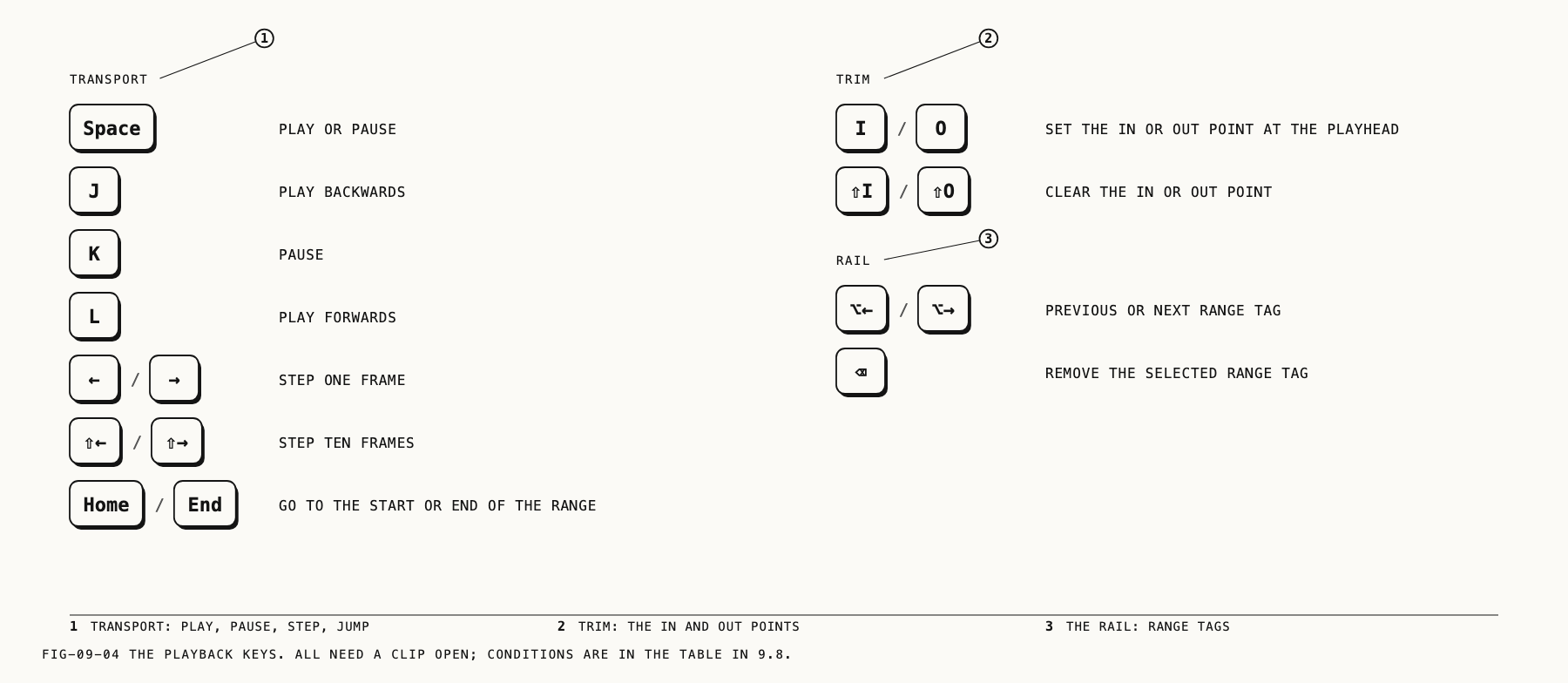
Every key in this chapter, with the condition under which it acts on the clip. All of them need a clip open in the loupe.
| Key | Does | Condition |
|---|---|---|
Space | Play or pause | No reference set. With a reference, Space peeks (Chapter 8) |
J | Play backwards | |
K | Pause | |
L | Play forwards | |
← / → | Step one frame | Not in crop mode, not while typing, not during a peek |
⇧← / ⇧→ | Step ten frames | As above |
Home / End | Go to the start or end of the range | The grid does not have focus |
I / O | Set the in or out point at the playhead | Not in crop mode, where O cycles the crop overlays |
⇧I / ⇧O | Clear the in or out point | As above |
⌥← / ⌥→ | Previous or next range tag | The clip has range tags; otherwise Catalogue → Previous / Next |
⌫ | Remove the selected range tag | A span is selected on the rail |