The Curves tab and the Colour tab hold the grading controls of a node: four tone sliders, a tone curve per channel, six HSL curves, six color wheels by brightness zone, seven global sliders and a LUT. Both tabs appear on raw input, video input and adjustment nodes. The graph itself is Chapter 11. The film look, the color space transform node and the importing of LUTs are Chapter 14.
13.1 What the Two Tabs Share
Where to find it: the Curves tab and the Colour tab.
The tabs are shown for a raw input, video input or adjustment node and for no other kind. While an asset’s original is missing, every tab but Info is disabled (Chapter 6).
The loupe previews changes as you drag. Releasing the mouse saves one undo entry, named after the control:
Adjust Highlights, Adjust Master Curve, Adjust H/S Curve, Adjust Color Wheels,
Adjust Temperature, Change LUT, Adjust LUT Strength. Undo and redo are covered in Chapter 11.
Slider rows have one shape on both tabs: the label, the slider, the value and a reset
arrow at the right end. The arrow returns the slider to its default and is dimmed while
the slider is already there. Double-click the value to type one. Return commits,
Esc cancels, and a typed value beyond the range is held at the nearer end. The arrow
keys nudge a slider that has focus, and each nudge settles at once.
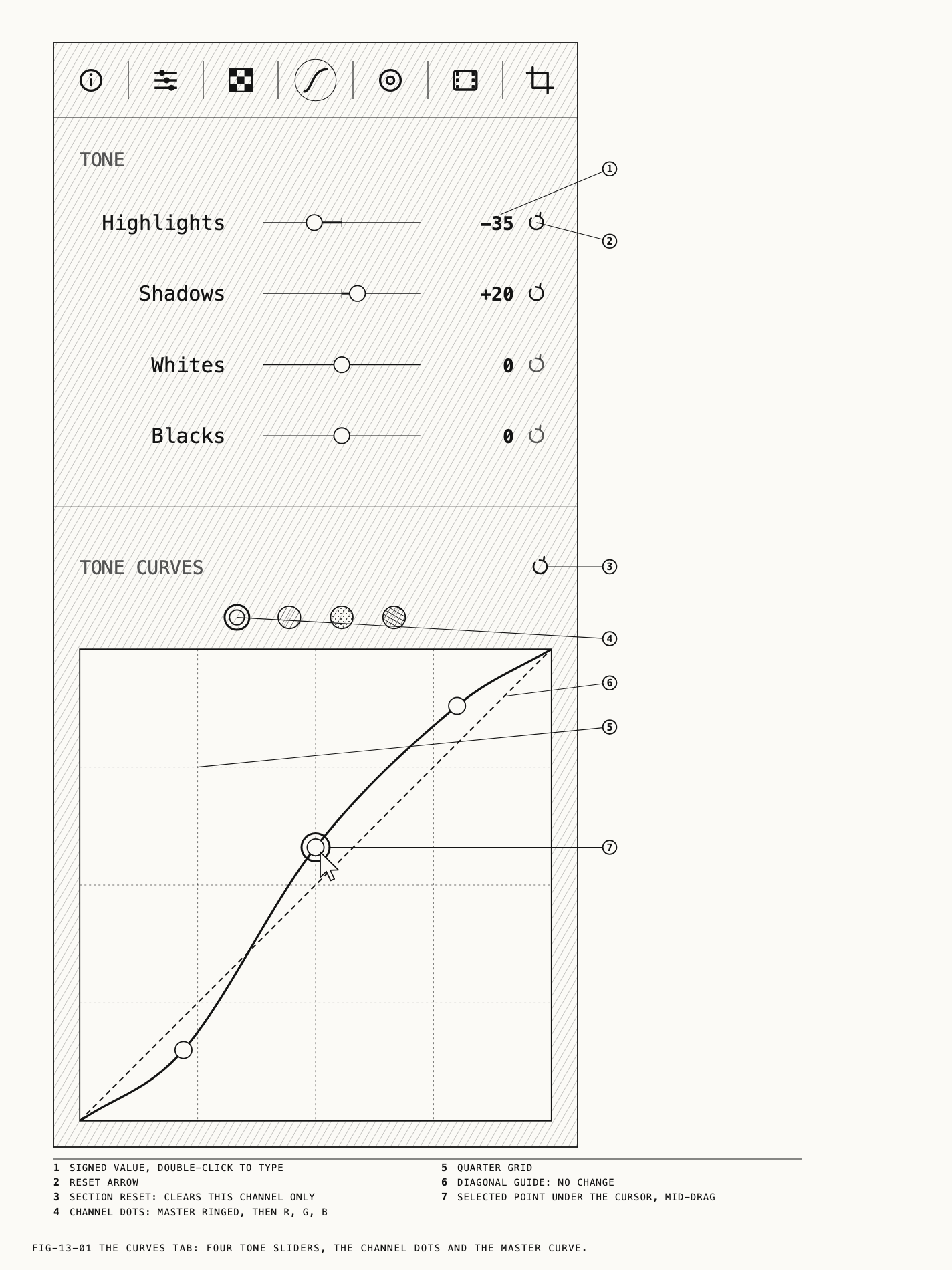
13.2 Tone
Where to find it: the Curves tab, under TONE.
Four sliders, Highlights, Shadows, Whites and Blacks, each from -100 to +100
with a default of 0. Each lifts or lowers one band of the tonal range. A slider at 0
contributes nothing.
Input nodes have another set of tone sliders. The Develop tab and the Video Input tab
carry their own Highlights, Shadows, Whites and Blacks, which belong to the
development (Chapter 12). The two sets are independent: each keeps its own values, and
moving one never moves the other. On an adjustment node the Curves tab’s four are the
only set.
13.3 Tone Curves
Where to find it: the Curves tab, under TONE CURVES.
Four dots above the curve box select the channel: white for the master curve, then red, green and blue. The selected dot carries a white ring, and the curve line takes the selected channel’s color. Selecting a different node returns the selector to the master curve; editing on the same node keeps the channel chosen.
The box is square, with a grid at quarters and a diagonal guide from the bottom-left corner to the top-right. Input runs along the bottom from black to white and output up the side the same way, so the guide is the curve that changes nothing. Until a point is placed, nothing is applied.
| Action | Result |
|---|---|
| Click empty space | Adds a point there and starts dragging it |
| Drag a point | Moves it. Dragging past the edge of the box holds the point at the edge; a point is never dropped by dragging |
| Double-click a point | Removes it. When fewer than two points would remain, the whole curve clears and the guide returns |
| Second click straight after adding | Cancels the add. Nothing is recorded |
| Click a point without moving it | Nothing is recorded |
There are no fixed end points. Any point can be moved anywhere in the box, including the corners. Where the placed points do not reach the left or right edge, the curve runs to the bottom-left and top-right corners on its own, so a single point in the middle of the box already makes a complete curve. The point last clicked or dragged carries a white ring.
The reset arrow at the right end of the TONE CURVES header clears the selected
channel’s curve and leaves the other three alone. It is dimmed while that channel holds
no curve.
13.4 HSL Curves
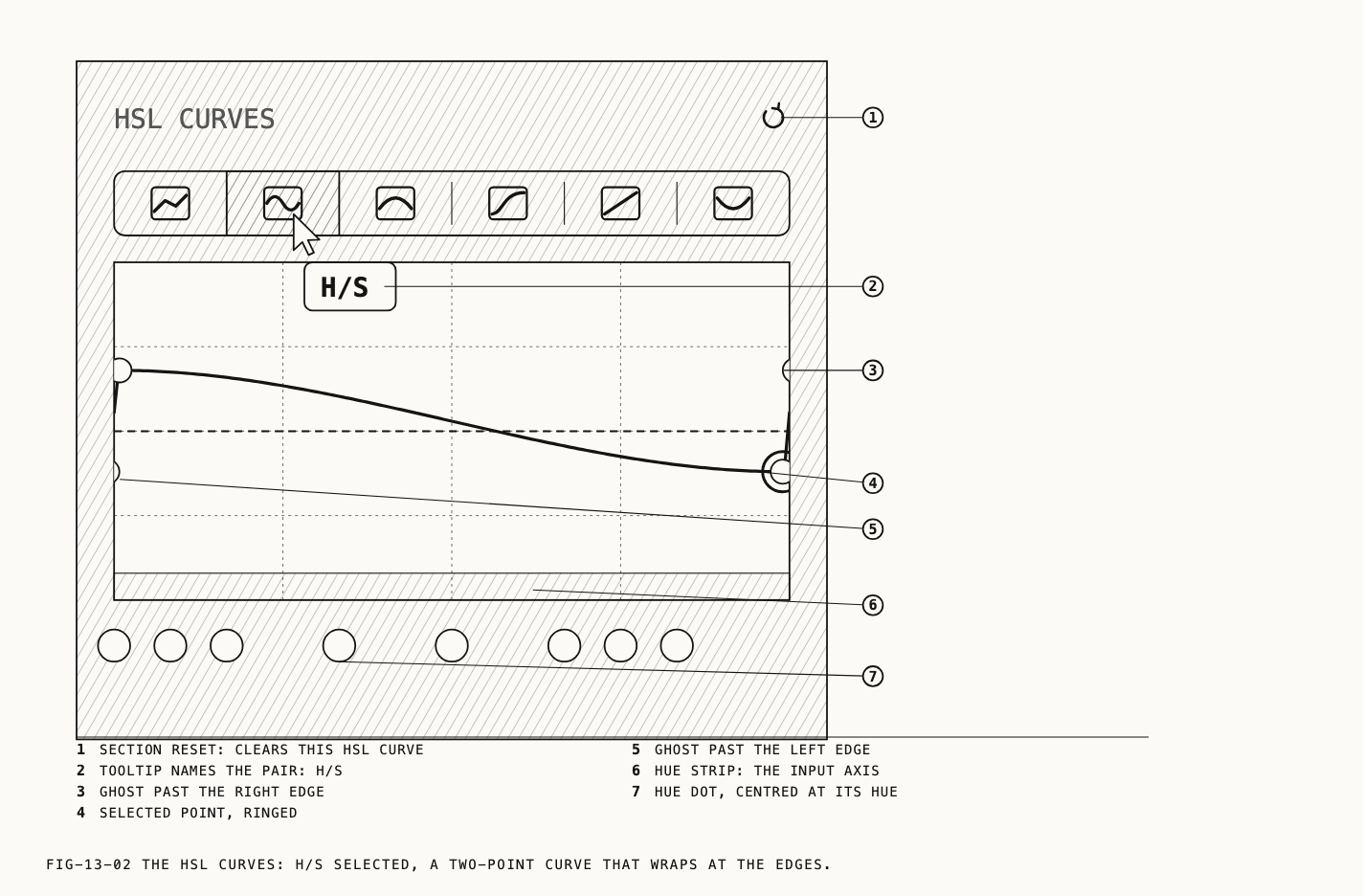
Where to find it: the Curves tab, under HSL CURVES.
A six-segment control of icons selects the curve. Each segment’s tooltip names the pair: the input along the bottom of the box, then what the curve changes.
| Segment | Input | Changes |
|---|---|---|
H/H | Hue | Hue |
H/S | Hue | Saturation |
H/L | Hue | Luminance |
L/S | Luminance | Saturation |
S/S | Saturation | Saturation |
S/L | Saturation | Luminance |
The box is twice as wide as it is tall, and its guide is a flat line across the middle: on the guide, nothing changes. A point above the guide raises the output for that input (brighter, more saturated, or the hue turned one way); a point below lowers it. A strip under the box shows the input axis: the hue spectrum for the three hue curves, black to white for the luminance curve, gray to vivid for the two saturation curves.
The three hue curves wrap. The left and right edges of the box are the same hue, so each point is drawn again as a ghost past the opposite edge. A point dragged off one side comes back on the other, and a ghost can be dragged or double-clicked like the point it mirrors. The other three curves stop at their edges as the tone curves do.
Under the box of a hue curve sits a row of eight color dots: red, orange, yellow, green, aqua, blue, purple and magenta, each centered on its hue’s place on the strip. Clicking a dot adds a point at that hue, on the curve where it already runs, so the picture does not change until the point is dragged. The new point carries the white ring; drag it up or down from there. If a point already sits at that hue, the dot selects it instead. The dots are not shown for the luminance and saturation curves, whose input is not a hue.
Adding, dragging and removing points work as in section 13.3. The reset arrow on the
HSL CURVES header clears the selected HSL curve only, and is dimmed while that curve is
empty. Selecting a different node returns the selector to H/H.
13.5 Zone Colour
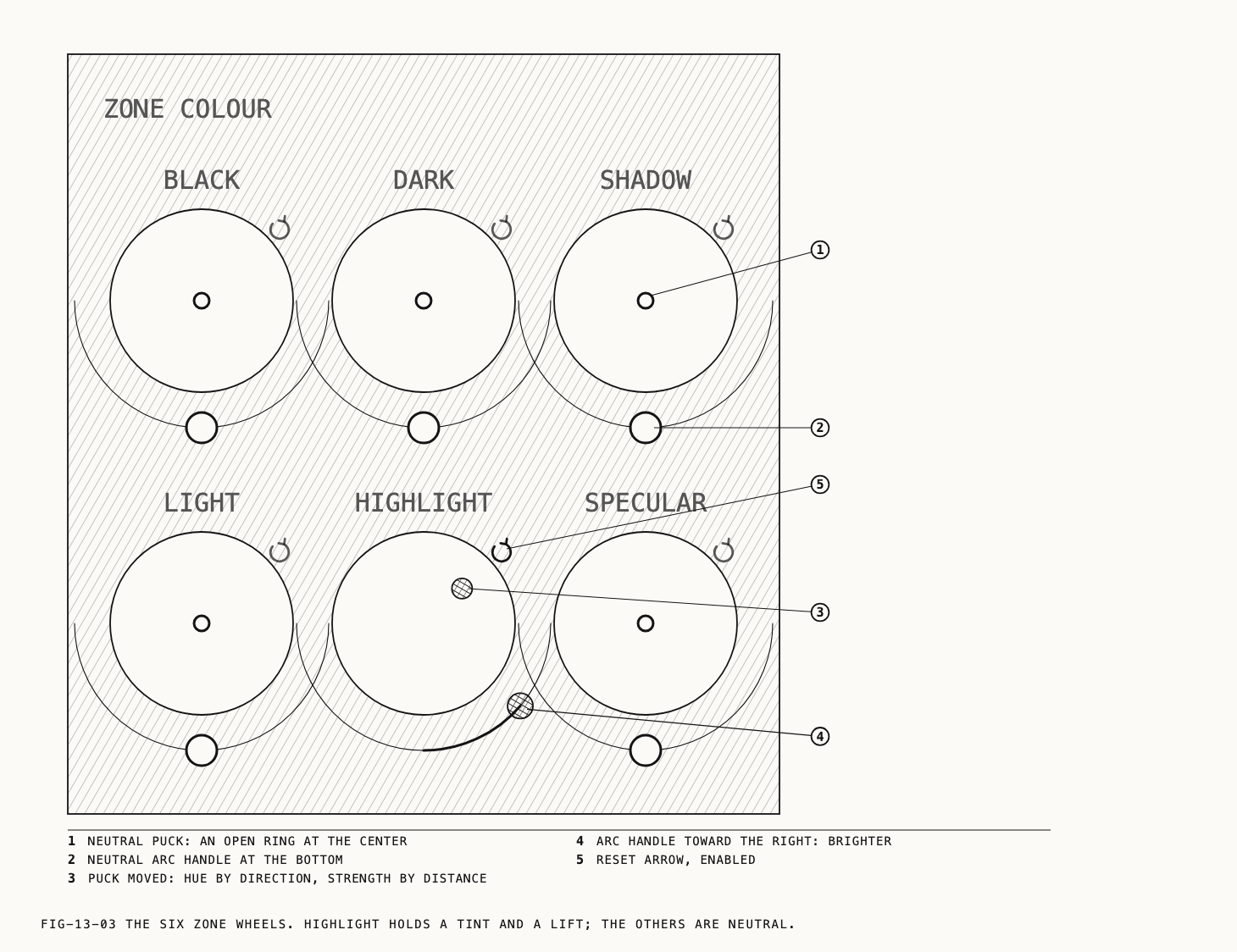
Where to find it: the Colour tab, under ZONE COLOUR.
Six wheels in two rows of three: BLACK, DARK and SHADOW, then LIGHT,
HIGHLIGHT and SPECULAR. Each tints and brightens one band of the picture’s
brightness, from the deepest shadows to the brightest highlights. The bands overlap, so
a change on one wheel blends into its neighbors rather than stopping at a boundary.
Each wheel is a hue and saturation disc with a puck, and under the disc an arc for luminance. The puck at the center is neutral; its direction from the center sets the hue of the tint and its distance sets how strong the tint is. On the arc the bottom is neutral; dragging toward the left end darkens the zone, to -1, and toward the right end brightens it, to +1.
The puck or arc handle moves from its current position as you drag. Clicking without dragging changes nothing. A plain drag moves slowly
for fine control; hold ⇧ while dragging to move at full speed. A puck pushed beyond
the rim stays on the rim.
A wheel resets two ways: double-click anywhere on it, or click the reset arrow at the
top right of the disc, which is enabled only while the wheel holds a value. Either
returns both the puck and the arc to neutral. The undo entry for any wheel edit is
Adjust Color Wheels.
13.6 The Colour Sliders
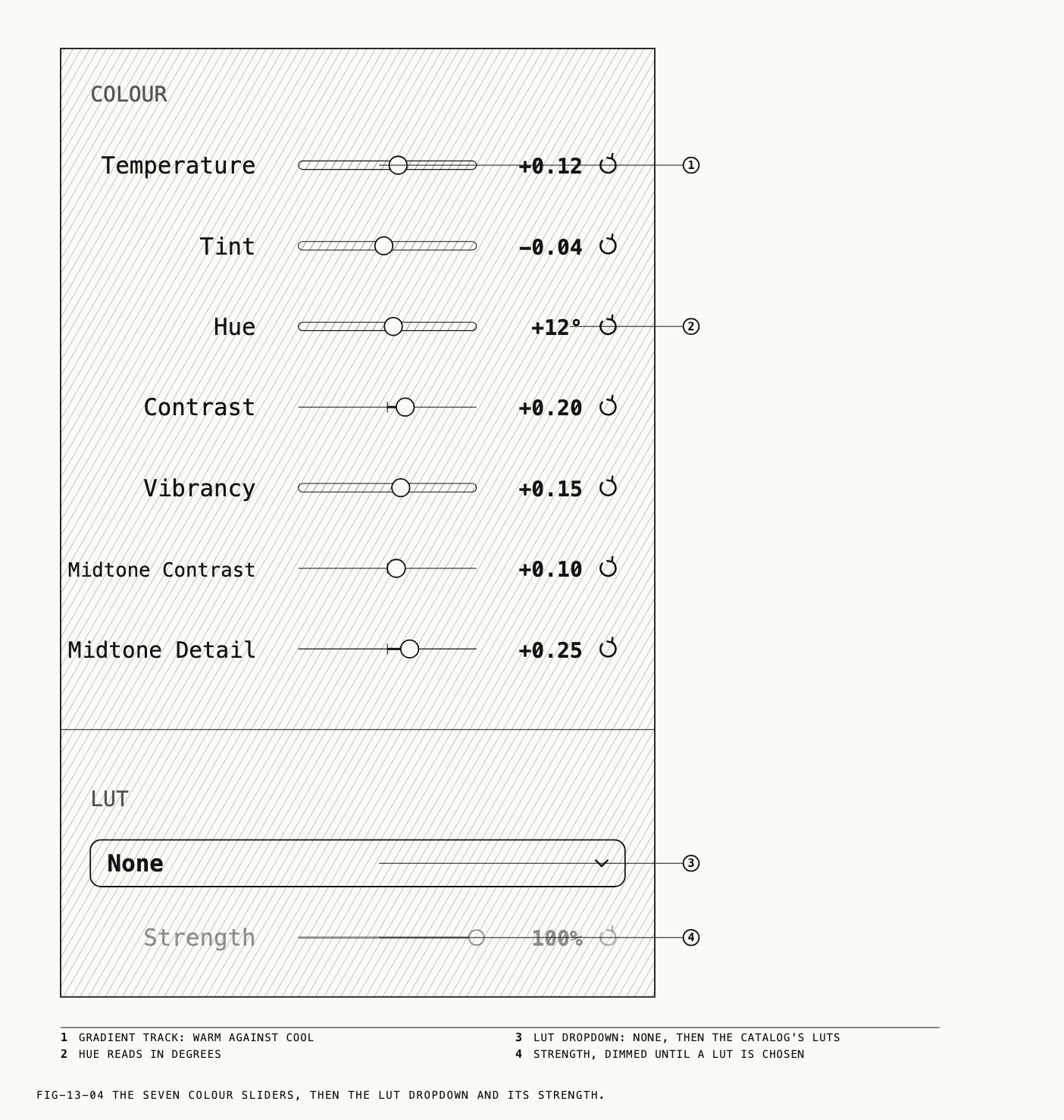
Where to find it: the Colour tab, under COLOUR.
Seven sliders act on the whole picture. Six run from -1.00 to +1.00 and Hue runs in
degrees. Every default is 0.
| Slider | Range | What it changes |
|---|---|---|
Temperature | -1.00 to +1.00 | Warm against cool. A grading offset, not a Kelvin value; white balance is the Develop tab, Chapter 12 |
Tint | -1.00 to +1.00 | Green against magenta |
Hue | -180° to +180° | Turns every hue by the angle |
Contrast | -1.00 to +1.00 | Overall contrast |
Vibrancy | -1.00 to +1.00 | Saturation, with less change to colors that are already vivid |
Midtone Contrast | -1.00 to +1.00 | Contrast in the midtones only |
Midtone Detail | -1.00 to +1.00 | Local contrast in the midtones: it firms or softens texture rather than tone |
Contrast and Vibrancy make a moderate change even at the ends of their travel, which
leaves room for fine settings across the whole range.
There is no saturation slider. Use Vibrancy for overall saturation. Use HSL curves to adjust saturation by hue, brightness or existing saturation (section 13.4).
Note: Exported LUTs and Verana profiles do not include Midtone Detail. The export manifests in Chapter 14 list this omission.
13.7 The LUT Row
Where to find it: the Colour tab, under LUT.
A dropdown and a Strength slider. The dropdown lists None and then every LUT in the
catalog by name; importing, renaming and deleting LUTs are Chapter 14. Choosing a LUT
applies it on this node.
Strength runs from 0% to 100%, default 100%, and blends between the picture with the
LUT and without it. It is dimmed until a LUT is chosen. Swapping one LUT for
another keeps the strength.
If the selected LUT is deleted from the catalog, the dropdown reads None and the picture appears without it. Restoring the same LUT reapplies it. Choosing None manually prevents this.
← 12. Developing Raw · Contents · 14. Film Emulation and LUTs →