A film profile sets the picture’s look. The Film Emulation tab adds halation, softness, diffusion and grain. These choices are independent: use a stock without grain, grain with the house render, or both.
This chapter covers the film profile list, the Film Emulation tab, the Colour Space
node, LUTs, and exporting a look as a LUT or a Verana profile. The Output tab, where the
profile is chosen for a deliverable, is covered in Chapter 24. The resources panel, where
imported LUTs are listed, is covered in Chapter 17.
14.1 Where the Film Look Lives
Choose a film profile on the Output tab, the Node tab of a color space node or the Video Input tab.
Where to find it: the Output tab, the Tone mapping and Profile rows; the Node tab of
a Colour Space node and the Video Input tab, the Tone Mapping and Profile rows.
The Output tab chooses the profile for a deliverable, and that is where most users set
it (Chapter 24). A Colour Space node chooses it for the conversion that node performs
(section 14.3). The Video Input tab chooses it for a clip whose camera output is set to
a display space (Chapter 12). The row appears when tone mapping is Pearla and the selected output color space is SDR. HDR output uses the house render without a film profile. Camera log output has no look applied.
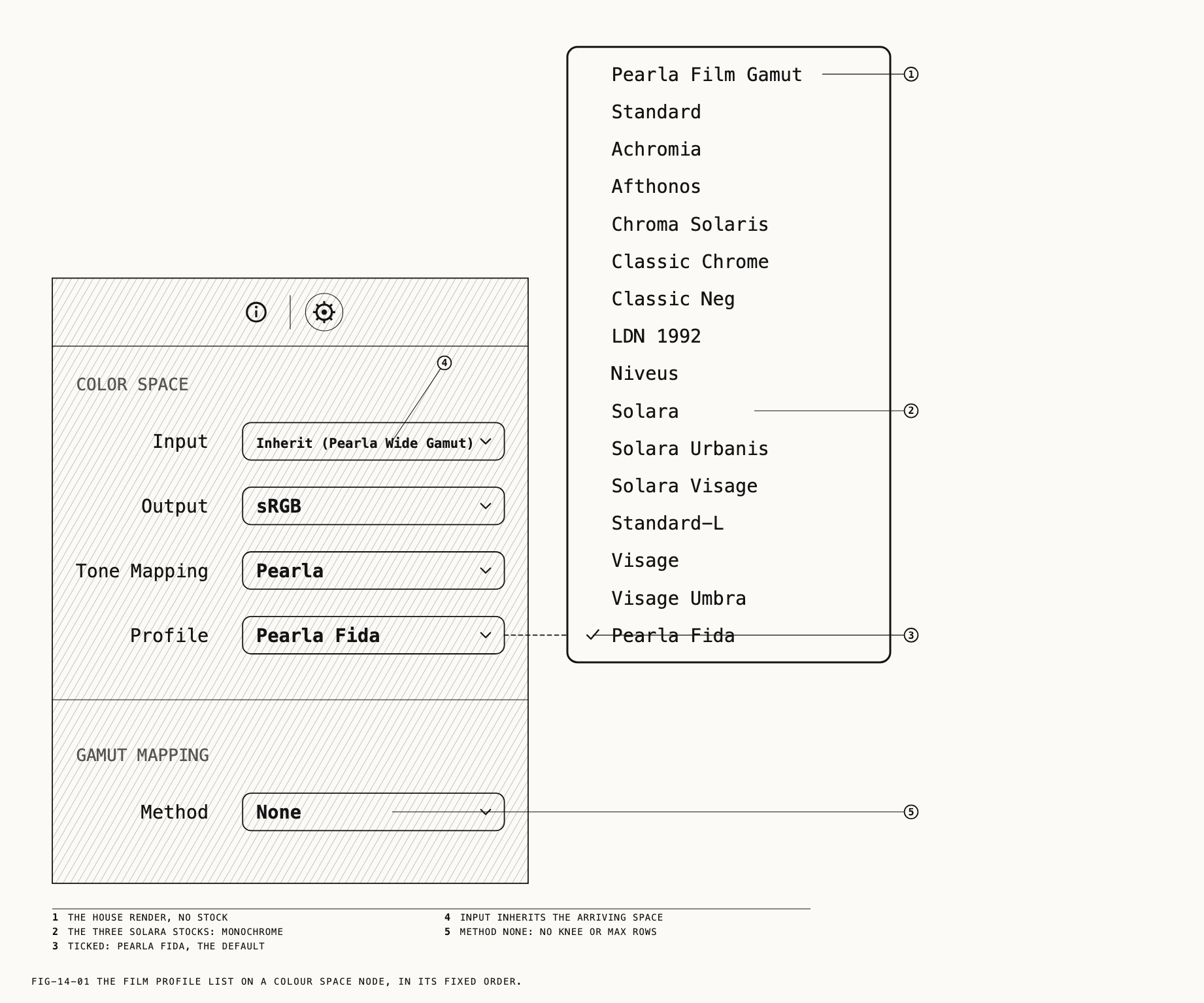
The list reads the same in every one of these places. Pearla Film Gamut comes first:
the plain house render with no film stock. The stocks follow, in this order.
| Profile | Character |
|---|---|
Pearla Film Gamut | The house render, no stock |
Standard | Color |
Achromia | Color |
Afthonos | Color |
Chroma Solaris | Color |
Classic Chrome | Color |
Classic Neg | Color |
LDN 1992 | Color |
Niveus | Color |
Solara | Monochrome |
Solara Urbanis | Monochrome |
Solara Visage | Monochrome |
Standard-L | Color |
Visage | Color |
Visage Umbra | Color |
Pearla Fida | Color |
A new output and a new Colour Space node start with Pearla Fida. The three Solara
profiles render black and white regardless of the color work upstream.
14.2 The Film Emulation Tab
Where to find it: the Film Emulation tab.
The tab is offered on the raw input node of a still, the video input node of a clip, and
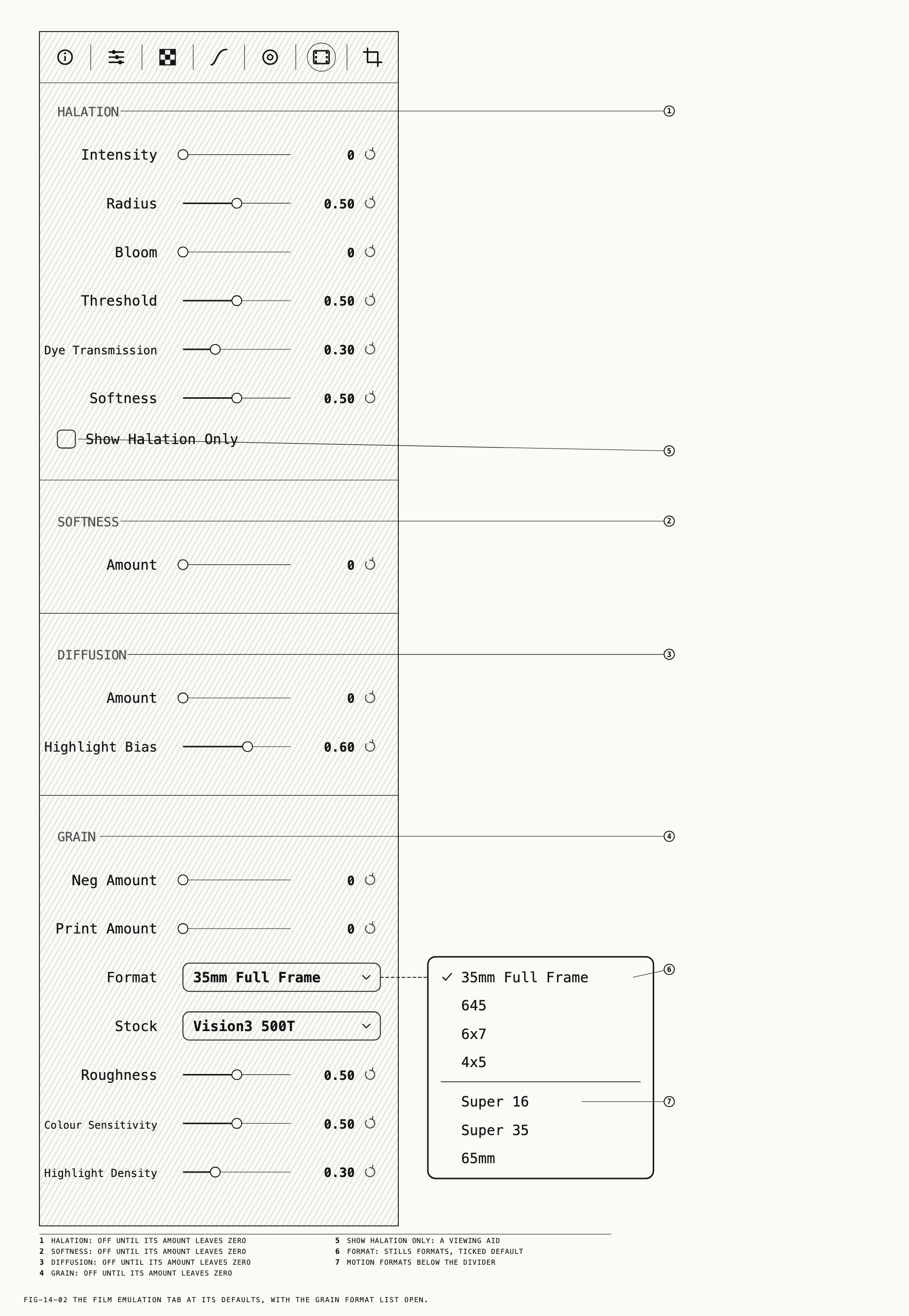
any adjustment node. It has four sections in a fixed order: HALATION, SOFTNESS,
DIFFUSION, GRAIN. Each section is off until its amount slider leaves zero, and
returns to off when the amount is dragged back to zero.
Halation. The glow that bright areas cast into their surroundings on film.
| Control | Range, default |
|---|---|
Intensity | 0 to 1, 0 (off) |
Radius | 0 to 1, 0.50 |
Bloom | 0 to 1, 0 |
Threshold | 0 to 1, 0.50 |
Dye Transmission | 0 to 1, 0.30 |
Softness | 0 to 1, 0.50 |
Show Halation Only | Off |
Threshold sets how bright an area must be before it contributes. Show Halation Only
renders the halation alone, with the picture removed, so the spread can be judged on its
own. It is a viewing aid, stored with the node like any other setting, so turn it off
when you are done.
Softness. One slider, Amount, 0 to 1, off at zero. Softens edge definition across the picture.
Diffusion. Amount, 0 to 1, off at zero, and Highlight Bias, 0 to 1, default 0.60.
Diffusion spreads the brightest tones more than the rest; the bias sets how strongly the
highlights are favored.
Grain. Grain has two amounts and is on while either is above zero.
| Control | Range, default |
|---|---|
Neg Amount | 0 to 1, 0 |
Print Amount | 0 to 1, 0 |
Format | 35mm Full Frame |
Stock | Vision3 500T |
Roughness | 0 to 1, 0.50 |
Colour Sensitivity | 0 to 1, 0.50 |
Highlight Density | 0 to 1, 0.30 |
Neg Amount and Print Amount each add grain of a different character, and the two
can be mixed. Format sets the size of the emulated frame, and with it how large the
grain appears against the picture: the stills formats 35mm Full Frame, 645, 6x7
and 4x5, then a divider, then the motion formats Super 16, Super 35 and 65mm. A
larger format gives finer grain at the same amounts. Stock sets how coarse the grain is:
Vision3 50D, Vision3 250D or Vision3 500T, from finest to coarsest.
On a still, the grain pattern stays the same on every redraw and every export. On a clip the grain changes from frame to frame, as film grain does.
Note: Exported LUTs omit all four sections (section 14.5). Verana profiles include grain and halation settings, but omit softness and diffusion (section 14.6).
14.3 The Color Space Transform Node
A Colour Space node converts the picture from one declared color space to another at
a chosen point in the graph, with optional tone mapping, gamut mapping and a film
profile. Inserting a node is covered in Chapter 11. Selecting the card shows its settings
on the Node tab.
Where to find it: the Node tab, shown beside Info when a Colour Space node is
selected.
The tab’s rows, Input, Output, Tone Mapping and Profile under COLOR SPACE, and
Method, Knee and Max under GAMUT MAPPING, are listed in section 11.14. This
section covers what they do to the picture.
Input sets the input color space. Inherit uses the preceding node’s color space, shown by name in the row. Choose a space to override it; choose Inherit again to clear the
override. The color space list, grouped by camera brand, is the one described in
Chapter 12.
The Tone Mapping row appears only when the conversion goes from a scene-referred space
(a camera log, or Pearla Wide Gamut) to an SDR display space. A new node starts with
Pearla. None is a plain conversion with no tone mapping at all. Profile appears
under Pearla only.
The GAMUT MAPPING section is always shown. Its Method row chooses how colors outside
the output space are handled. Saturation Mapping reduces extreme saturation while leaving less saturated colors unchanged. Knee runs from 0.00 to 0.99, default 0.80; lower values affect less saturated colors too. Max runs from 0.50 to 1.10, default 1.00, and sets the strongest saturation. At 1.00, it reaches the output space’s limit. Clip limits colors to that space.
The card shows the input space over the output space, so the conversion can be read on
the canvas without opening the tab. A disabled Colour Space node passes the picture
through unchanged, and the color space flowing downstream is the one that arrived. Reset Node on the card returns the node to an inherited input, Pearla Wide Gamut out,
Pearla tone mapping, no gamut mapping and Pearla Fida.
14.4 Importing and Applying LUTs
LUTs live in the catalog and are listed on the resources panel’s LUTs tab. The panel
itself is covered in Chapter 17; this section covers getting a LUT in and putting it on
a node.
Where to find it: the resources panel, LUTs tab, the Import LUT button.
Import LUT opens a panel titled Import LUTs. Dropping files onto the tab does the
same; while the tab is empty it reads Drop .cube, .3dl, or .png files here. Three
formats are accepted: .cube, .3dl, and a .png holding a Hald identity grid. Files of
any other kind in a drop are skipped without a message. Each LUT takes its name from its
file, and its row shows the format and the grid size, as CUBE · 33³.
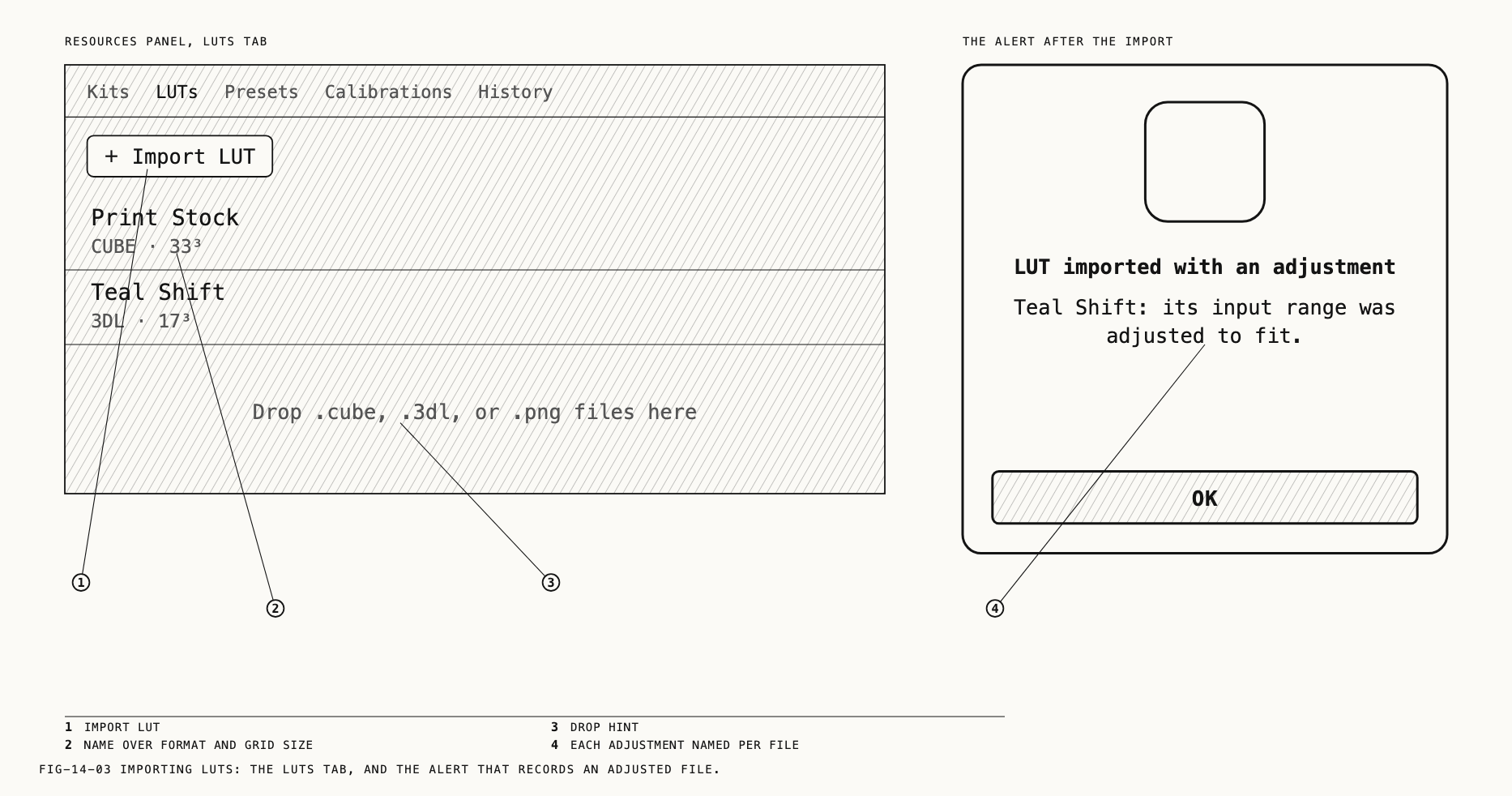
Some LUTs need adjustment on import. The alert LUT imported with an adjustment (or LUTs imported with adjustments) names the affected files and describes the changes. These LUTs are imported and usable. A file that cannot be read at all is
refused with '<file>' could not be imported (or N LUTs could not be imported) and
The file may be corrupt or use an unsupported format. Right-click a row for Rename
and Delete.
Where to find it: the Colour tab, the LUT section.
A LUT is applied on a node from the Colour tab: the LUT dropdown chooses it and
Strength blends it in. Chapter 13 covers the two controls, and what happens when a
chosen LUT is later deleted from the catalog. A grade pasted into a catalog that lacks
its LUTs says so and skips them (Chapter 17).
14.5 Exporting the Look as a LUT
The color work of a graph’s look can be written out as a .cube file for use in
another application.
Where to find it: File → Export LUT, or Export LUT on an output card’s menu.
The card’s menu item acts on that output. The File menu item acts on the output the
Output tab is showing, or, when no output is inspected, the one the loupe is showing. A
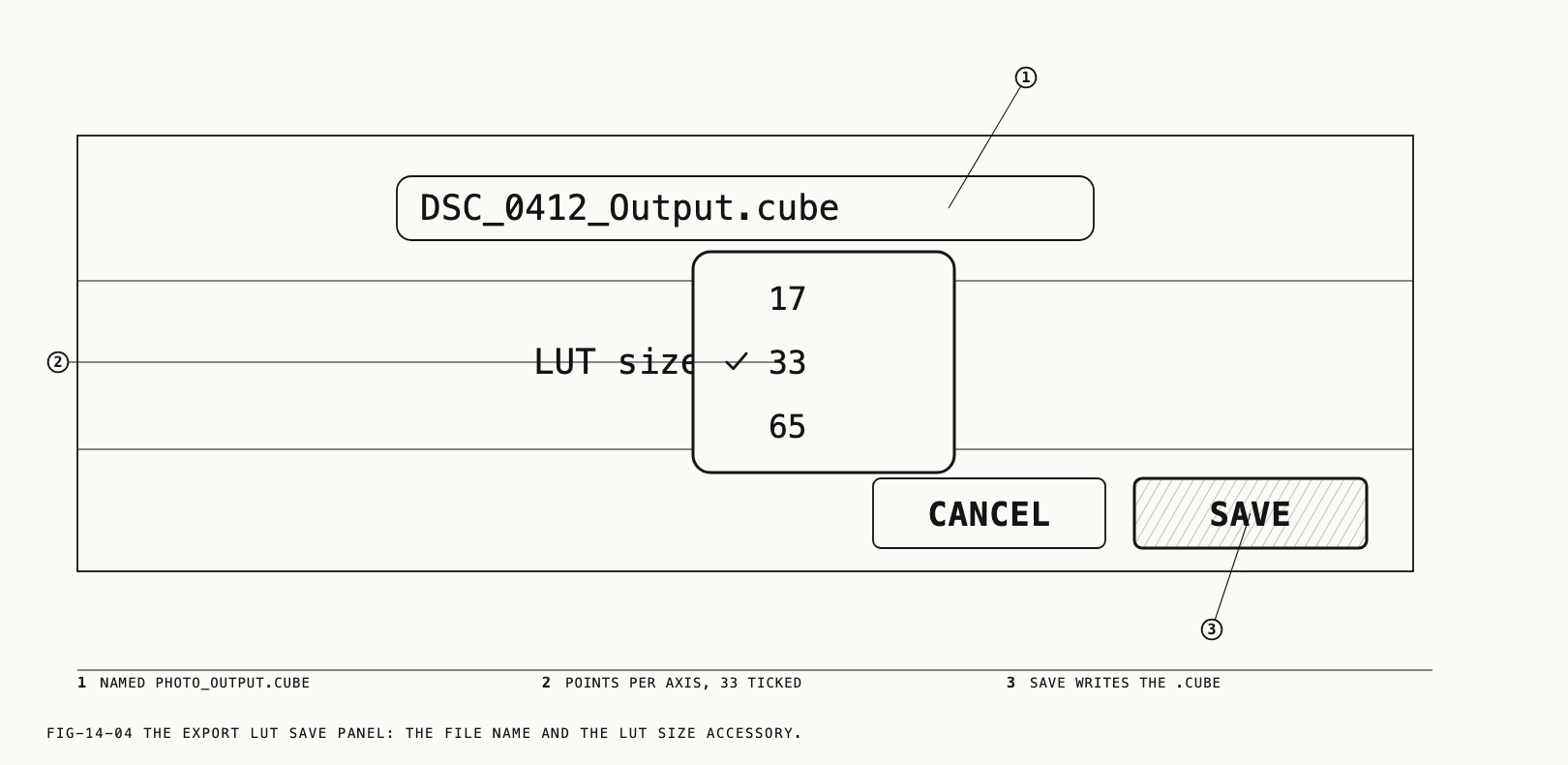
save panel opens with the file named <photo>_<output>.cube and an accessory row, LUT size:, offering 17, 33 or 65 points per axis; 33 is preselected. In the other
application, apply the file where the picture is in Pearla Wide Gamut, and convert to the
delivery space after it.
The LUT carries the adjustments of every enabled input and adjustment node on the path
to that output: curves, the Colour tab’s color work, and any LUTs with their strengths.
The LUT omits masks, crop and resize, text, healing, frequency separation, the
Highlights, Shadows, Whites and Blacks sliders (on the Curves tab and on the
Develop and Video Input tabs), Midtone Detail, Clarity, Dehaze, grain, halation,
softness, diffusion, the Colour Space nodes, tone mapping, the film profile and
Punch. The LUT is the color work alone, not the delivered look.
The item is grayed when the path has nothing a LUT can carry. A path through a parallel
or layer mixer is refused after the save panel with the sheet Can't export this LUT
and This grade has a Parallel or Layer node; a LUT cannot carry it. The same sheet
reports a grade whose LUTs can no longer be loaded, naming them, with the instruction to
re-import them or remove them from the grade. A successful export shows Exported <file> with Show in Finder.
14.6 Exporting a Verana Profile
Export a Verana profile to use the graph’s display look as a custom camera profile in Verana. Unlike a LUT, it carries the Colour Space nodes, the
tone mapping, the film profile and Punch. Verana handles HDR itself.
Where to find it: File → Export Verana Profile, or Export Verana Profile on an
output card’s menu.
The command targets an output as Export LUT does. It opens the sheet Export as Verana Profile, which lists the included adjustments: curves, color, LUTs, color space
transforms, tone mapping, film stock and punch. A Profile name field is filled with
the photo’s file name without its extension (Untitled Look if there is no photo).
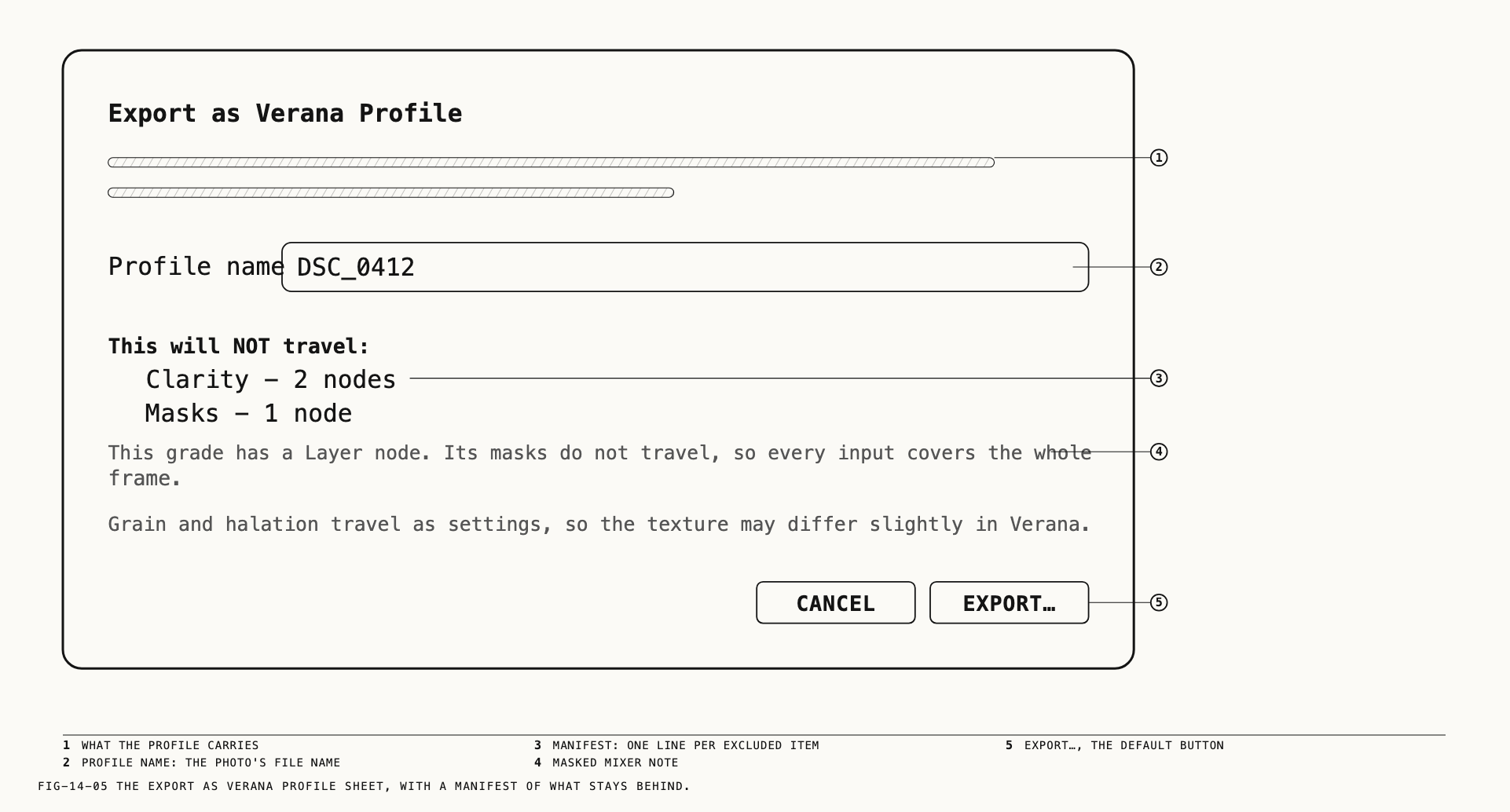
Below the name is the manifest. When all adjustments can be included, it reads Everything on this path travels. Otherwise it reads This will NOT travel: followed by one line per
excluded item with its node count: Clarity, Dehaze, Midtone Detail, Softness,
Diffusion, Grain (Texture tab), Masks, Healing, Frequency Separation, Text,
and Crop, perspective and resize. A grade with a masked mixer adds This grade has a Layer node. Its masks do not travel, so every input covers the whole frame. or This grade has a Parallel node. Its masks do not travel, so every branch changes the whole frame. An unmasked parallel or layer mixer is included, with its blend modes and strength. Grain and halation from the Film Emulation tab travel as settings, and the sheet
says so: in Verana the texture may differ slightly, and the exact grain pattern is not
carried.
Export… opens a save panel for <name>.pprof; Cancel closes the sheet. A successful
export shows Exported <file> with Show in Finder.
Four conditions prevent export. The menu item is grayed and carries the reason as its
tooltip; choosing it from the card shows the reason in the sheet Can't export this profile.
| Condition | What the sheet says |
|---|---|
| The output delivers an HDR space | The profile carries the SDR look, and Verana handles HDR itself. Set the output to sRGB, Display P3 or Rec.709 and export again |
| The output delivers a camera log | A profile is a display look, and a log is scene-referred. Set the output to an SDR delivery and export again |
A clip’s Camera Output is not Pearla Wide Gamut | Set Camera Output to Pearla Wide Gamut on the Video Input tab and export again |
| Nothing is connected to the output | This output node has nothing connected to it. |