The tables list Revela’s menus in display order, followed by right-click menus and keyboard controls. Each row points to the section explaining the command.
28.1 Reading the Tables
Each table gives the menu label, shortcut, availability and reference section. A dimmed item is unavailable; the “Enabled when” column gives its conditions.
Three terms recur. Targets are the assets selected in the grid or, when nothing is selected and the grid does not have focus, the asset open in the loupe. A catalog is open means a Catalogue window is in front. The launch sequence is the license and sign-in screens Revela shows before any catalog opens (section 1.2); several items stay dimmed until it is complete.
Some items change their wording with what they will act on: Delete reads Delete 12 Photos, Delete Folder or Delete Node; Paste Grade reads Paste Grade onto 12 Photos. The tables give the plain title and the pattern.
Several items print a key with no modifier, or with ⇧ alone: 0 to 9, P, X,
U, \, Esc, ⇧R, ⇧X, ⇧L. These keys work throughout the Catalogue window except while typing in a text field. Section 28.10
lists them with their conditions.
28.2 Revela
| Item | Shortcut | Enabled when | Explained in |
|---|---|---|---|
About Revela | Always | 1.12 | |
Check for Updates | No check is already running; works during the launch sequence | 1.12 | |
Settings | ⌘, | The launch sequence is complete | 2.8 |
Account | Signed in to a Pearla account | 1.11 | |
Services ▸ | System | ||
Hide Revela | ⌘H | Always | |
Hide Others | ⌥⌘H | Always | |
Show All | Always | ||
Quit Revela | ⌘Q | Always; asks first while exports are running | 25.8 |
28.3 File
| Item | Shortcut | Enabled when | Explained in |
|---|---|---|---|
New | ⌘N | The launch sequence is complete | 1.9 |
Open | ⌘O | The launch sequence is complete | 1.10 |
Open Recent ▸ | Each catalog by name, dimmed while its drive is not connected and during the launch sequence; then Clear Menu, live while the list has entries | 1.10 | |
Close | ⌘W | A window is in front | |
Save | ⌘S | A catalog is open. The catalog saves as you work | |
Import | ⇧⌘I | A catalog is open and no import is running | 3.1 |
Export LUT | The output shown in the Output tab, or else in the loupe, carries something a LUT can hold | 14.5 | |
Export Verana Profile | That output can become a profile; when it cannot, the item is dimmed and its tooltip gives the reason | 14.6 | |
Catalogue Info | A catalog is open | 6.1 |
There is no Save As and no export of an output from the File menu. Outputs are exported
from the Output tab, the output card and Catalogue → Export ▸ (Chapter 25).
28.4 Edit
| Item | Shortcut | Enabled when | Explained in |
|---|---|---|---|
Undo (reads Undo <step>) | ⌘Z | There is a step to undo. A text field being edited, or a recent delete, takes it first | 11.15 |
Redo (reads Redo <step>) | ⇧⌘Z | There is a step to redo | 11.15 |
Cut, Copy, Paste | ⌘X, ⌘C, ⌘V | A text field has the cursor | |
Select All | ⌘A | A text field or the grid has focus | 5.2 |
Deselect All | ⇧⌘A | The grid has a selection | 5.2 |
Copy Grade | ⇧⌘C | One target, and it has a grade | 17.2 |
Paste Grade (reads Paste Grade onto <n> Photos) | ⇧⌘V | A grade has been copied and there are targets | 17.2 |
Apply Preset ▸ | There are targets. Lists every preset, or No Presets | 17.4 | |
Reset All Edits (reads Reset All Edits on <n> Photos) | ⌥⌘R | There are targets | 11.15 |
Delete (reads Delete <n> Photos, Delete Reference, Delete <n> Items Now, Delete Folder, Delete Node) | ⌘⌫ | What has focus (the grid, the loupe, the sidebar or the node canvas) holds something that can be deleted | 4.2, 6.8, 11.11 |
Find | ⌘F | A catalog is open | 5.7 |
Search Entire Catalogue | A catalog is open; checked while on | 5.7 | |
Insert Before ▸ Adjustment | ⌥⌘↑ | A node is selected, other than a photo’s input node | 11.6 |
Insert Before ▸ Splitter, Frequency Separation | As above | 11.6 | |
Insert After ▸ Adjustment | ⌥⌘↓ | A node is selected that can take a node after it (not a splitter or an output) | 11.6 |
Insert After ▸ Splitter, Frequency Separation | As above | 11.6 | |
Insert After ▸ Output (reads Video Output on a clip) | The selected node is the input or an adjustment node, and is the last in its chain | 11.7 | |
Insert After ▸ Frame Output | As above, on a clip; hidden on a photo | 11.7 | |
Add Parallel Node | ⌥P | An adjustment, color space transform, text, heal, frequency separation or mixer node is selected, and no text field has the cursor | 15.2 |
Add Layer Node | ⌥L | As above | 15.2 |
Add Branch | A splitter is selected | 11.7 | |
Add Output ▸ Video, Frame | A clip’s splitter is selected | 11.7 | |
Toggle Disable Node (reads Disable Node or Enable Node once a node is selected) | ⌘D | The selected node can be disabled | 11.10 |
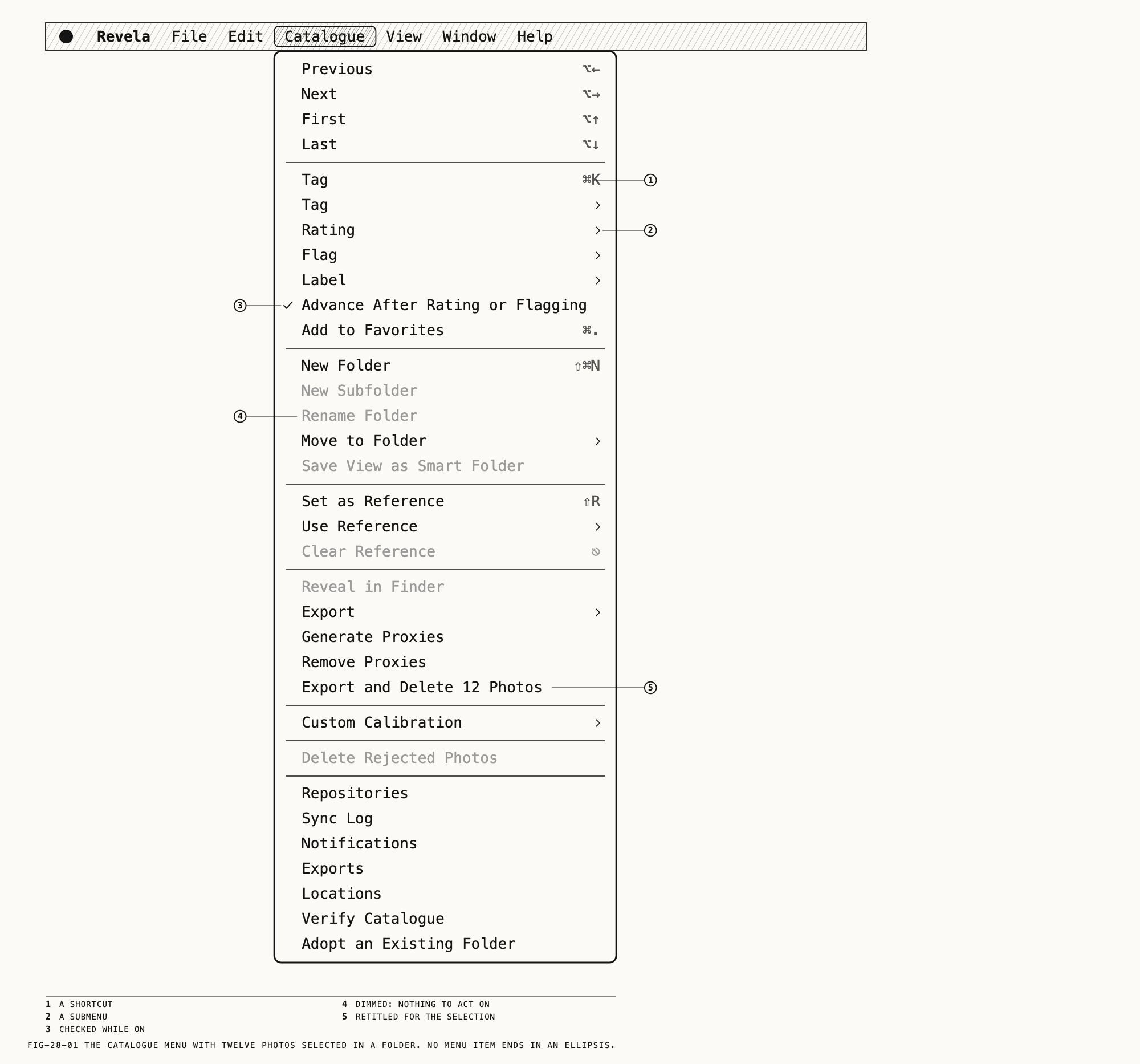
28.5 Catalogue
| Item | Shortcut | Enabled when | Explained in |
|---|---|---|---|
Previous, Next | ⌥←, ⌥→ | The grid holds at least two items and no text field has the cursor | 5.2 |
First, Last | ⌥↑, ⌥↓ | As above | 5.2 |
Tag | ⌘K | There are targets, or the tag popover is open | 5.5 |
Tag ▸ | There are targets. The pinned tags with their keys ⌥1 to ⌥9, then Remove All Tags | 5.5 | |
Rating ▸ | There are targets. None (0), ★ (1) to ★★★★★ (5) | 5.3 | |
Flag ▸ | There are targets. Pick (P), Reject (X), Unflag (U) | 5.3 | |
Label ▸ | There are targets. Red (6), Yellow (7), Green (8), Blue (9), None | 5.3 | |
Advance After Rating or Flagging | A catalog is open; checked while on | 5.3 | |
Add to Favorites (reads Remove from Favorites) | ⌘. | There are targets | 5.4 |
New Folder | ⇧⌘N | A catalog is open | 4.2 |
New Subfolder | A folder is selected in the sidebar | 4.2 | |
Rename Folder | A folder is selected in the sidebar | 4.2 | |
Move to Folder ▸ | There are targets | 4.3 | |
Save View as Smart Folder | The grid shows a tag, or shows a folder or a built-in row with a filter or a search in force | 4.5 | |
Set as Reference | ⇧R | One target, and it is not already the reference | 8.1 |
Use Reference ▸ | The saved references, by kit; live while an asset is open | 8.6 | |
Clear Reference | Esc | A reference is set | 8.3 |
Reveal in Finder | One target whose original can be shown | 6.6 | |
Export ▸ Active Output, All Outputs | There is a selection or a folder in view, and no export sheet is open | 25.3 | |
Export ▸ Originals | There are targets and no export of originals is running | 6.7, 25.5 | |
Generate Proxies | A target has its original here and no proxy | 6.5 | |
Remove Proxies | A target has both its original and a proxy | 6.5 | |
Export and Delete (reads Export and Delete Photo, Export and Delete <n> Photos) | There are targets and no export of originals is running | 6.8 | |
Custom Calibration ▸ | There are targets. Off, Automatic, then each calibration | 16.4 | |
Delete Rejected Photos (reads Delete <n> Rejected Photos) | The grid shows rejected assets | 5.3 | |
Repositories | A catalog is open | 26.3 | |
Sync Log | A catalog is open | 27.9 | |
Notifications | A catalog is open | 2.7, 27.10 | |
Exports | A catalog is open | 25.7 | |
Locations | A catalog is open | 6.2 | |
Verify Catalogue | A catalog is open and no verification you started is running | 6.6 | |
Adopt an Existing Folder | A catalog is open and no adoption is running | 3.6 |
28.6 View
| Item | Shortcut | Enabled when | Explained in |
|---|---|---|---|
Zoom In, Zoom Out, Zoom to Fit | ⌘=, ⌘-, ⌘0 | The loupe shows a picture | 7.2 |
Actual Size | ⌘1 | The loupe shows a picture and no reference split | 7.2 |
Zoom To ▸ 50 %, 200 %, 400 % | As Actual Size | 7.2 | |
Before / After | \ | An asset is open with its picture, and references are not being browsed; checked while the before shows | 7.3 |
Swap Reference Sides | ⇧X | A reference is set | 8.2 |
Lock Reference Zoom | ⇧L | A reference is set; checked while Match image fraction is chosen | 8.2 |
Next Tag Range, Previous Tag Range | ⌥→, ⌥← | The clip in the loupe has range tags | 9.5 |
Sort By ▸ | The grid shows assets. Relevance (during a search), Capture Date, Import Date, Filename, Rating, Camera, Ascending, Descending | 5.6 | |
Filter ▸ | The grid shows assets | 5.6 | |
Show Filters | ⇧⌘F | The grid shows assets | 5.6 |
Thumbnail Size ▸ Small, Medium, Large | The grid shows assets | 5.1 | |
Show Sidebar or Hide Sidebar | ⌥⌘S | A catalog is open | 2.2 |
Show Node Canvas or Hide Node Canvas | ⌥⌘N | References are not being browsed | 11.1 |
Show Resources or Hide Resources | ⌥⌘L | A catalog is open | 17.5 |
Show Scopes or Hide Scopes | ⌥⌘W | A catalog is open | 10.1 |
Show Inspector or Hide Inspector | ⌥⌘I | An asset is open | 2.2 |
Resources ▸ Kits, LUTs, Presets, Calibrations, History | A catalog is open; the tab in view is checked | 17.5 | |
Enter Full Screen (reads Exit Full Screen) | Globe-F, as the system prints it | A Catalogue window is in front | 2.5 |
28.7 Window and Help
| Item | Shortcut | Enabled when | Explained in |
|---|---|---|---|
Minimize | ⌘M | A window is in front | |
Zoom | A window is in front | ||
Bring All to Front | Always | ||
Welcome | The launch sequence is complete | 1.7 | |
| The open windows | Catalogue windows and the Settings window are listed | ||
Help → Revela Licence Agreement | Always, including during the launch sequence | 1.3 |
The Help menu also carries the system’s search field. There is no help book.
28.8 Right-Click Menus in the Browser and the Loupe
The grid. The menu acts on the selection when the clicked thumbnail is part of it, and on the clicked thumbnail alone otherwise.
| Item | Shown or enabled when | Explained in |
|---|---|---|
Download | Some targets have originals that are not on this Mac but are in a repository | 27.2 |
Resolve Conflict | One target, carrying a conflict | 27.8 |
Rating ▸, Flag ▸, Label ▸ | Always, with the keys printed as in the Catalogue menu | 5.3 |
Add to Favorites or Remove from Favorites | Always | 5.4 |
Tag (⌘K) | Always | 5.5 |
Move to Folder ▸ | Always | 4.3 |
Move Items to Location ▸ | The catalog has more than one place for originals | 6.4 |
Reveal in Finder | One target whose original is not missing | 6.6 |
Export ▸ Active Output, All Outputs, Originals | As in the Catalogue menu | 25.3, 25.5 |
Generate Proxies, Remove Proxies | As in the Catalogue menu | 6.5 |
Export and Delete Photo (or <n> Photos) | As in the Catalogue menu | 6.8 |
Set as Reference | One target, not already the reference | 8.1 |
Custom Calibration ▸ | Always | 16.4 |
Copy Grade | One target with a grade | 17.2 |
Paste Grade (or Paste Grade onto <n> Photos) | A grade has been copied | 17.2 |
Save Grade | One target with a grade | 17.3 |
Apply Preset ▸ | Always | 17.4 |
Reset All Edits (or Reset All Edits on <n> Photos) | Always | 11.15 |
Delete Photo or Delete <n> Photos, in red | Always | 6.8 |
In Recently Deleted the grid’s menu holds only Restore and, in red, Delete <n> Items Now (section 6.8). In References it holds only Delete Reference or Delete <n> References, in red (section 8.6).
The loupe. A right-click on the picture, away from any heal marker, offers Reveal in Finder, Set as Reference, Use Reference ▸, Clear Reference and Export and Delete Photo (or Video) for the open asset (section 7.8). A right-click on a tracked marker
on a clip opens the tracking menu (Chapter 23).
28.9 Right-Click Menus in the Sidebar, the Canvas and the Resources Panel
The sidebar. Each kind of row has its own menu.
| Row | Items | Explained in |
|---|---|---|
| The catalog row | New Folder, Export ▸, then a section Available in <repository> listing folders offered by a repository, each with <n> photos · from <source> | 4.2, 25.3, 26.6 |
| A folder | New Subfolder, Rename; then by sync state Sync This Folder, or a gray line naming the synced folder it is in or holds, or Sync Settings, Stop Syncing, Keep Here, Remove from This Catalogue; then Export ▸, Delete (dimmed for a folder a repository protects) and, with more than one place for originals, Move Items to Location ▸ | 4.2, 27.1, 27.3, 27.4, 25.3, 6.4 |
All Photos, All Videos, Favorites | Export ▸ | 25.3 |
References and its groups | Show References, New References Go Into ▸ | 8.6, 27.5 |
A store under Locations | Locations | 6.2 |
A repository under Locations | Sync Now, Pause or Resume, Rename, Show in Finder, Show in Repositories, Forget (with a gray line when it is off), and a dimmed Delete | 26.4 |
| A tag | Rename, Pin (printing its ⌥ key) or Unpin, Move to Group ▸, Merge into ▸, Exported (a tag in a group), New Tag, New Group, Delete Tag | 5.5 |
| A label color | Pin or Unpin, Exported | 5.5 |
| A tag group | Rename, Exported, New Tag, Delete Group; the Label group offers Exported only | 5.5 |
| A smart folder | Rename, Delete Smart Folder | 4.5 |
| The empty area below the rows | New Folder, New Tag, New Group | 4.2, 5.5 |
Recently Deleted, dividers and headers have no menu.
A card on the node canvas. Which items appear depends on the kind of node.
| Item | Cards that carry it | Explained in |
|---|---|---|
Add Input, Change to Layer Mixer or Change to Parallel Mixer | Mixers | 15.2, 15.5 |
Show in Loupe, Use for Thumbnail, Rename, Export, Export LUT, Export Verana Profile | Outputs | 24.9 |
Insert Before ▸ Adjustment, CST, Splitter, Text, Heal, Frequency Separation | Every card except the input | 11.6 |
Insert After ▸ Adjustment, Colour Space, Splitter, Text, Heal, Frequency Separation, and at the end of a chain Output (on a clip Video Output, Frame Output) | Every card except splitters and outputs | 11.6, 11.7 |
Add Parallel Node (⌥P), Add Layer Node (⌥L) | Adjustment, color space transform, text, heal and frequency separation | 15.2 |
Add Branch, and on a clip Add Output ▸ Video, Frame | Splitters | 11.7 |
Disable Node or Enable Node, Reset Node, Copy Node | Adjustment, color space transform, text, heal and frequency separation | 11.10, 11.13 |
Paste Node Before, Paste Node After | As Insert Before and Insert After, once a node has been copied | 11.13 |
Add Mask, or Edit Mask, Invert Mask, Copy Mask, Add Inverted Copy After, Remove Mask; Paste Mask once a mask is copied | Cards that take a mask | 19.1, 19.9, 19.10 |
Use Mask From ▸, Disconnect Mask Key | Cards that take a mask, when another node has a mask to share or a key arrives | 15.7, 19.10 |
Delete | Every card except the input; dimmed on the output used for the thumbnail | 11.11 |
Edit Label | Cards with an editable label and no Rename | 11.12 |
The resources panel. Right-click a row.
| Tab | Items | Explained in |
|---|---|---|
Kits | On a synced kit’s heading, Kit Settings. On a tool, Copy to ▸ and Move to ▸ (each kit, then New Kit), Delete | 27.5 |
LUTs | Rename, Copy to ▸, Move to ▸, Delete | 17.5 |
Presets | Apply Grade, Rename, Copy to ▸, Move to ▸, Delete | 17.4, 17.5 |
Calibrations | Rename, Apply automatically to matching files (checked while on), Export, Copy to ▸, Move to ▸, Delete | 16.5 |
History | Use as Reference (dimmed on the step that is already the reference), Save as Reference | 8.5 |
Copy to ▸ and Move to ▸ appear once the catalog has kits. The + button at the end
of the panel’s tab bar opens New Kit and Add a Kit from a Repository on every tab
(section 17.6).
28.10 Keys by Where They Work
These are the keys that act without a menu, including the bare keys the menus print. Every one does nothing while a text field has the cursor or text is being edited on the picture. “Anywhere” means anywhere in the Catalogue window.
Culling, anywhere. These act on the targets. With Advance After Rating or Flagging
on, the grid moves to the next asset afterwards (section 5.3).
| Key | Does | Condition |
|---|---|---|
0 to 5 | Rate | There are targets |
P, X, U | Pick, reject, unflag | There are targets |
6, 7, 8, 9 | Toggle the red, yellow, green or blue label | There are targets |
The grid, while it has focus (section 5.2).
| Key | Does | Condition |
|---|---|---|
Arrows, ⇧ arrows | Move or extend the selection | While a clip is open in the loupe, ←, →, ⇧← and ⇧→ step the clip instead |
⌫ | Delete the selection to Recently Deleted (section 6.8) | A selection exists |
Esc | Clear the search (section 5.7) | A search is in force |
The loupe, anywhere.
| Key | Does | Condition |
|---|---|---|
C | Enter or leave crop mode (section 18.1) | The Frequency Separation tab is not active |
M | Enter mask mode (section 19.2) | Mask mode is not already on |
\ | Before and after (section 7.3) | As View → Before / After |
| ⇧⌘H | Hide or show the editing overlays (section 7.4) | Crop, mask, healing, a text box or the Smooth brush is showing |
Esc | Cancel the white balance eyedropper (section 12.1) | The eyedropper is armed and the picture has focus |
A reference (Chapter 8).
| Key | Does | Condition |
|---|---|---|
⇧R | Set as reference | One target, not already the reference |
Space (hold) | Peek at the asset alone | A reference is set |
S | Cycle the split orientation | A reference is set; the Frequency Separation tab is not active |
⇧X | Swap sides | A reference is set |
⇧L | Lock reference zoom | A reference is set |
Esc | Clear the reference | A reference is set, and no search is cleared first |
Playback, while a clip is open in the loupe (section 9.8).
| Key | Does | Condition |
|---|---|---|
Space | Play or pause | No reference is set |
J, K, L | Play backwards, pause, play forwards | |
←, → | Step one frame | Not in crop mode, not during a peek |
⇧←, ⇧→ | Step ten frames | As above |
Home, End | Go to the start or end of the range | The grid does not have focus |
I, O | Set the in or out point | Not in crop mode |
⇧I, ⇧O | Clear the in or out point | Not in crop mode |
⌥←, ⌥→ | Previous or next range tag | The clip has range tags |
⌫ | Remove the selected range tag (section 9.5) | A span is selected on the rail |
Crop mode (section 18.2).
| Key | Does |
|---|---|
Return | Accept the crop |
Esc | Revert to the crop at entry and leave |
O | Cycle the composition overlay |
⇧O | Turn the spiral a quarter turn |
X | Swap the box’s width and height |
Arrows, ⇧ arrows | Nudge the box 1 or 10 pixels |
C | Leave crop mode |
Mask mode (section 19.2).
| Key | Does |
|---|---|
B, G, R | Arm the brush, linear gradient or radial gradient |
A | Arm the subject tool; on a clip it beeps |
O | Show or hide the mask overlay |
⇧O | Cycle the overlay’s style |
[, ] | Smaller or larger brush |
⌫ | Delete the selected component, or the selected subject marker |
Esc | Stop tracking, else disarm the tool, else deselect the component |
Healing, while the heal overlay shows (section 20.7).
| Key | Does |
|---|---|
[, ] | Smaller or larger brush |
⌫ | Delete the selected item |
Esc | Stop tracking, else deselect, else clear the source anchor |
Frequency separation, while the tab is active on its node (section 21.7).
| Key | Does |
|---|---|
S, H, C | Arm Smooth, Heal or Clone |
⌥1, ⌥2, ⌥3 | View Both, Tone or Texture |
[, ] | Brush size for the armed tool |
Esc | Deselect the Smooth stroke |
⌫ | Delete the selected keyframe, else the selected stroke or heal item |
The node canvas, while it has focus (Chapter 11).
| Key | Does |
|---|---|
⌫ | Delete the selected node (section 11.11) |
Return | Rename the selected card (section 11.12) |
Esc | Cancel a wire being dragged (section 11.8) |
Text boxes take Return and Esc while their text is being edited (Chapter 22).
28.11 Keys With Two Meanings
Some keys have different functions according to the active mode. These rules determine which command runs.
⌥←and⌥→are printed onCatalogue → PreviousandNextand onView → Previous Tag RangeandNext Tag Range. While the clip in the loupe has range tags, they move between the tags; otherwise they move through the grid.- ⇧⌘H has no menu item. It is not ⌘H, which hides Revela, nor ⌥⌘H, which hides the other apps.
Scycles the split orientation, except while the Frequency Separation tab is active, where it arms Smooth.Centers crop mode, except on that tab, where it arms Clone.Hhas a meaning only on that tab.⌥1to⌥3apply pinned tags, except while the Frequency Separation tab is active, where they switch its view.⌥4to⌥9keep their tags.I,Oand the arrows set trim points and step frames, except in crop mode, whereOcycles the overlays and the arrows nudge the box.J,KandLkeep playing in crop mode. In mask modeOalso shows and hides the overlay.Xrejects;⇧Xswaps reference sides; in crop modeXswaps the box’s width and height.Lplays forwards;⇧Llocks reference zoom; ⌥L adds a layer node.Ppicks; ⌥P adds a parallel node.Spacepeeks while a reference is set and plays or pauses a clip otherwise.Escacts on an armed mode (crop, mask, healing, frequency separation, the eyedropper) as its table in section 28.10 says, clears a search in the focused grid, and clears a reference. It is printed onCatalogue → Clear Reference.⌫is taken by an armed mode or a selected range tag before it reaches the grid or the canvas.Edit → Delete(⌘⌫) is the menu route for the grid, the loupe, the canvas and the sidebar’s folders.HomeandEndgo to the ends of the clip’s range unless the grid has focus. Click the picture first.1rates one star; ⌘1 isActual Size.
← 27. Sync Folders, Kits and Transfers · Contents · 29. Settings Directory →