A capture stays in Verana’s own form until you ask for something else. Export is where it becomes a file for somewhere else: a folder on a drive, the system photo library, another application, another person.
Two decisions govern every export. What form the capture leaves in, and where it goes. This chapter states what each form contains, so that the file arriving at the far end holds what you expected. One rule stands behind all of it: an export writes a new file and never alters the capture it came from. The original stays in the library either way.
20.1 Where an Export Starts
There are three ways in, and they lead to the same delivery.
A selection in the media library carries SHARE and EXPORT on the action bar at the
foot of the screen. These work across the whole selection at once and are the route for
moving a shoot off the phone. Selection and the action bar are covered in Chapter 18.
Where to find it: media library → SELECT → EXPORT.
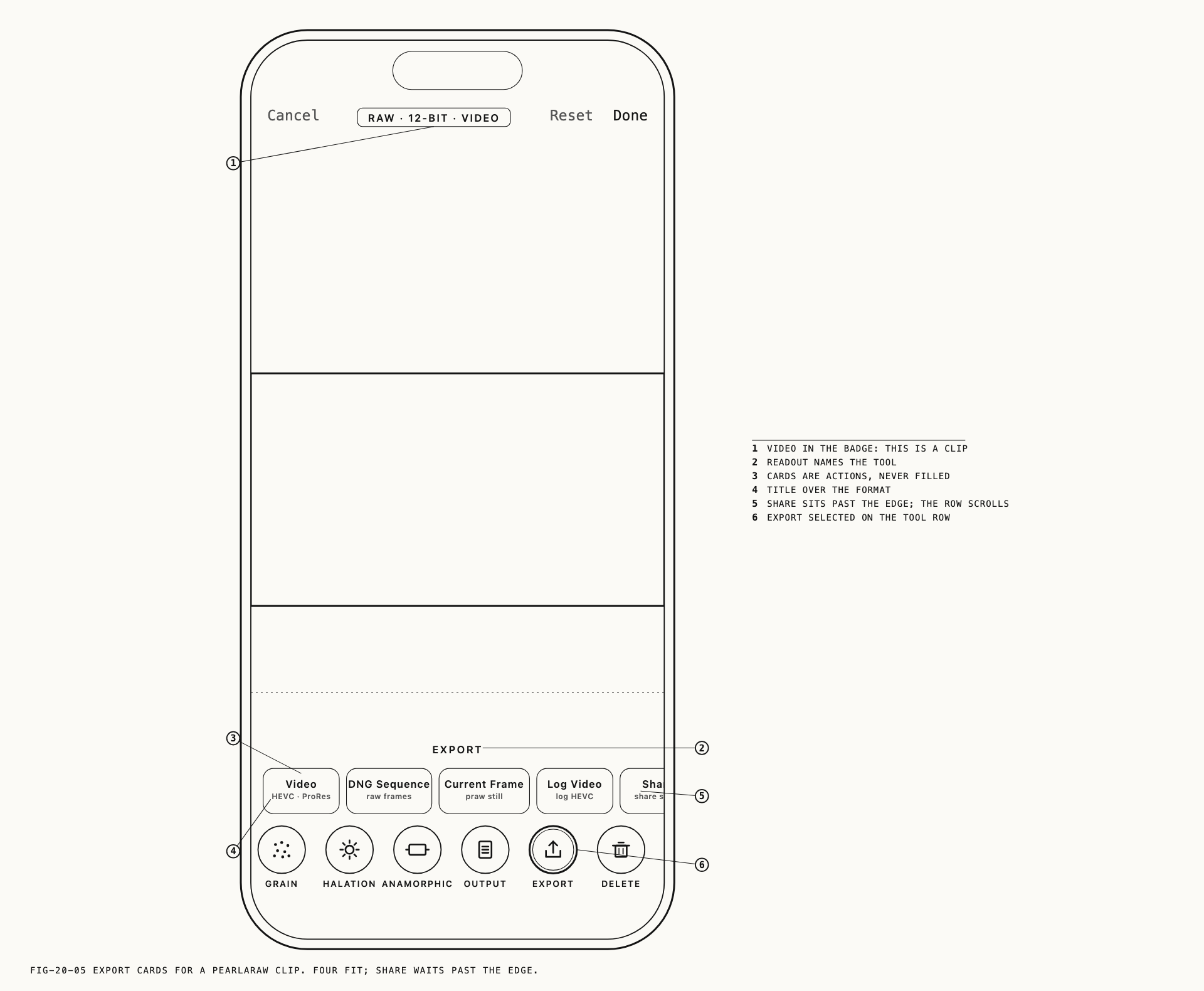
A capture open in Revela Lite carries an EXPORT tool on the tool row. Selecting it
replaces the controls with a row of cards, one per delivery this capture supports. The
cards are actions rather than settings: tapping one starts that export immediately.
Revela Lite is covered in Chapter 19.
A capture open for playback rather than adjustment carries the same deliveries in its
actions menu, listed as Export Video, Export DNG Sequence and Export Video (Log).
Which cards appear depends on what the capture is.
| Capture | Cards offered |
|---|---|
| A PearlaRAW clip | Video, DNG Sequence, Current Frame, Log Video, Share |
| A movie recorded in Verana | Video, Share |
| A PearlaRAW still | Share, Custom Profile |
A still recorded as Apple ProRAW (12-bit) or Bayer (12-bit) | Share |
Custom Profile saves the look you have built rather than delivering a file, and is
covered in Chapter 17.
20.2 The Three Forms
Batch export offers three forms, and the distinction between them is the most important thing on the page.
| Form | What the file holds |
|---|---|
MASTER | The capture exactly as recorded, together with its finished image where one exists |
PROCESSED | The finished image only |
LOG | A PearlaRAW clip interpreted into a log profile |
MASTER is a copy and nothing more. Raw stays raw, and a raw still that carries a
finished image alongside it delivers both files. This is the form for archiving a shoot
or handing it to someone who will do the developing.
PROCESSED delivers the viewable image. For a still, that is the finished image with
your saved adjustments. For a burst or interval stack, it is the key frame. For a movie, the recording is already a viewable file, so the recording itself is
what you get.
LOG applies to PearlaRAW clips and to nothing else. A batch log export interprets every
clip in the selection into Pearl-Log. To choose a different profile, export the clip on
its own, which is covered in section 20.6.
Note: batch export does not apply adjustments made in Revela Lite to a video. A
movie exported as PROCESSED is the recording as it was shot. To deliver a clip with
its adjustments rendered in, export it on its own from Revela Lite, as described in
section 20.5.
20.3 Exporting a Selection
EXPORT opens a sheet headed with the number of captures selected, for example
EXPORT 12 ITEMS. Two blocks sit below it: DESTINATION, offering PHOTOS and FILES,
and FORM, offering MASTER, PROCESSED and LOG.
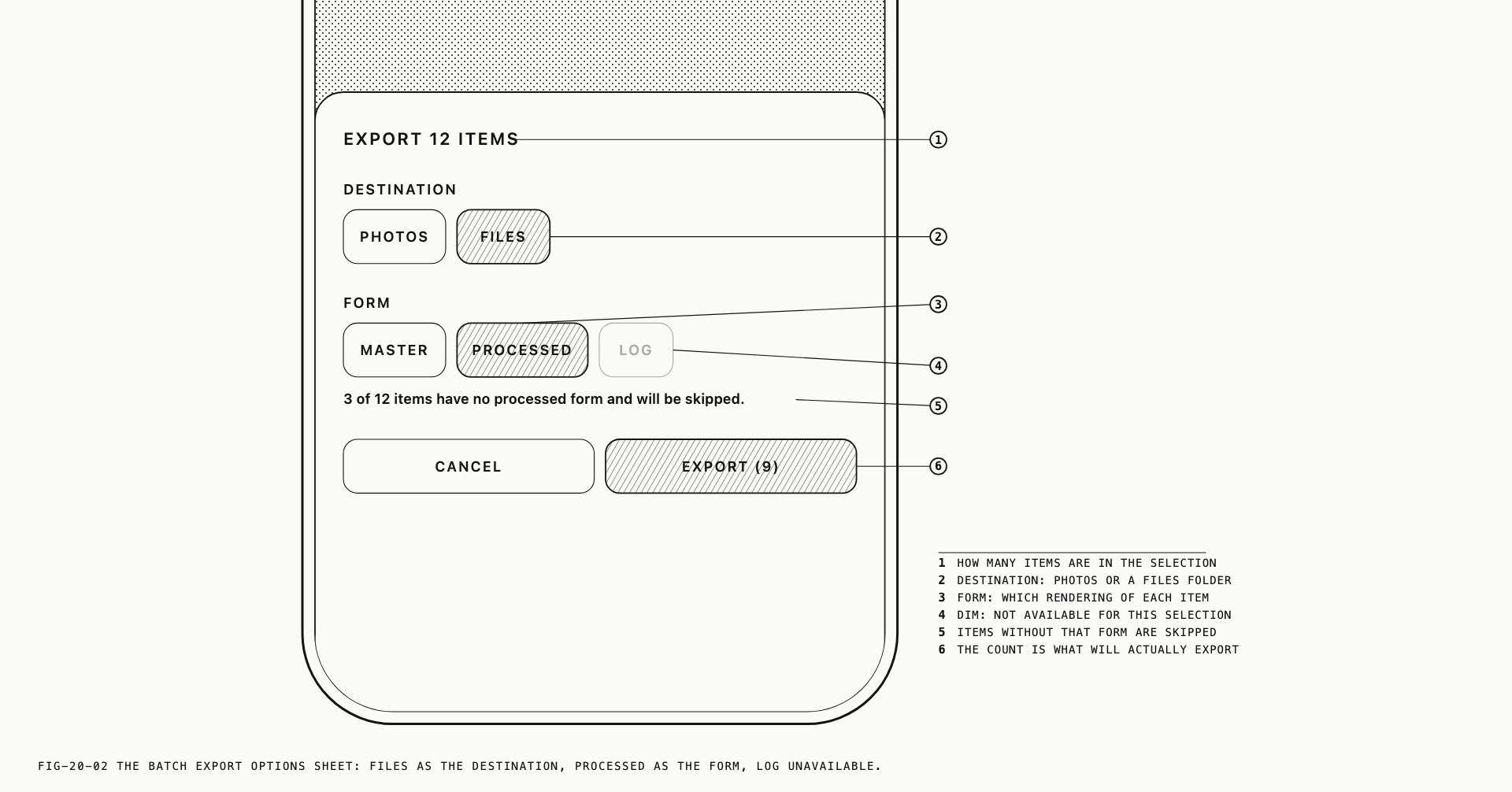
The two blocks are not independent. Choosing PHOTOS locks the form to PROCESSED, and
the sheet states why: Photos takes processed forms. A PearlaRAW capture therefore
arrives in the photo library as its finished image. A still recorded as
Apple ProRAW (12-bit) or Bayer (12-bit) is a form the photo library holds natively, so
it arrives as it is. PHOTOS is itself unavailable when nothing in the selection has a
form the photo library can take, which is the case for a selection made up entirely of
PearlaRAW clips.
Forms that no selected capture can produce are drawn dim and cannot be chosen. Where a
form applies to some of the selection but not all, the sheet counts the shortfall, as in
3 of 12 items have no log form and will be skipped., and the confirm button carries the
number it will actually export: EXPORT (9).
Choosing FILES opens the folder picker. Pick the folder the captures are to land in;
the picker is where the destination is chosen, and it is not related to the recording
destination set under Settings, which is covered in Chapter 10.
A progress card then reports the run: the number of captures done, the amount written, and
a CANCEL button. Cancelling stops the run between captures. What has already been
written stays where it is.
When the run ends, Export Complete reports the outcome in plain counts: how many were
exported and where, how many were skipped and which form they lacked, how many failed, and
whether the run was cancelled before the rest.
A capture is never written over. If the destination already holds a file of that name, a number is added to the new one.
Note: exporting to PHOTOS requires access to the system photo library, which Verana
asks for the first time you use it. Permissions are covered in Chapter 1. A capture shot
through an anamorphic lens is delivered in its correct proportions, using the lens it was
shot through rather than the one currently selected on the camera.
20.4 Sharing
SHARE hands the selection to the system share sheet, which is where AirDrop, Mail,
Messages and saving to the photo library live. Each capture goes as its most usable form:
a finished image where one exists, and the file itself where none does.
A PearlaRAW clip has no finished image until it is rendered, so it shares as the clip file
itself. That is useful for moving a clip between your own devices and of no use to a
recipient without Verana. To send someone a clip they can watch, use the Share card in
Revela Lite, which renders first.
If nothing in the selection can be shared, the sheet does not open and Verana reports
Nothing shareable in this selection.
Sharing from Revela Lite behaves differently. A still is rendered at
full quality with the adjustments currently on screen, saved or not, in the delivery space
set by the OUTPUT tool. Output color space is covered in Chapter 14 and the tool itself
in Chapter 19. A video is rendered or copied first, and Verana confirms what it
is about to produce under the heading Share Video? before doing it. The confirm button
reads Render & Share when there is work to do and Share when there is not.
20.5 Exporting Video
The Video card, and the Export Video menu item, deliver a finished clip.
Verana asks how it should be encoded on a sheet headed EXPORT VIDEO. CODEC offers
HEVC and ProRes 422 HQ. BIT RATE offers Low, Medium, High and Max, each
labeled with the rate it produces for this particular clip, so the choice is read in Mbps
rather than in the abstract. Max is the starting point, since an export is not writing in
real time and has no reason to trade quality for speed the way a recording does.
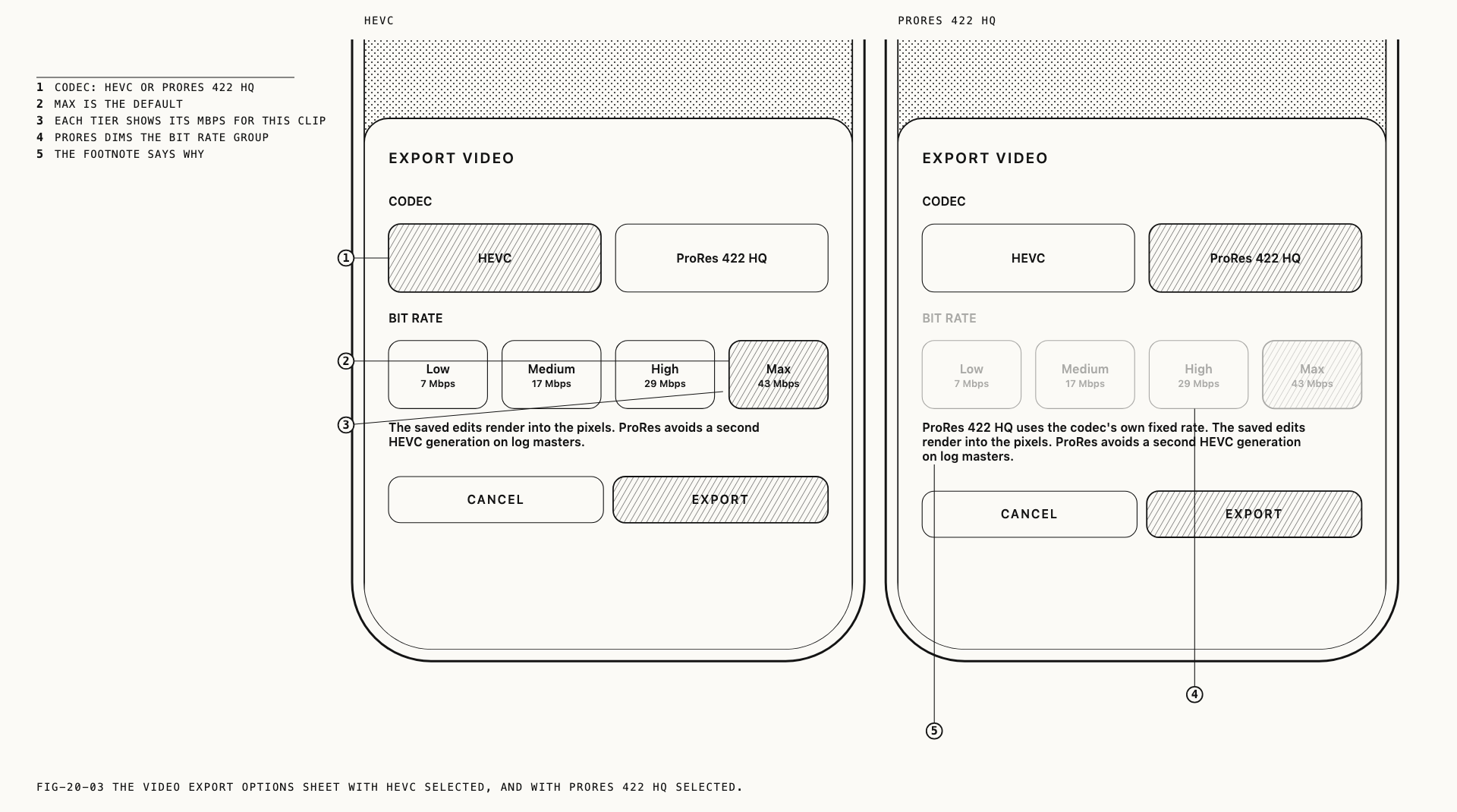
Choosing ProRes 422 HQ dims the bit rate block, which the sheet explains:
ProRes 422 HQ uses the codec's own fixed rate. The footnote below also states what the
render will do, which differs by capture: Every frame renders with the current edits.
for a PearlaRAW clip, and a note on a movie that the adjustments are rendered into the
image and that ProRes avoids a second generation of compression on a log master.
For a PearlaRAW clip, every frame is rendered with the adjustments live in Revela Lite at the moment you start the export. What leaves matches what you were looking at.
For a movie recorded in Verana with adjustments applied, the clip is rendered and the codec sheet appears. With no adjustments applied, the export copies the recording as it is and no codec is asked for. Mark in and mark out still apply, and a copy made this way may land a few frames from the mark. Verana says so before it starts.
Every video export confirms before writing: frame count, running time, frame size,
estimated size on disk, and the name of the file it will create. Where the device cannot
encode at the clip’s full size, the confirmation says the export has been scaled down and
names the limit rather than quietly delivering a smaller file. When it finishes,
Export Complete reports the file name.
20.6 Log Export
Log export applies to PearlaRAW clips. It interprets the raw into a log encoding and delivers a master for grading elsewhere.
The sheet is headed EXPORT VIDEO: LOG and carries the clip name, a preview, and a
LOG PROFILE block. The preview is one frame of the clip rendered through the export
itself, so it shows the flat, ungraded image the grading application will receive, not a
pleasing version of it. It is labeled Preview: exported log image (ungraded). Where the
frame cannot be rendered, the sheet reads Preview unavailable and the export still runs.
All eighteen log profiles are offered. Log profiles are covered in Chapter 15.
There is no exposure control on this sheet. The export is a neutral master and exposure
belongs in the grade. For the same reason, adjustments made in Revela Lite, stabilization
included, are not carried into a log export: the file is the raw interpreted into the
profile you chose and nothing else. Use the Video card when you want your adjustments in
the delivered file.
The file is named after the clip and the profile it was rendered into, so a clip exported twice into two profiles produces two distinguishable files.
20.7 DNG Sequence Export
DNG Sequence writes a PearlaRAW clip out as individual raw frames, one file per frame,
inside a folder named after the clip. This is the interchange route into applications that
prefer a frame sequence to a movie file.
Where the clip carries sound, the audio is written into the same folder as a separate file, aligned so that its start matches the first frame. It does not link itself to the sequence when imported, so place it by hand.
The frames are the raw as recorded. Adjustments made in Revela Lite are not applied, and neither is any log interpretation: this is the same material a log export starts from, handed over undeveloped.
Verana confirms the frame count, the running time and the exact size before it begins, and refuses rather than fails halfway if the destination is short of room. Re-exporting a clip creates a second folder rather than adding to the first.
20.8 Stills and Stacks
Stills leave by two routes. A selection in the library exports as MASTER or PROCESSED,
or goes to the share sheet. A still open in Revela Lite offers Share, which renders at
full quality with the adjustments on screen.
Two further deliveries produce stills rather than files elsewhere.
Current Frame, on a PearlaRAW clip, extracts the frame you are sitting on as a PearlaRAW
still and saves it into the library. It is the raw frame, not a rendered image, so it
arrives with the same adjustment tools available to it as any other raw still.
Export All, on an open burst or interval stack, does the same for every frame in the
stack at once. The stack itself stays where it is. This is the non-destructive
counterpart to keeping a marked selection, which is covered in Chapter 19.
20.9 What an Export Carries of the Sound
A Pearla Field recording captures the sound field rather than a fixed stereo pair, and the balance is set afterwards with the Field Mix tool. Chapter 11 covers the recording and Chapter 19 covers the mixing. What survives an export depends on one thing: whether you changed the mix.
Leave the mix at AS RECORDED and the sound is delivered as it was recorded, sound field
and all. This holds whether the export is a plain copy or a full render of a graded clip:
the sound is carried across either way, and the delivered file plays back as a sound field
exactly as the original does.
Choose any other mix and Verana renders your balance into the delivered file. The result plays everywhere and carries the mix you set, but it carries a conventional stereo track: the sound field itself does not come with it, and the delivered file no longer offers a mix to anyone downstream. The delivered file is not a Field recording, and does not present itself as one.
Note: trimming is the exception. A trimmed export does not carry the sound field. Where the sound field matters more than the trim, export untrimmed and cut in the edit.
Plan the delivery accordingly. To mix later, in another application or on another day,
export with the mix left at AS RECORDED. To deliver a finished clip, set the mix and
export it, and keep the original in the library as the thing to go back to.
PearlaRAW clips and ProRes RAW recordings carry conventional audio rather than a sound field, and every export of one delivers that audio as recorded.
20.10 Files, Folders and External Drives
Every export to FILES asks for its destination folder at the time you run it. The
recording destination set under Settings governs where recordings are written, and has no
bearing on where an export goes.
The folder can sit on the device or on a connected drive. A drive that is not connected
does not appear in the picker, and the library’s FILES source reports
Drive not connected. rather than presenting itself as an empty folder.
Verana checks the destination for room before it writes anything, and refuses the export rather than failing partway through, naming both what is needed and what is free. A render also needs working room on the device itself, and the export says so if the device rather than the destination is short.
Note: the drive folder you record into cannot be the destination of an export drawn
from it. Verana reports The drive folder is the source of this export. Choose a different destination. and asks for another folder. Exporting from a drive to itself would leave
two copies of the same material in the folder the library is reading.
An export completes or it leaves nothing behind. A cancelled or failed video export removes the partial file, and a cancelled DNG sequence removes the folder it had started filling, so a drive is never left holding a half-written clip that looks like a whole one. In a batch, the captures that finished before the interruption stay, and the summary says how many those were.
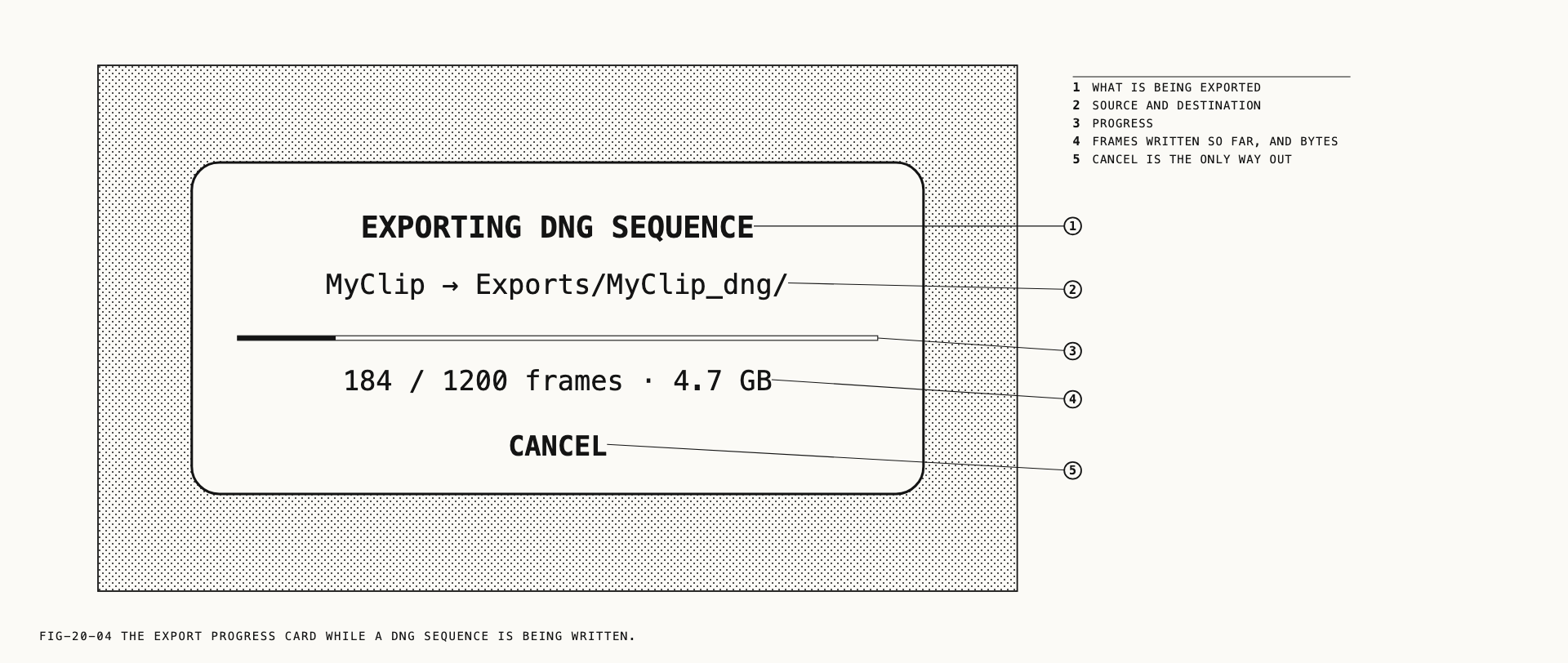
The screen stays awake for the duration of an export, and the progress card cannot be
dismissed by a stray gesture. CANCEL is the only way out while it is writing.
← 19. Revela Lite · Contents · 21. Remote Monitoring and Control →